
 Leavely
Password and email verification
The password rules, how to reset a forgotten password, and how to verify your email address.
Reset your password when you forget it, and verify your email address so that you can invite your team.
Password rules
Every Leavely password must:
- Have 8 to 128 characters.
- Contain an uppercase letter, a lowercase letter and a number.
The same rules apply when you sign up, accept an invitation, reset your password or change it in My Profile. A password that you change in My Profile must also be different from your current password.
Change your password
When you know your current password, change it in My Profile. You stay signed in on that device, and Leavely signs you out on all other devices.
Reset a forgotten password
You reset your password while you are signed out. When you are signed in, change it in My Profile instead.
Ask for a reset link
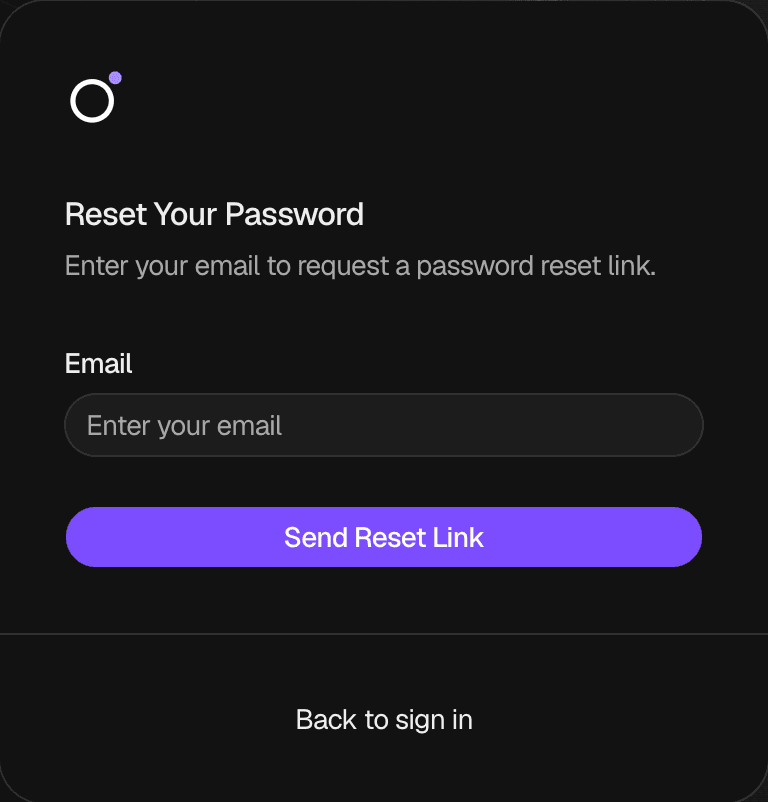
On the sign-in page, select Forgot your password?. Type your Email, then select Send Reset Link. Leavely shows "Check Your Email".
Open the email
Open the email "Reset your password for Leavely", and select Reset Password. The link expires in 60 minutes and works once.
Choose a new password
On the page Choose a New Password, type your New Password, and type it again in Confirm Password. Select Reset Password.
Sign in again
Leavely shows "Password Updated". Select Sign In, and sign in with your new password.
A password reset signs you out on all your devices. Sign in again on each device with your new password.
Verify your email address
When you sign up, Leavely sends you the email "Verify your email for Leavely". A person who joins a company from an invitation does not get this email. Accepting the invitation verifies their email address.
You can sign in, set up your company and use Leavely before you verify. Until you verify:
- Leavely shows the banner "Verify your email to invite teammates." at the top of each page of your company.
- Add Employee is not available, so you cannot add employees.
- You cannot resend an invitation. You can still revoke one.
Open the email
Open the email "Verify your email for Leavely", and select Verify Email. The link expires in 24 hours.
Check the result
Leavely signs you in and opens your company, or company setup when you have not set up your company yet. The banner no longer shows, and you can add employees. Leavely also sends you the email "Your email is verified".
To get a new verification email, select Resend Email in the banner. Leavely shows "Email sent". The banner shows after you set up your company.
Rules and limits
- A verification link expires in 24 hours.
- A password reset link expires in 60 minutes and works once.
- A password reset signs you out on all your devices.
- Leavely sends account emails to the email address of your account. You cannot change this address. See the FAQ in Sign up and sign in.
- An Owner or Admin needs a verified email address to add employees and to resend invitations.
FAQ
Look in your spam folder. Then set up your company, if you have not done it yet, and select Resend Email in the banner at the top of the page. Leavely sends the email to the email address of your account, which shows under your name at the bottom of the sidebar. When that address is wrong, see the FAQ in Sign up and sign in.
Sign in. When you have not set up your company yet, set it up first. Then select Resend Email in the banner, and open the new email within 24 hours.
Leavely shows "Reset Link Unavailable". A reset link expires after 60 minutes and works once. Select Request New Link, and ask for a new email.
Look in your spam folder, and check that you typed the email address of your account. Leavely shows "Check Your Email" for every email address, also when no account has that address.
Ignore it. Your password stays the same until a new password is set from the link in the email.
No. Accepting the invitation verified it.
Related pages
Last reviewed on