
 Leavely
Company
How the Owner changes the name, logo, work schedule and leave request settings of a company, and deletes a company.
Change the name and logo of your company, its working days, and the rules for half-day and past leave, or delete a company.
Where to find it
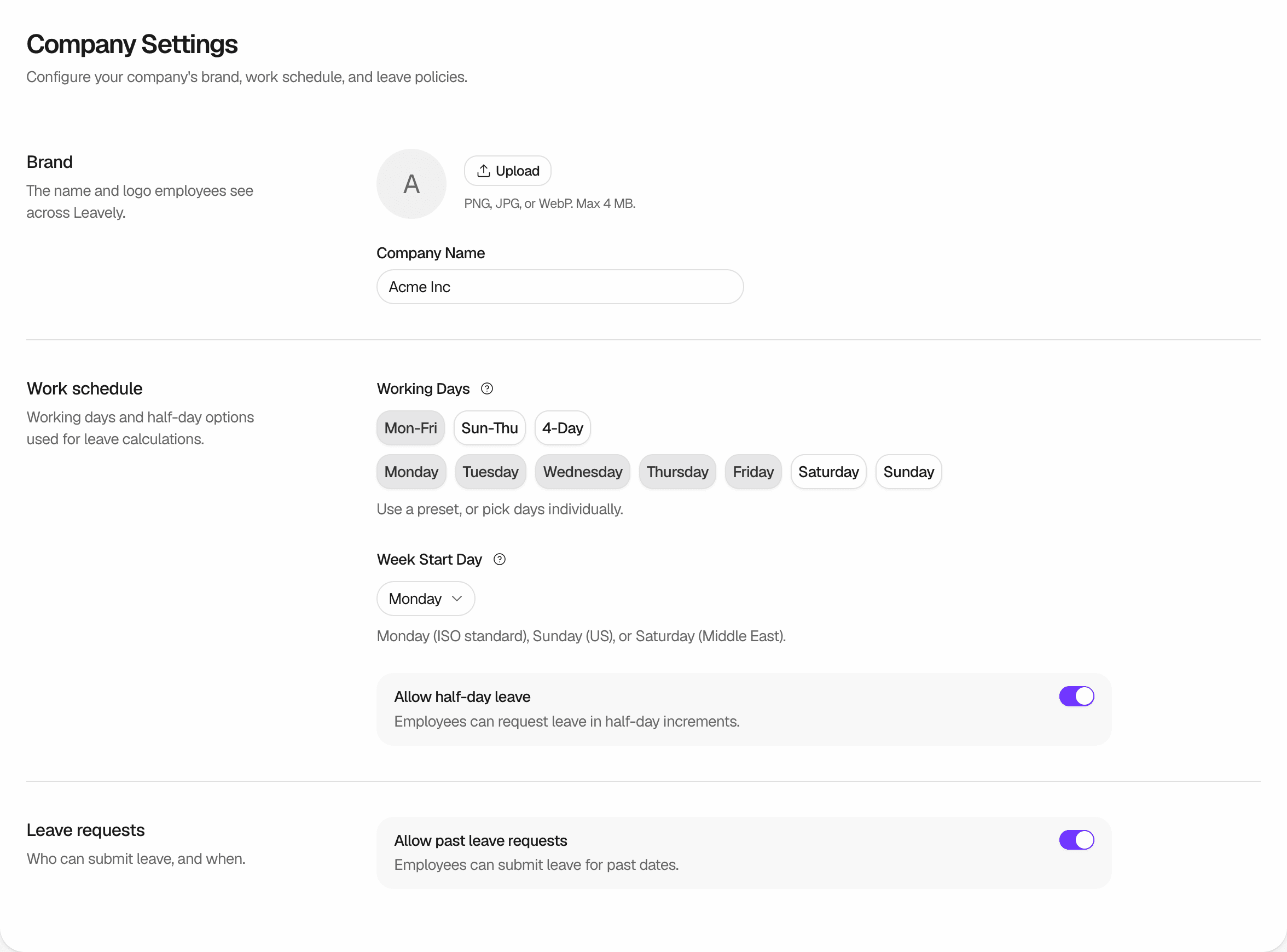
In Leavely, go to Settings > Company. The page Company Settings has three sections: Brand, Work schedule and Leave requests.
Change the name or the logo
The name and the logo show in the company switcher at the top of the sidebar, for every member.
To change the logo, in Brand, select Upload, or Replace when the company already has a logo. Choose a PNG, JPG or WebP image of up to 4 MB. Leavely saves it at once and shows "Logo updated". To remove the logo, select Remove. The initials of the company name show instead.
To change the name, type it in Company Name, then save your changes. See Save your changes.
Change the work schedule
A new company works Monday to Friday, starts its week on Monday, and allows half-day leave and past leave requests. In Work schedule:
- Working Days: select a preset, Mon-Fri, Sun-Thu or 4-Day, or select each day. 4-Day is Monday to Thursday. A day that is not a working day, or a public holiday, cannot be the start or end day of a Leave Request. Inside a request, Leavely does not count these days. See Request leave.
- Week Start Day: select Monday, Sunday or Saturday. The month grid in My Year and the date pickers in the leave request form start their weeks on this day.
- Allow half-day leave: when this is on, employees can request a morning or an afternoon. It applies to all Leave Types.
Change the leave request rules
In Leave requests, Allow past leave requests controls whether a Leave Request can start before today. When it is off, Leavely rejects a request that starts before today and shows "Past dates are not allowed. Please select today or a future date." See Request leave and Active Leave Calendars.
Save your changes
When you change a field other than the logo, the bar Unsaved changes shows at the bottom of the page.
- Select Save Changes. Leavely shows "Settings saved".
- Select Discard to go back to the saved settings.
The Leave Year Policy
The Leave Year Policy is not on this page, and you cannot change it. You choose it when you set up your first company. A company added from the Companies page always uses the Calendar Leave Year Type. See Add a company.
The policy stays fixed because your Leave Balances and Leave Requests belong to Leave Calendars with fixed dates. See Leave year and leave calendars.
Delete the company
You cannot undo this. Leavely deletes all the data of the company, and every member loses access to it.
You can delete a company only when you belong to at least one other company. You cannot delete the company that is open.
Open another company
Use the company switcher at the top of the sidebar to open another of your companies.
Select delete
Open the company switcher and select Manage companies. In the row of the company, select the delete button. The dialog Delete (company name)? opens.
Confirm
Select Delete Company. Leavely shows "(company name) removed", and the company leaves your list.
When the company has a paid Plan, the dialog shows "This company has an active subscription". Leavely cancels the subscription at once, and you are not charged again. If Leavely cannot cancel it, it shows "Failed to cancel subscription. Please try again." and does not delete the company.
The accounts of the other members stay, with their other companies. A member who has no other company keeps their account. At their next sign-in, Leavely asks them to set up a company. Pending invitations to the deleted company stop working. See Invitations.
Rules and limits
- The company name must have at least 2 characters.
- Select at least one working day.
- A logo must be a PNG, JPG or WebP image of up to 4 MB.
- A change to the working days applies to new Leave Requests. Leave that already exists keeps the days that Leavely counted when it was requested.
- Nobody can change the Leave Year Policy after the company is created.
- You cannot give the Owner role to another member.
FAQ
No. Only the Owner can open Settings > Company. See Roles and approval authority.
Employees can no longer request half days. Half-day leave that already exists shows over the full day on the Wall Chart. See Wall Chart.
You cannot leave it. Delete it instead, when you belong to another company. See Leave a company.
Related pages
Last reviewed on