
 Leavely
Approvals
The Approvals page, where approvers review, approve and reject pending leave requests, one at a time or several at once.
Review the pending leave requests that you can approve, and approve or reject them one at a time or several at once.
A Department Manager also uses Approvals, for the requests of the members of their Department.
Where to find it
Approvals has no item in the sidebar. To open it:
- Select the notification bell at the top right of any page.
- Select View details or View all requests.
The bell shows only when you can approve requests. See Notifications.
The browser tab and the path at the top of the page show Notifications. It is the same page as Approvals.
When no request waits, the page shows "You're all caught up. No requests need approval." If the page cannot load the requests, it shows "Couldn't load approvals. Please try again." Reload the page.
Read the queue
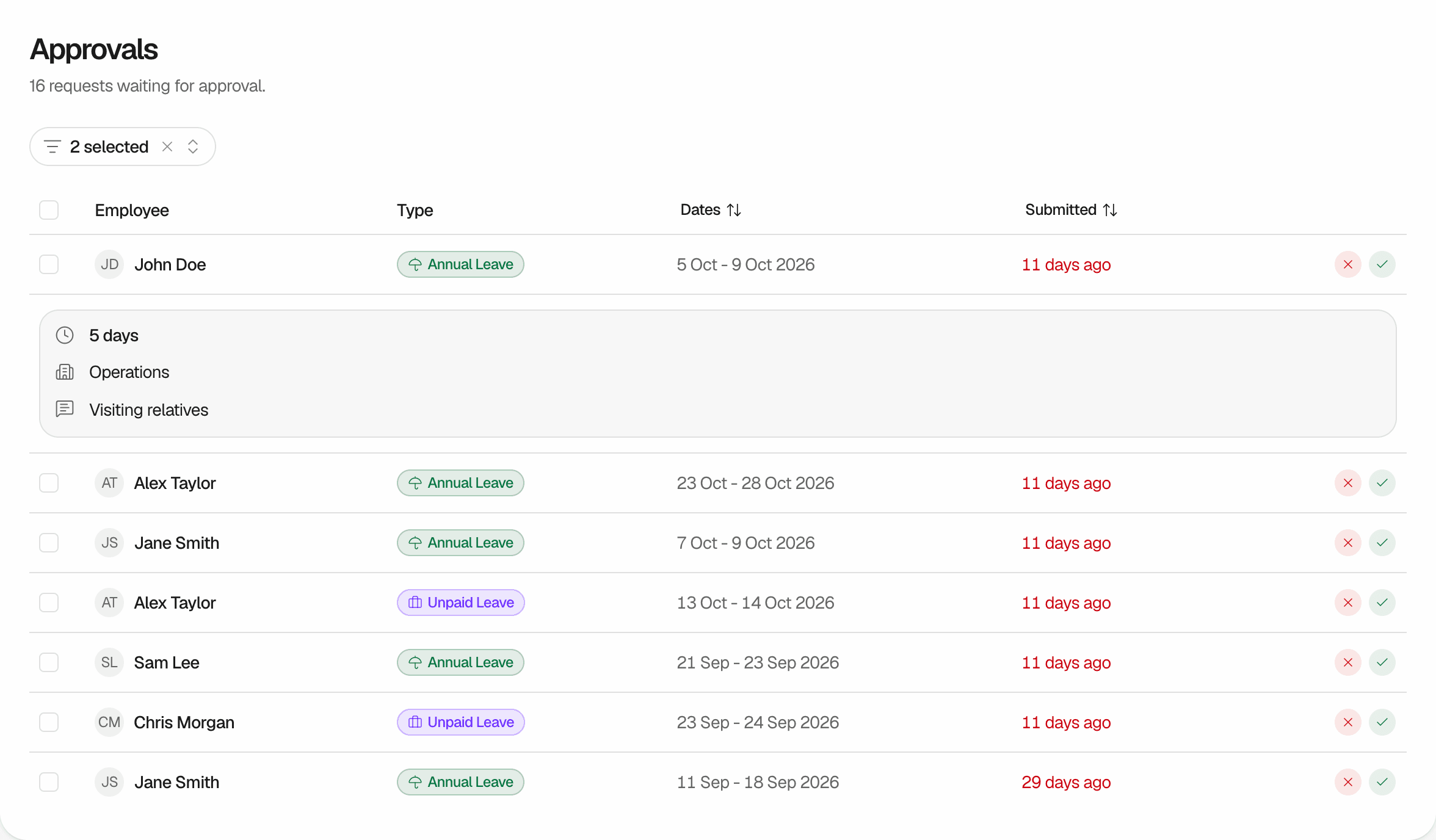
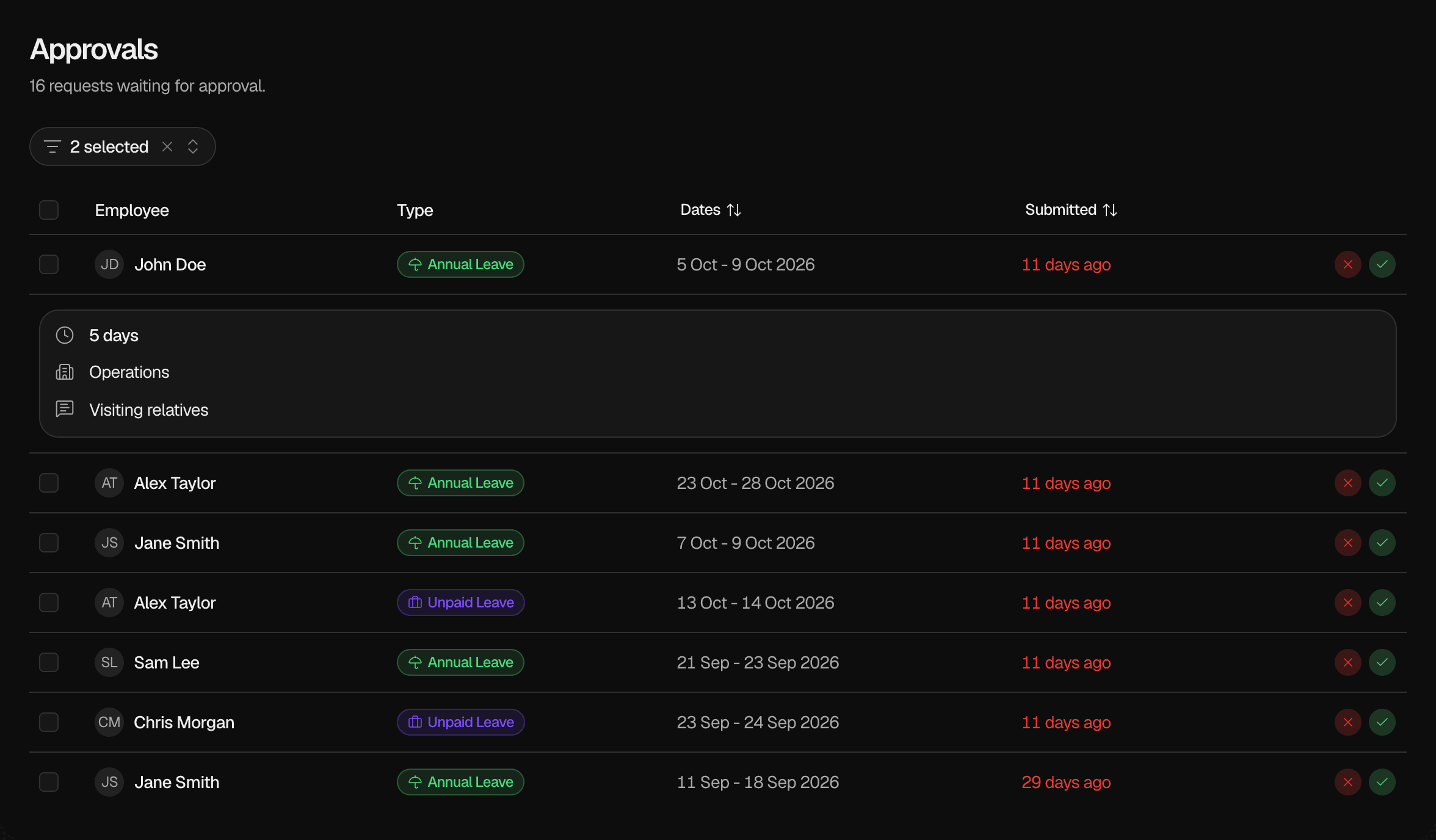
Approvals lists the pending Leave Requests of the people whose leave you can approve. The Owner and Admins see the pending requests of all members. A Department Manager sees the pending requests of the members of their Department. See Roles and approval authority.
Each row shows the Employee, the Leave Type (Type), the Dates and when the employee sent the request (Submitted). To sort the list, select Dates or Submitted.
Select a row to see more:
- The number of days, and the half of the day for half-day leave
- The employee's Department, or "Unassigned"
- The description of the request, or "No description"
A request leaves the queue when an approver approves or rejects it, or when the employee withdraws it. It stays in the queue until then, even after its dates have passed.
Filter by Department
When the queue has requests from two or more Departments, a Department filter shows above the list. Select one or more Departments. Requests from employees with no Department do not show while the filter is on.
To remove the filter, select the x in the filter, or select Clear Filter when no request matches.
Approve a request
Select the approve button
In the row of the request, select the green check button. The Approve Leave Request dialog opens with the employee, dates, days and Leave Type.
Confirm
Select Approve. Leavely shows "Request approved". The leave is approved, it uses days from the Leave Balance when its Leave Type deducts days, and the employee gets an email.
If the Leave Balance no longer has enough days, Leavely shows "Couldn't approve this request.", and the request stays pending. See Leave request lifecycle.
Reject a request
Select the reject button
In the row of the request, select the red x button. The Reject Leave Request dialog opens.
Give a reason
In Reason for rejection, type why you reject the request. The reason must be 10 to 500 characters.
Confirm
Select Reject. Leavely shows "Request rejected". The request is rejected and uses no days, and the employee gets an email.
The employee sees your reason in Summary, under Upcoming Leave, next to the rejected request, until the last day of the request has passed. The email does not contain the reason.
Approve several requests
Select the requests
Select the checkbox of each request. To select all requests in the list, select the checkbox in the header.
Approve them
Select Approve All. The dialog asks "Approve 3 Requests?" Select Approve Requests.
Leavely approves each request separately and sends each employee an email. When all succeed, Leavely shows a message such as "3 requests approved". When some fail, Leavely shows a message such as "1 of 3 requests couldn't be approved. Review selected requests and try again." The requests that failed stay selected, so you can check them.
To clear the selection, select Clear. When the Department filter is on, Leavely approves only the selected requests that you can see.
You cannot reject several requests at once. Reject each request separately.
Rules and limits
- You cannot approve or reject your own request.
- A rejection needs a reason of 10 to 500 characters. An approval takes no reason.
- Approvals shows only pending requests. To cancel approved leave, use the Wall Chart. See Leave request lifecycle.
- You can also approve and reject from the notification bell. See Notifications.
FAQ
A Department Manager sees only the requests of the members of their Department. If the employee has no Department, or is in another Department, only the Owner, an Admin, or the manager of that Department can approve it.
Another approver approved or rejected the request, or the employee withdrew it, at the same moment as you. The request keeps the status of the first action. If the request changed earlier and your list was not up to date yet, Leavely shows "Couldn't approve this request." or "Couldn't reject this request." instead.
The approval failed, often because the Leave Balance does not have enough days, or because the Leave Calendar of the request is archived. Reject the request, or ask the employee to withdraw it. See Leave request lifecycle.
You cannot undo a rejection. You can cancel approved leave on the Wall Chart until its first day, that day included. See Leave request lifecycle.
Related pages
Last reviewed on