
 Leavely
Invitations
How Owners and Admins track, revoke and resend invitations, and how an invited person accepts or declines one.
Track the invitations of your employees, revoke or resend them, and accept or decline an invitation that you get.
Where to find it
Leavely sends an invitation when an Owner or Admin adds an employee. See Add an employee.
Go to Settings > Employees. The Invitation Status column shows the status of the latest invitation of each employee. The row of the Owner shows Owner, because the Owner does not get an invitation. The Edit (name) dialog also shows the status next to the email address.
The invited person gets an email with the subject "You're invited to join (company name) on Leavely". See Notifications.
Invitation statuses
| Status | What it means | What you can do |
|---|---|---|
| Pending | Leavely sent the invitation, and the person has not answered. Hover over the status to see when it expires. | Revoke |
| Accepted | The person joined the company. | Nothing |
| Expired | The person opened the link after it expired. | Resend |
| Revoked | An Owner or Admin revoked the invitation. | Resend |
When the person declines, the employee leaves the list. See The person declines.
Revoke an invitation
In the row of the employee, select Revoke next to Pending. Leavely shows "Invitation revoked", and the status changes to Revoked. The link in the email stops working.
The employee stays in the list and keeps their Seat. To free the Seat, remove the employee.
Resend an invitation
You must verify your own email address first. See Password and email verification.
In the row of the employee, select Resend next to Expired or Revoked. Leavely sends a new email with a new link, shows "Invitation resent", and the status changes to Pending. The new link lasts 14 days, and the old link stops working.
To send a new link for a Pending invitation, for example when the person lost the email, select Revoke, then Resend.
A resent invitation does not need a free Seat. The employee already has one.
Accept an invitation
This section is for the person who gets the invitation. Select Accept Invitation in the email. What you see depends on whether your email address already has a Leavely account.
Check your details
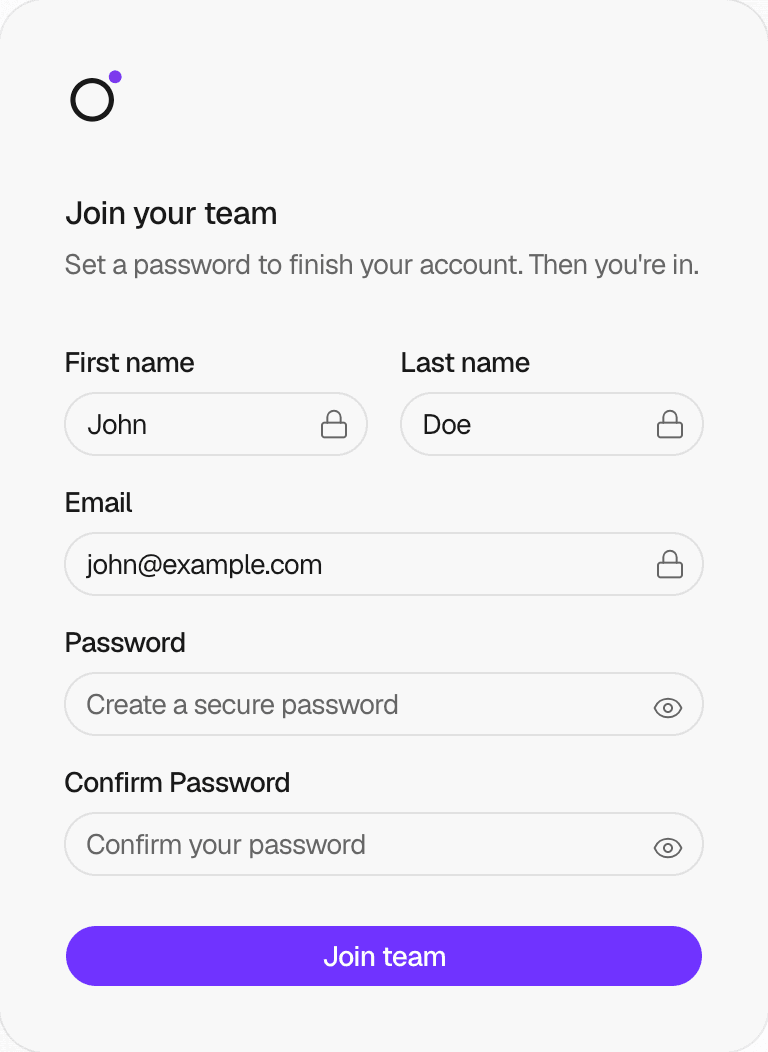
The page Join your team shows your name and your email address. The Owner or Admin who added you typed them, and you cannot change them here. You can change your name later in My Profile.
Set a password
Type a password, and type it again to confirm it. See Password and email verification.
Join
Select Join team. Leavely signs you in and opens the company. Your email address is now verified. To change your name or password later, go to My Profile.
Rules and limits
- An invitation lasts 14 days. The link works until the end of its last day.
- An email address can have one pending invitation for each company.
- An Owner or Admin must verify their own email address before they can add an employee or resend an invitation. Until then, Leavely shows "Verify your email to invite teammates." Revoking does not need a verified email address.
- For an existing account, only the person signed in with the invited email address can accept or decline the invitation.
- Only a person who already has a Leavely account can decline. A person who is new to Leavely can ignore the invitation instead.
- An invitation does not use a Seat. The employee does, from the moment you add them. See Seats.
What happens when
The invitation expires
The link no longer works. When the person opens it, Leavely shows "Invitation expired" and asks them to get a new one from their admin, and the status changes to Expired. The employee stays in the list and keeps their Seat. Select Resend to send a new link.
The person opens an old or unknown link
Leavely shows "Invalid invitation" and "This link is invalid or no longer exists. Ask your admin for a new invitation." After a resend, only the link in the newest email works.
The person opens the link after they join
Leavely shows "Invitation already accepted". The person selects Sign in to open the company.
The person opens a revoked invitation
Leavely shows "Invitation revoked" and asks them to ask their admin for a new one.
The email address already has a Leavely account
Leavely adds the employee to the existing account. The person signs in and selects Join company, and does not set a new password. The employee keeps the name of their account, not the name that the Owner or Admin typed.
The person declines
Leavely removes the employee from the company. The employee leaves the list, and their Seat becomes free. Their Leavely account and their other companies do not change. To invite them again, add them again.
Leavely shows "Couldn't send invitation email"
Leavely added the employee, but the email did not go out. The status shows Pending. Select Revoke, then Resend, to send the email again.
The resent email does not go out
Leavely shows "Failed to send invitation email", and the status does not change. Select Resend again.
You remove an employee with a pending invitation
The invitation changes to Revoked, and its link stops working. See Remove an employee.
FAQ
You are signed in with another account, and the invitation is for a person who is new to Leavely. Sign out, then open the link again, or send the link to that person.
The invitation is for another email address. Select Sign out, then sign in with the email address of the invitation.
No. Remove the employee, then add them again with the correct email address. See Employees.
Yes. Each employee uses a Seat from the moment you add them. See Seats.
Related pages
Last reviewed on