
 Leavely
Departments
How Owners and Admins add, edit and delete Departments, and choose the Department Manager who approves the leave of each Department.
Group your employees into Departments, and choose a Department Manager who approves the leave of each Department.
Where to find it
In Leavely, go to Settings > Departments. The table shows each Department with its Manager and its number of Members. To find a Department, type its name in Search department.
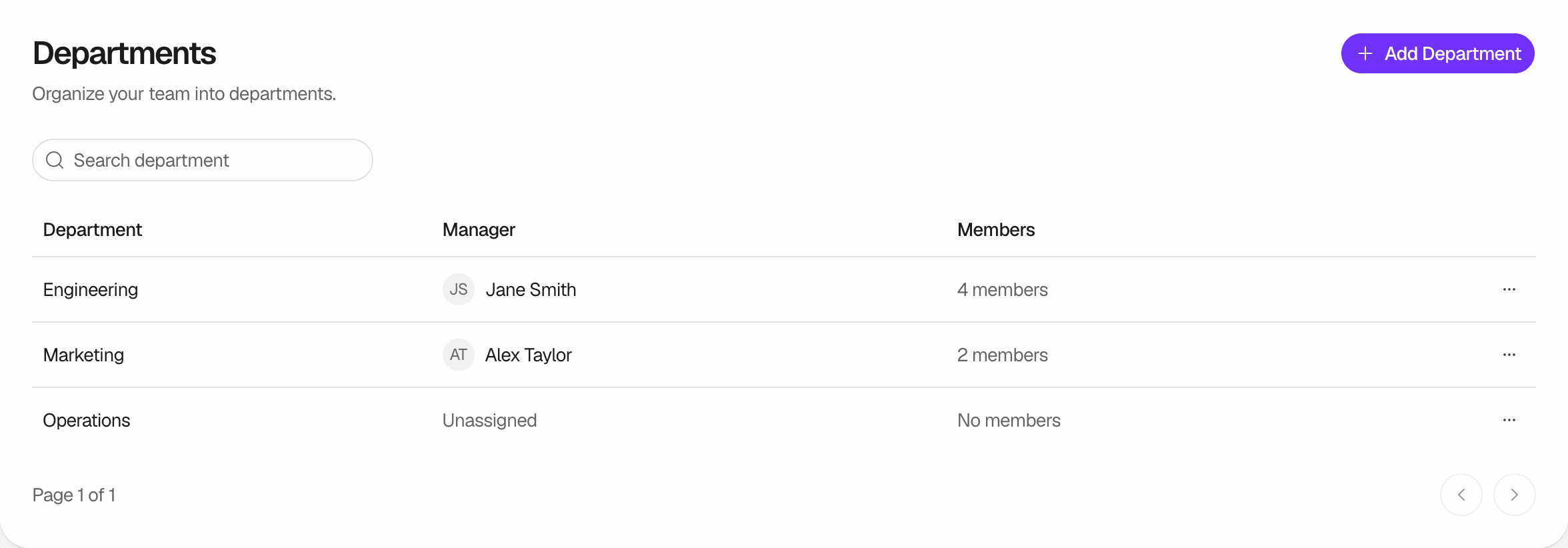
Departments and Department Managers
A Department is a group of employees, such as Engineering or Marketing. An employee can be in one Department, or in none. You choose the Department of an employee in Settings > Employees. See Employees.
The Department Manager of a Department can approve, reject and cancel the leave of its members. They can also book leave for its members, and this leave is approved at once. The Owner and the Admins keep the same authority over all members. See Roles and approval authority.
Department Manager is not a role. The person keeps their role in the company. A Department Manager does not have to be a member of the Department. An Owner or an Admin can already approve the leave of all members, so the assignment adds nothing for them.
Add a Department
Select Add Department
In the page header, select Add Department.
Enter the details
Type a Name, such as Engineering. You can also type a Description.
Choose the Department Manager
In Department Manager, select a person, or keep Unassigned. The list shows the people who have joined the company.
Create it
Select Create Department. Leavely shows "Department created", and the new row appears in the table.
A new Department has no members. To add an employee to it, open the employee in Settings > Employees, select the Department in the Department tab, then select Update Employee.
Edit a Department
Open the row menu
In the row of the Department, select the menu button, then select Edit.
Save
Change the Name, the Description or the Department Manager, then select Update Department. Leavely shows "Department updated".
A change of Department Manager applies at once. The old manager can no longer approve, reject or cancel the leave of the members. The new manager can, also for requests that the members sent before the change.
Delete a Department
Move the members
When the Members column shows members, move each of them first. In Settings > Employees, open the employee, and in the Department tab select another Department, or clear the field. Then select Update Employee.
Select Delete
When the row shows No members, select the menu button of the Department, then select Delete.
Confirm
Select Delete Department. Leavely shows "Department removed", and the row leaves the table.
You cannot undo this. The Department Manager loses the authority that the Department gave them.
Rules and limits
- Only Owners and Admins can open Settings > Departments.
- A name has 2 to 50 characters. No two Departments can have the same name. The check ignores upper and lower case.
- A description has up to 100 characters.
- A Department has one Department Manager, or none.
- An employee can be in one Department, or in none.
- Only a person who has joined the company can be a Department Manager. See Invitations.
FAQ
Only the Owner and the Admins. See Roles and approval authority.
Only when their role is Owner or Admin. A Department Manager who is an Employee uses Approvals and the Wall Chart.
The Owner, an Admin, or the manager of the Department that the Department Manager is a member of. Nobody can approve their own request. See Roles and approval authority.
The manager of the new Department can approve them, and the manager of the old Department cannot. See Roles and approval authority.
On the Wall Chart and in Approvals, you can filter by Department. See Filter by Department on the Wall Chart and Filter by Department in Approvals. Settings > Employees shows the Department of each employee. See Employees.
Related pages
Last reviewed on