
 Leavely
Request leave
How to submit a leave request from My Year or the Wall Chart, and how Leavely counts its days.
Choose a Leave Type and your dates, check how many days the request uses, and send it.
Where to find it
Leave requests have no page of their own. You open the Book Leave sheet from one of these places:
- In My Year, select Book Leave. The sheet opens with today as the start date. If today is not a working day, choose another start date.
- In My Year, select a free working day. The sheet opens with that day as the start date and the end date.
- In Wall Chart, select Book Leave, or select a day in your own row. When your company allows half-day leave, you can select the morning or the afternoon of the day.
On a phone, the sheet opens from the bottom of the screen.
Request leave
Select the Leave Type
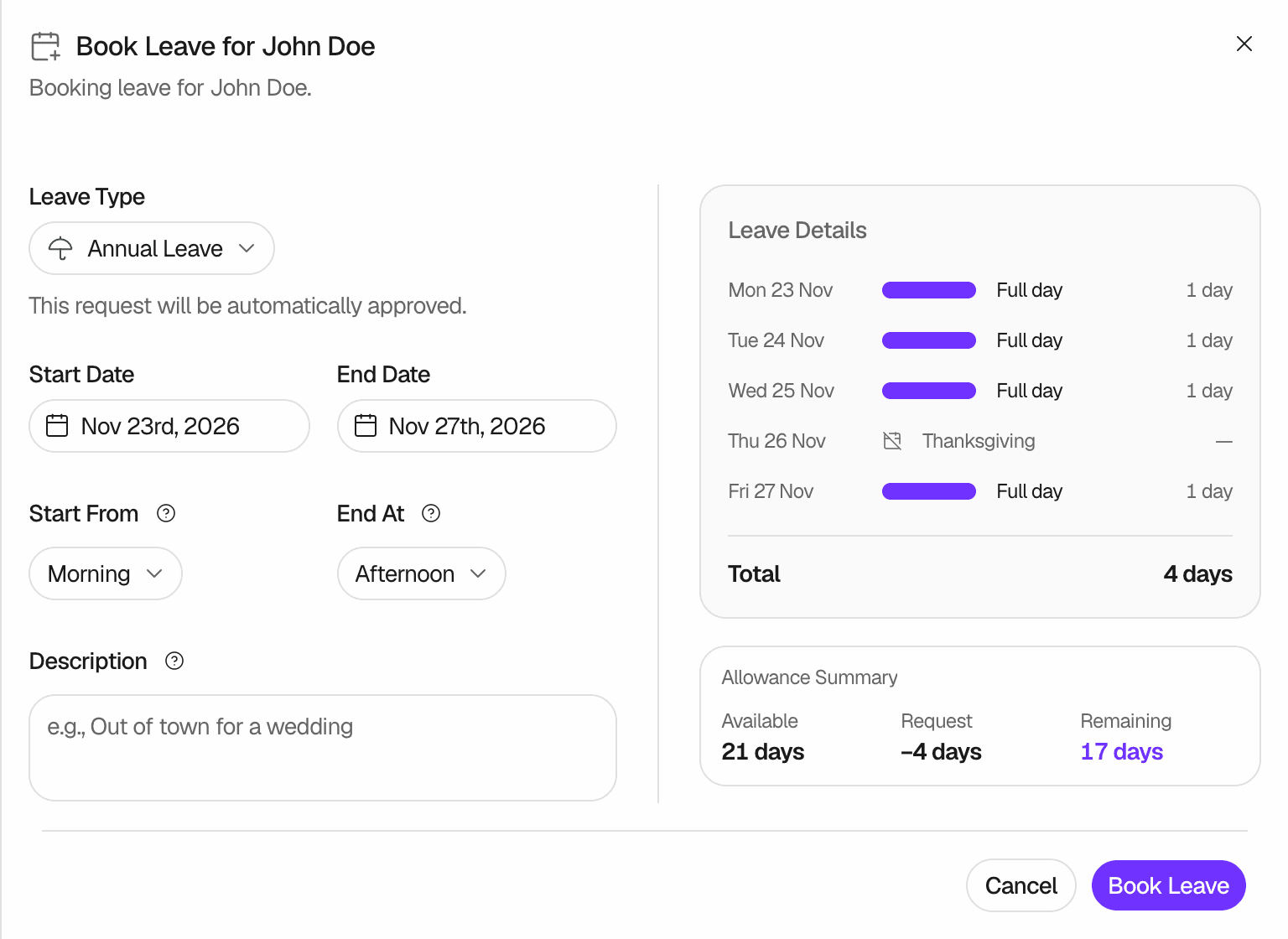
In Leave Type, select the type of leave. Below the list, Leavely tells you what happens next: "This request will be sent to your manager for approval." or "This request will be automatically approved." An Owner, an Admin, or the manager of your Department can approve a request that needs approval. Nobody can approve their own request. See Leave request lifecycle.
Choose the dates
Select a Start Date and an End Date. You can select only working days in an Active Leave Calendar. Days that are not working days for your company are not available. Leavely shows the public holidays of your Holiday Location as unavailable, and it does not count them.
Choose half days
This step shows only when your company allows half-day leave.
- For one day, select Full Day, Morning or Afternoon in Leave Period.
- For more than one day, use Start From and End At. Set Start From to Afternoon to take only the afternoon of the first day. Set End At to Morning to take only the morning of the last day.
Add a description
In Description, you can add context for the people who approve your request, up to 500 characters. The description is optional.
Check the days
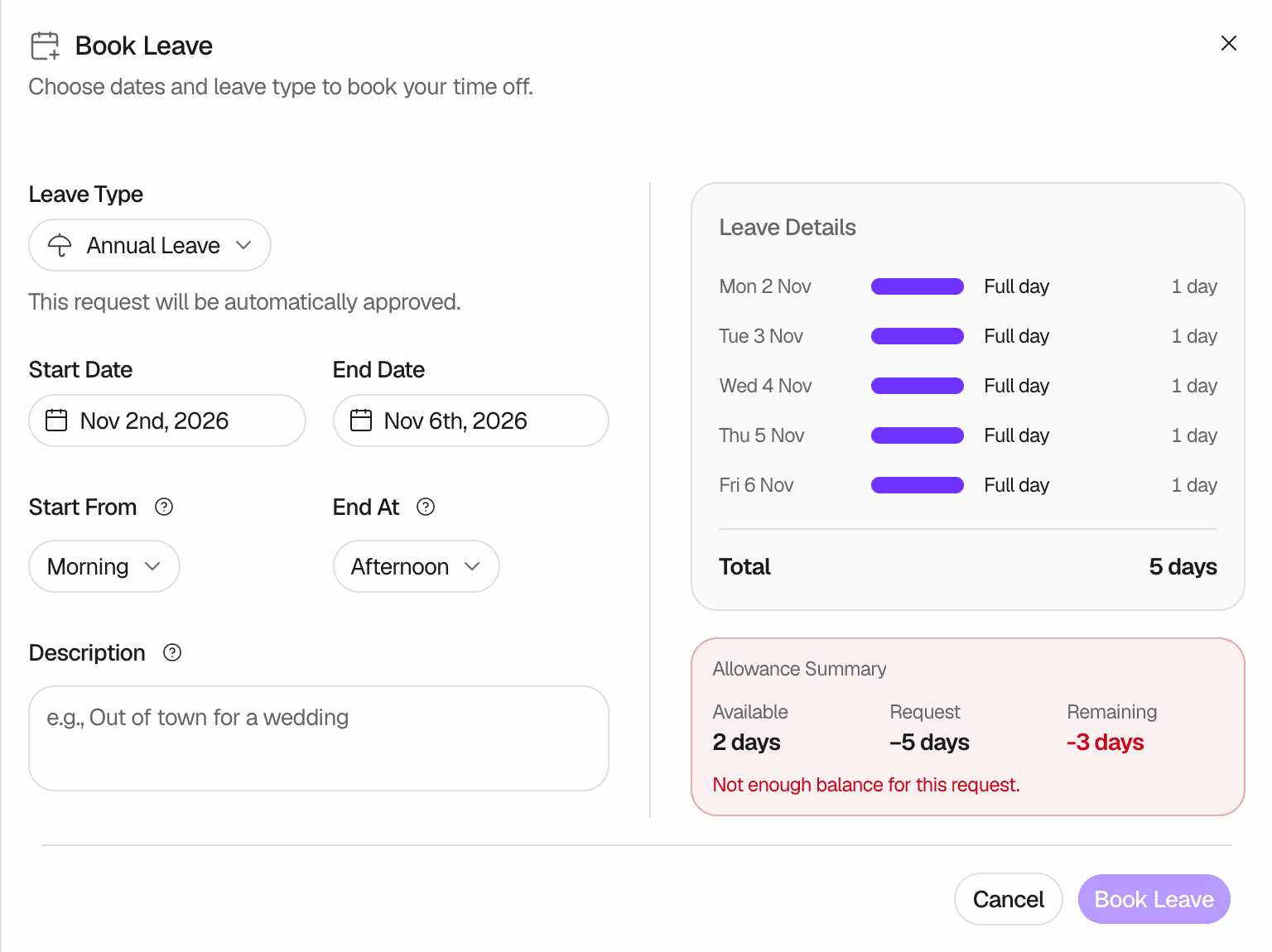
For a request of more than one day, Leave Details lists each day and the Total. When the list has more than 10 entries, it shows the first 2 days, the number of other days, such as +6 more days, and the last 2 days. When the Leave Type uses days from an allowance, Allowance Summary shows your days Available, the days in the Request, and the days Remaining after it.
Book the leave
Select Book Leave. Leavely shows "Leave booked", and the request appears in My Year and on the Wall Chart. It is Pending until someone approves it, or Approved at once.
After you send a request, you cannot change it. To change a pending request, withdraw it and send a new one.
Book leave for another employee
A Department Manager can also book leave for the members of their Department.
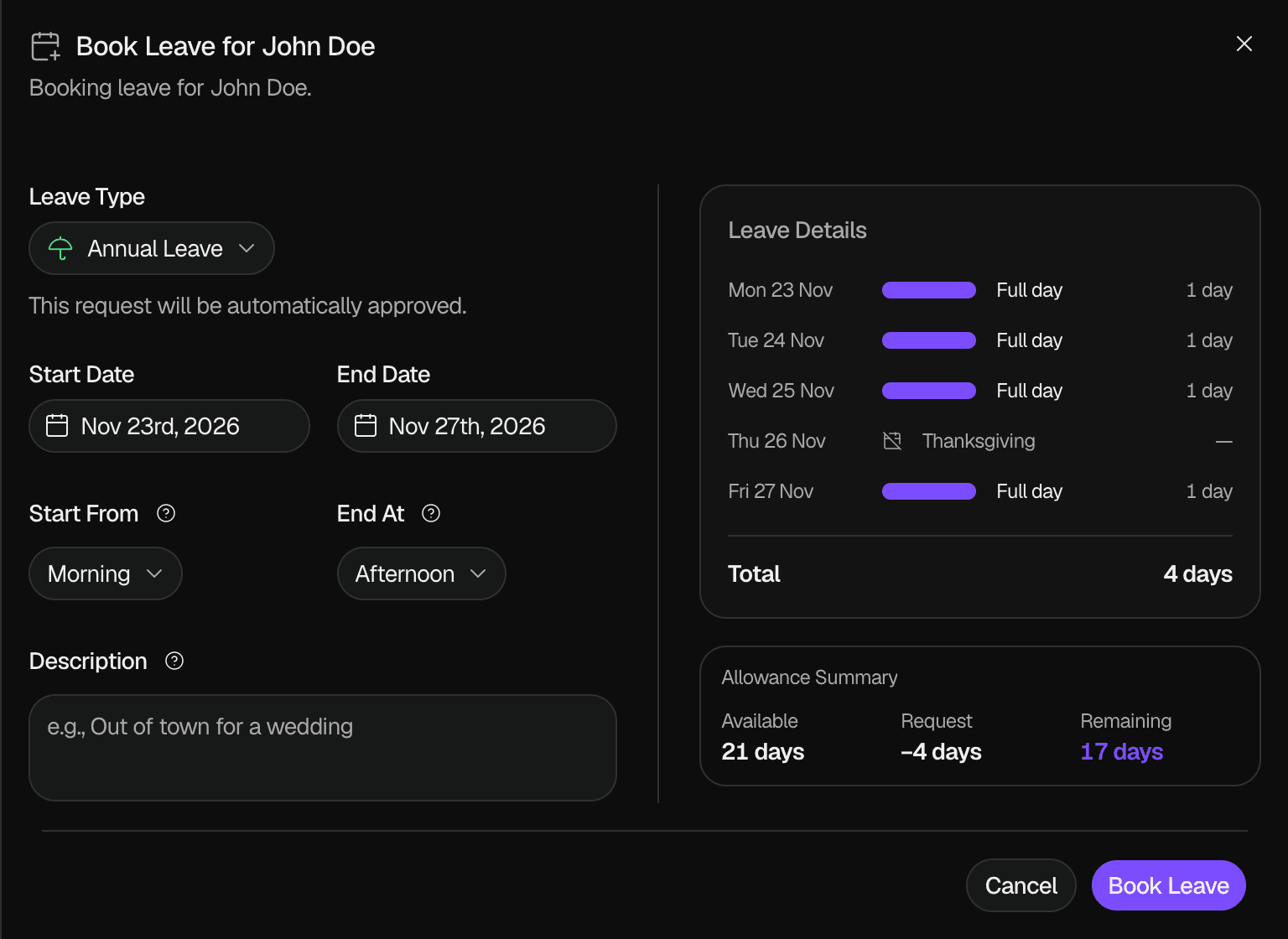
On the Wall Chart, select a day in the row of the employee. The sheet opens with the title Book Leave for and their name. Complete it as above. Leave that you book for another employee is approved at once. A Department Manager who is not an Owner or Admin does not see Leave Types marked Admin Only. See Wall Chart.
Rules and limits
- A request must include at least one working day.
- A request must start in an Active Leave Calendar and end in the same Leave Calendar. See What happens when.
- A request cannot overlap a pending or approved request of the same employee. Two half-day requests on the same day are allowed when one is the morning and the other is the afternoon.
- Half days are available only when Allow half-day leave is on in Settings > Company.
- You can request leave on past dates only when Allow past leave requests is on in Settings > Company. It is on by default.
- Only Owners and Admins can select Leave Types marked Admin Only. Other members, Department Managers included, do not see them.
- You cannot send a request that needs more days than the Leave Balance has available. See When your balance is not enough.
How it affects your Leave Balance
A request uses days from a Leave Balance only when its Leave Type deducts from an Allowance Type. A Leave Type with No Deduction uses no days. Leavely counts working days, not calendar days:
- A day that is not a working day for your company is not counted.
- A public holiday of your Holiday Location is not counted. If you have no Holiday Location, no day counts as a holiday for you.
- A half day counts as 0.5 days.
The days leave the balance when the request is approved. In these examples, the company works Monday to Friday.
| Request | Days counted |
|---|---|
| Monday to Friday | 5 |
| Monday to Friday, with a public holiday on Wednesday | 4 |
| Thursday to the next Tuesday | 4 |
| One day, Morning | 0.5 |
| Monday to Wednesday, Start From set to Afternoon | 0.5 + 1 + 1 = 2.5 |
| Monday to Wednesday, End At set to Morning | 1 + 1 + 0.5 = 2.5 |
To learn how Leavely calculates the days in a Leave Balance, see Allowances and entitlement.
When your balance is not enough
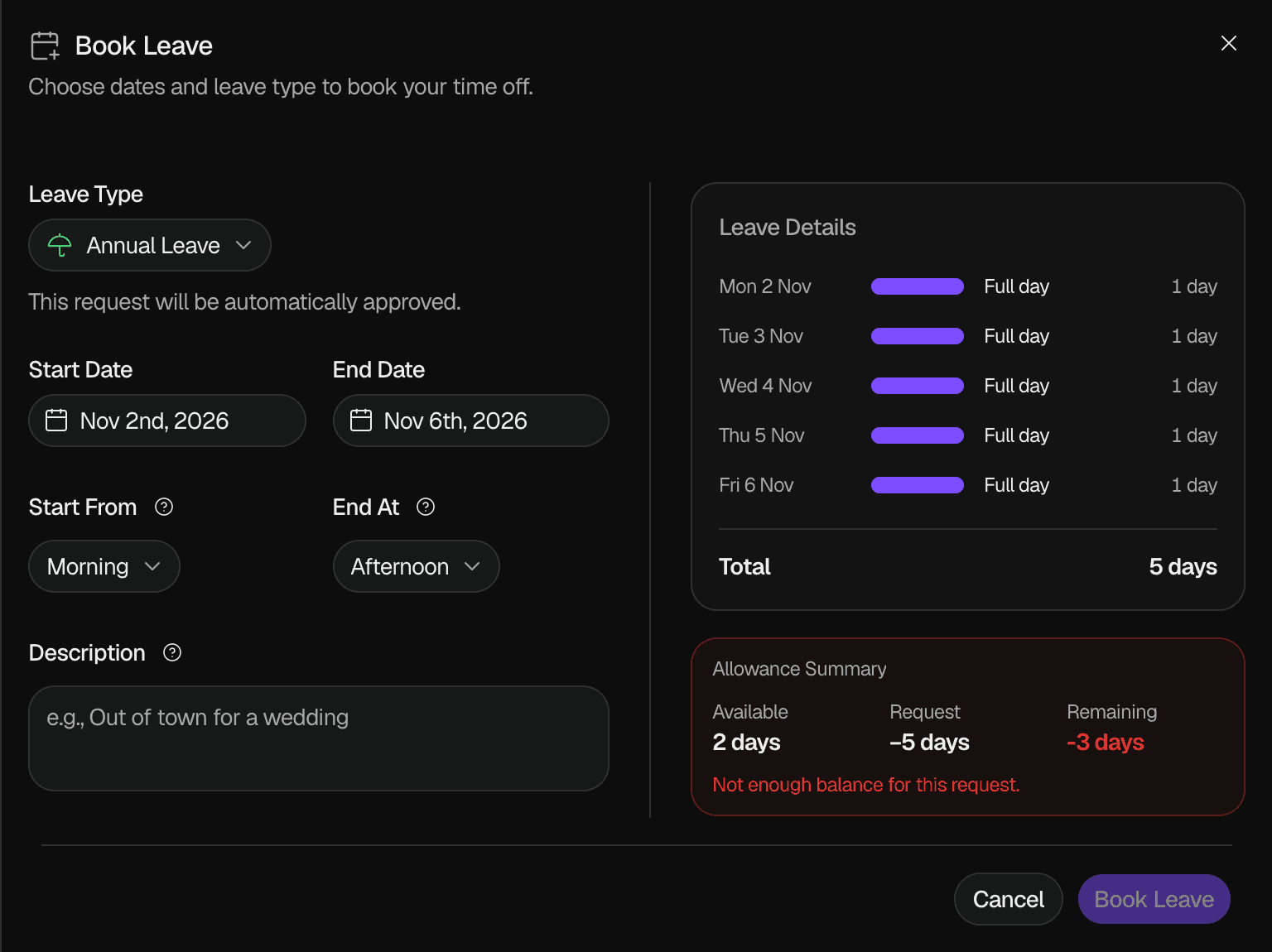
When the request needs more days than are available, Remaining shows a negative number in red, and the sheet shows "Not enough balance for this request." You cannot select Book Leave. Choose fewer days, or a Leave Type that does not use days from this allowance.
Available does not subtract the days of your pending requests. Leavely checks the balance again when an approver approves the request.
What happens when
A request crosses two Leave Calendars
Leavely rejects it. The message gives the last day of the first Leave Calendar and the first day of the next. Send two requests: one that ends on the last day, and one that starts on the first day. See Leave year and leave calendars.
A public holiday falls inside the dates
Leavely does not count it. The request uses days only for its other working days.
The dates are in the past
The sheet shows "You're booking days in the past." This warning uses the date on your device. When Allow past leave requests is on, you can send the request, and it follows the same approval rules as any other request. When the setting is off, Leavely rejects a request that starts before today, and it uses the date in UTC as today.
The start date is not in an Active Leave Calendar
Leavely rejects the request. The start date must be in a Leave Calendar that is not archived. See Leave year and leave calendars.
Leavely rejects the request
Leavely shows the reason in a message. The table lists the messages.
| Message | What to do |
|---|---|
| Leave dates overlap with existing request | Choose dates that do not overlap your pending or approved leave. |
| Request must include at least one working day | Include a working day that is not a holiday. |
| This date is outside the current open leave periods. Please select a closer date. | Choose a start date in an Active Leave Calendar. |
| This leave spans two different leave periods. Please submit two separate requests — one ending on [date], and another starting on [date]. | Send the two requests that the message names. |
| Past dates are not allowed. Please select today or a future date. | Choose today or a later date. |
| Half-day leave is not enabled for this company | Request full days. |
| Leave type is not active | Choose another Leave Type. |
| Insufficient leave balance. Available: X days, Requested: Y days | Choose fewer days, or another Leave Type. |
FAQ
The day is not a working day for your company, it is a public holiday of your Holiday Location, or it is not in an Active Leave Calendar. In My Year, you also cannot select a day that already has your leave on it.
Yes, when your company allows half-day leave. Select Book Leave, set Start Date and End Date to that day, and select the other half in Leave Period. On the Wall Chart, you can also select the free half of the day in your row.
No. Withdraw a pending request in Summary, then send a new one. An approved request can be cancelled only by an Owner, an Admin, or your Department Manager. See Leave request lifecycle.
When your request needs approval, the people who can approve it see the description in Approvals.
Last reviewed on