
 Leavely
Manage your subscription
How the Owner compares plans, upgrades a company from the Free Plan, and changes or cancels a paid subscription.
Compare the Plans of your company, upgrade from the Free Plan, and change or cancel a paid subscription.
Where to find it
In Leavely, select your name at the bottom of the sidebar, then select Upgrade Plan. On a paid Plan, the same item is Billing. Both open the Plans page.
You can also select View plans on the Seats card in the sidebar, which shows on the Free Plan. The prompts that show when your Plan does not include Reports, or when all Seats are in use, also have View plans.
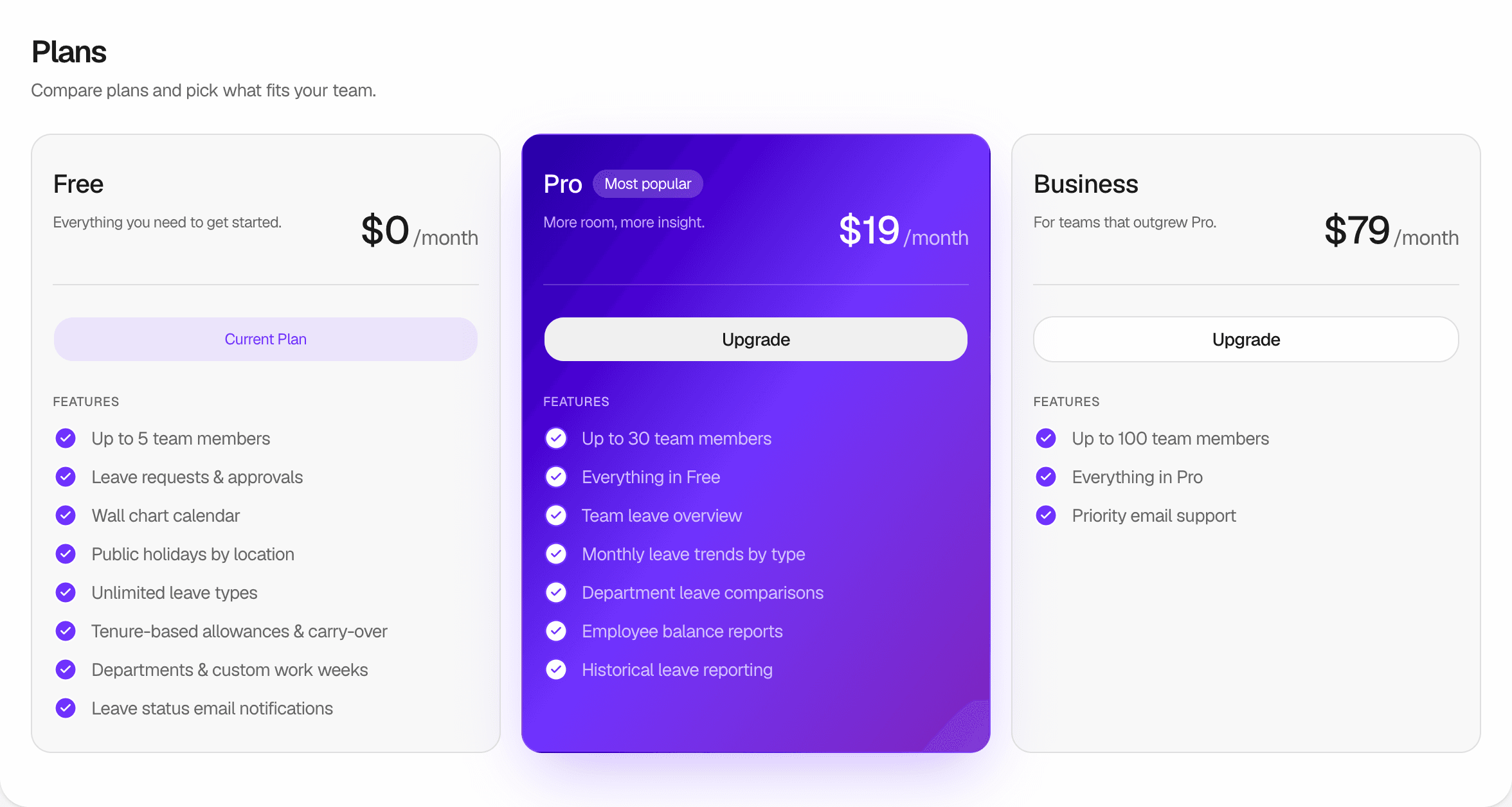
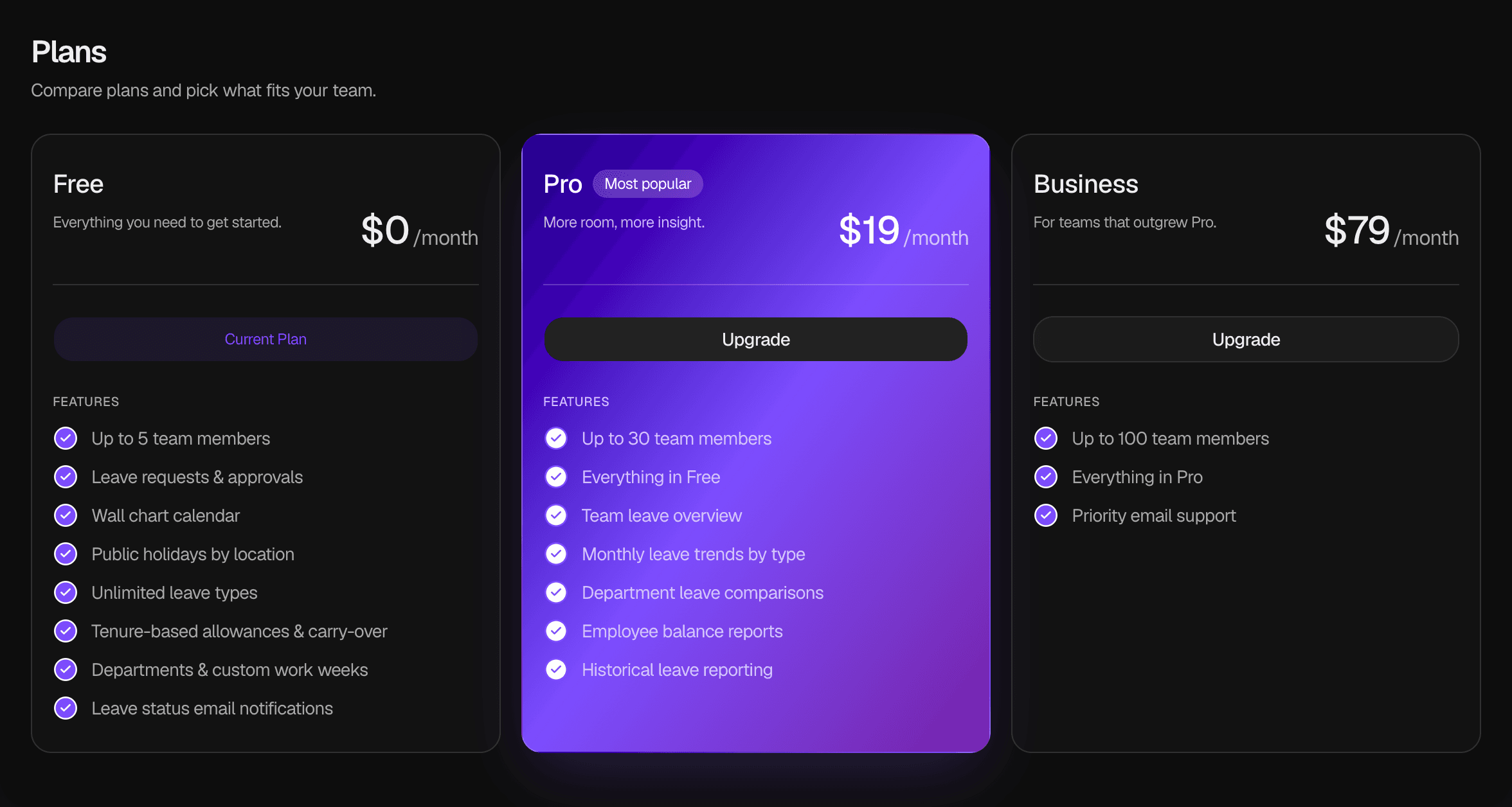
The Plans page shows a card for each Plan: Free, Pro and Business. Each card shows the monthly price and what the Plan includes. To compare them, see Plans and seats.
Upgrade from the Free Plan
Choose a Plan
On the Plans page, select Upgrade on the Pro or Business card. Leavely opens the checkout.
Pay
Enter your payment details and complete the checkout. You pay the amount that the checkout shows, every month.
Go back to Leavely
After the payment, Leavely opens the Wall Chart of your company. The new Plan applies at once, and to this company only. Reports opens, and the Seat Cap goes up.
If you close the checkout without paying, the Plan does not change.
Change or cancel a paid Plan
On a paid Plan, the card of your current Plan shows Manage, and the other cards show Change Plan.
Open the billing portal
On the Plans page, select Manage or Change Plan. Leavely opens your billing portal.
The portal belongs to your account, not to the company. It shows every subscription that you pay for. When you pay for more than one company, select the subscription of the company you want to change.
Make the change
In the billing portal, change the Plan, cancel the subscription or update your payment method.
To move to the Free Plan, cancel the subscription. The company stays on its paid Plan until the end of the paid period. After that, the company moves to the Free Plan. See The subscription is cancelled.
Rules and limits
- Only the Owner can open the Plans page. Upgrade Plan and Billing do not show for Admins and Employees.
- The Plan belongs to the company. A change applies to the company that is open, not to your other companies. See Working across companies.
- When you move to a Plan with a lower Seat Cap, Leavely keeps all employees. You cannot add employees until fewer Seats are in use than the new Seat Cap. See Plans and seats.
- When you delete a company with a paid Plan, Leavely cancels its subscription at once. See Delete the company.
FAQ
No. Each Plan has one monthly price for the company. The number of employees does not change the price. Each Plan has a Seat Cap, the maximum number of Seats. See Plans and seats.
Yes. You can choose any paid Plan for any number of employees. The Seat Cap is a maximum, not a minimum.
No. Only the Owner can change the Plan. When an Admin opens Reports on the Free Plan, or selects Add Employee when all Seats are in use, Leavely shows "Your account owner can unlock this for your team."
No. Each company has its own Plan and its own subscription. Every new company starts on the Free Plan. To change a paid Plan, open your billing portal and select the subscription of that company. To upgrade a company from the Free Plan, open that company, then open its Plans page.
Related pages
Last reviewed on