
 Leavely
My Profile
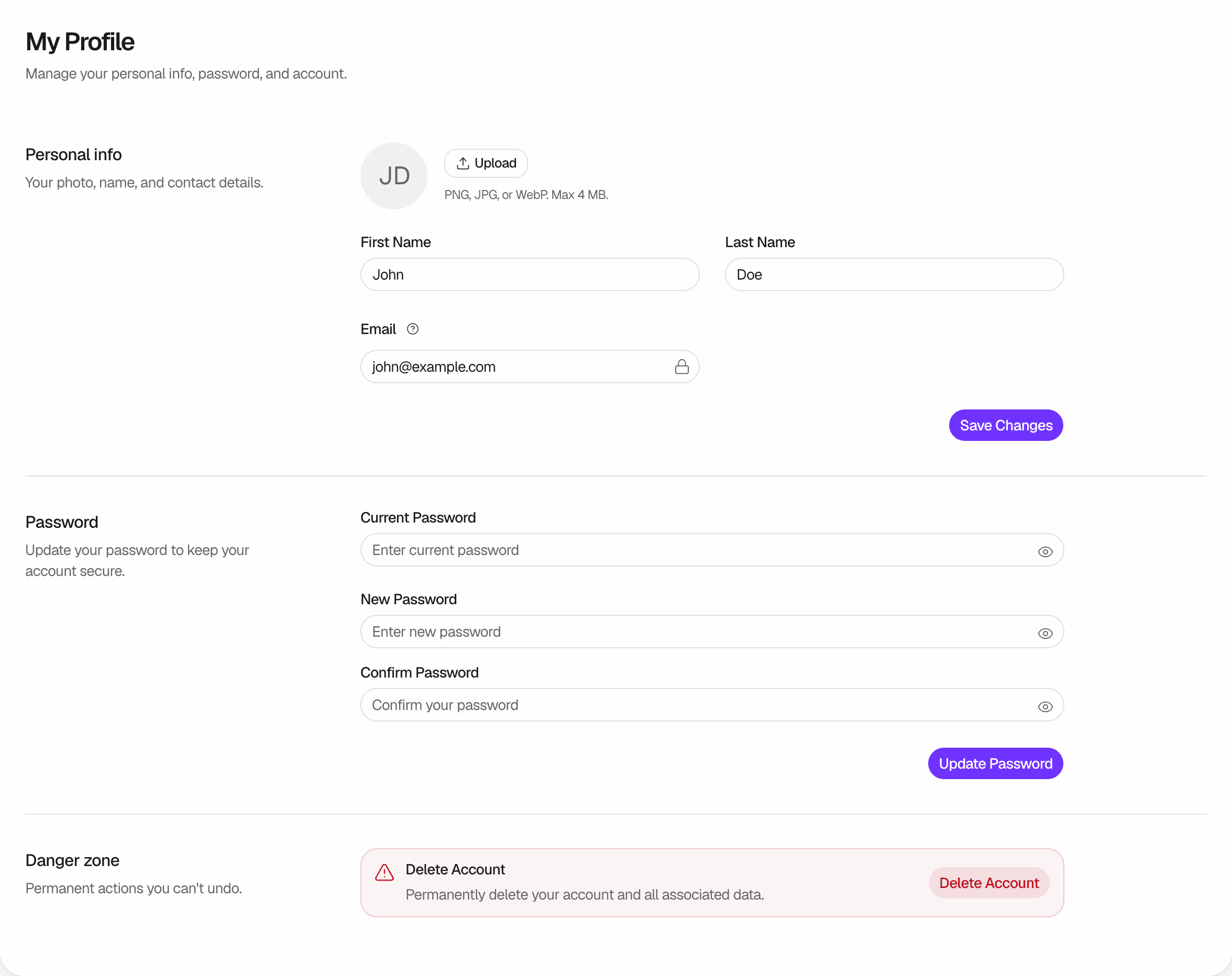
The My Profile page, where you change your name, photo and password, and delete your account.
Change your name, your photo and your password, or delete your account.
Where to find it
In Leavely, select your name at the bottom of the sidebar, then select Profile. Every member can open My Profile. When you are the Owner of the company, the same menu also has Upgrade Plan or Billing. See Manage your subscription.
What belongs to your account
Your name, your photo, your email address and your password belong to your account, not to one company. When you change them, the change shows in every company that you are a member of. See Working across companies.
Your employment details are separate for each company, such as your Department, your Holiday Location, your Start Date and your role. An Owner or Admin of that company sets them in Employees. You cannot change them on My Profile.
Only you can change your name, and only on My Profile. You cannot change your email address on My Profile. An Owner or Admin sees your name and your email address in Employees, but cannot change them.
Change your name
Type your name
In Personal info, type your First Name and your Last Name. Each must have at least 2 characters.
Save
Select Save Changes. Leavely shows "Profile updated".
Add or remove your photo
Choose a photo
In Personal info, select Upload, or Replace when you already have a photo. Choose a PNG, JPG or WebP image of up to 4 MB.
Check the result
Leavely shows "Avatar updated". Your photo shows next to your name in Leavely.
To remove your photo, select Remove. Leavely shows "Avatar removed", and your initials show instead of the photo.
Change your password
Type your current password
In Password, type your Current Password.
Type a new password
Type the new password in New Password and again in Confirm Password. The new password must:
- Have 8 to 128 characters.
- Contain an uppercase letter, a lowercase letter and a number.
- Be different from your current password.
Update
Select Update Password. Leavely shows "Password updated". You stay signed in on this device, and Leavely signs you out on all other devices.
If Leavely shows "Current password is incorrect", type your current password again. If you do not know it, reset it. See Password and email verification.
Choose a theme
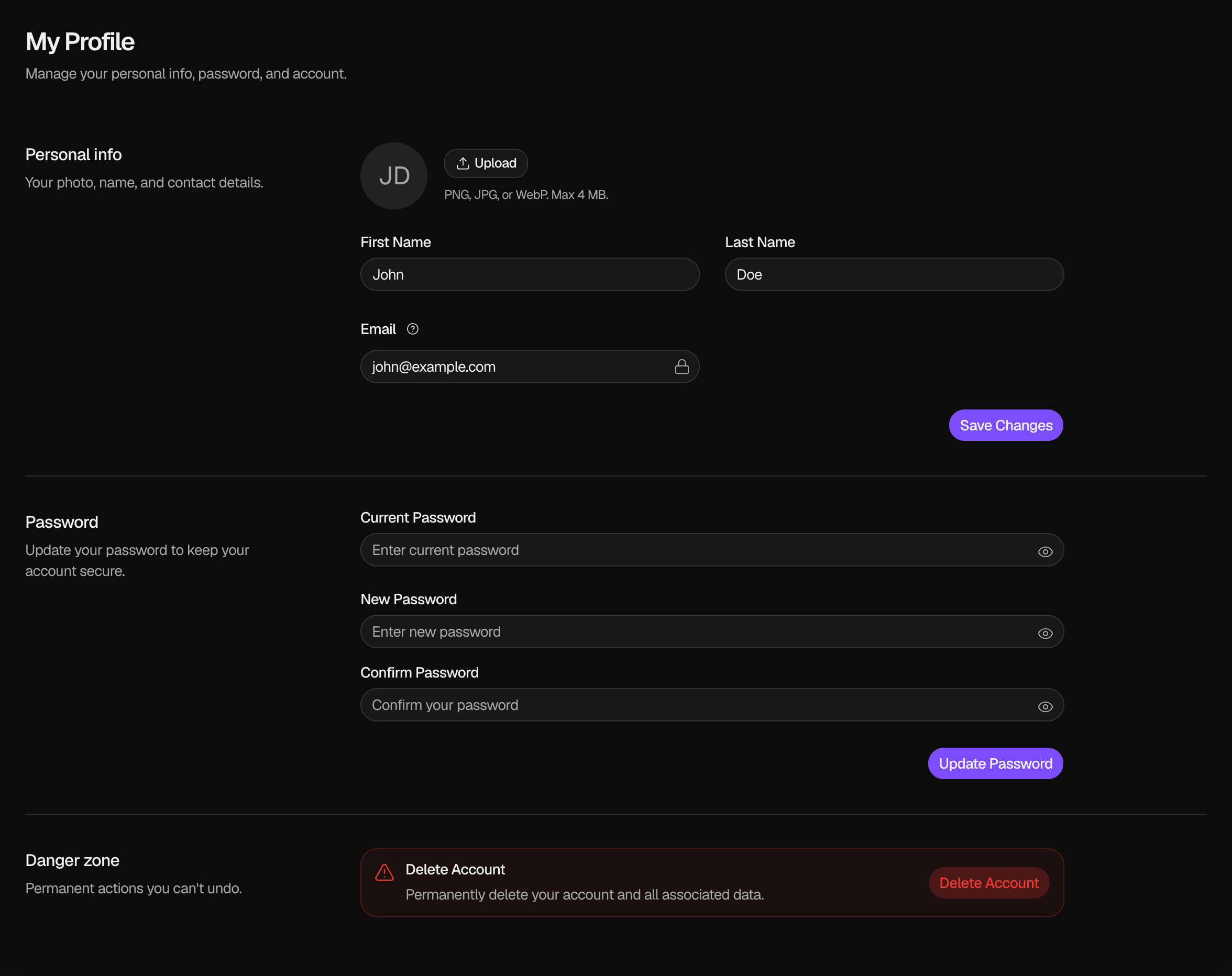
Select your name at the bottom of the sidebar. Under Theme, select Light, Dark or System. System follows the setting of your device. Leavely keeps your choice in this browser only.
Delete your account
You cannot undo this. Leavely deletes your account and your data in every company that you are a member of.
Open the dialog
In Danger zone, select Delete Account.
Confirm
In Confirmation, type delete my account. Select Delete Account.
Leavely shows "All done. Your data has been removed." and opens the Leavely home page. Leavely deletes:
- Your account. You cannot sign in with it again.
- Your membership in every company.
- Your employee details, your Leave Requests and your Leave Balances in every company.
Leave requests of other employees that you approved, rejected or cancelled stay, but they no longer show your name. A Department that you managed has no manager, so only the Owner or an Admin can approve the requests of its members until an Owner or Admin sets a new manager.
To delete your account, you must have signed in during the last 24 hours. If you signed in earlier, Leavely shows "Failed to delete account. Please try again." Select your name at the bottom of the sidebar, then select Sign Out. Sign in again, and then delete your account. See Sign up and sign in.
Rules and limits
- On My Profile, your first name and your last name must each have at least 2 characters.
- A photo must be a PNG, JPG or WebP image of up to 4 MB.
- You cannot change your email address on My Profile.
- A new password must have 8 to 128 characters, with an uppercase letter, a lowercase letter and a number.
FAQ
No. Your name belongs to your account, so it is the same in every company.
Ask an Owner or Admin of your company. They set these details in Employees.
One cause is that you signed in more than 24 hours ago. Select your name at the bottom of the sidebar, then Sign Out. Sign in again, and then try again.
Last reviewed on