
 Leavely
Reports
How Owners and Admins see the leave usage, pending days and Leave Balances of a Leave Calendar.
See how much leave your company took in a leave year, how much is waiting for approval, and how many days each employee has left.
Where to find it
In Leavely, go to Reports.
Reports opens on the Current Leave Calendar. When no Active Leave Calendar contains today, Reports opens the Leave Calendar with the latest Year Label. See Leave year and leave calendars. All figures on the page are for one Leave Calendar, the Report Period.
Select a Report Period
Open the period list
In the page header, select the Report Period list. Each Leave Calendar shows its Year Label and its first and last days.
Select a Leave Calendar
Select a Leave Calendar. All figures, charts and the Balances table change to that Leave Calendar.
The list shows every Leave Calendar of your company: past, current, upcoming and archived. An archived Leave Calendar shows "archived" after its dates. People cannot book leave in it, but you can still select it here. See Leave Calendars.
How Leavely counts leave
Reports counts working days, as a Leave Request does. A half day counts as 0.5 days. See Request leave.
- Leave Usage is the working days of approved Leave Requests. Approved leave that has not started yet also counts.
- Pending days are the working days of Leave Requests that wait for approval. Leavely shows them as a separate figure and never adds them to Leave Usage.
- Rejected, withdrawn and cancelled Leave Requests do not count in any figure.
A Leave Request always stays inside one Leave Calendar, so each request counts in one Report Period only. See Leave year and leave calendars.
The four figures and the three charts count every Leave Type, also a Leave Type with No Deduction, such as Work From Home. An archived Leave Type shows with its name and color. See Leave Types.
The figures
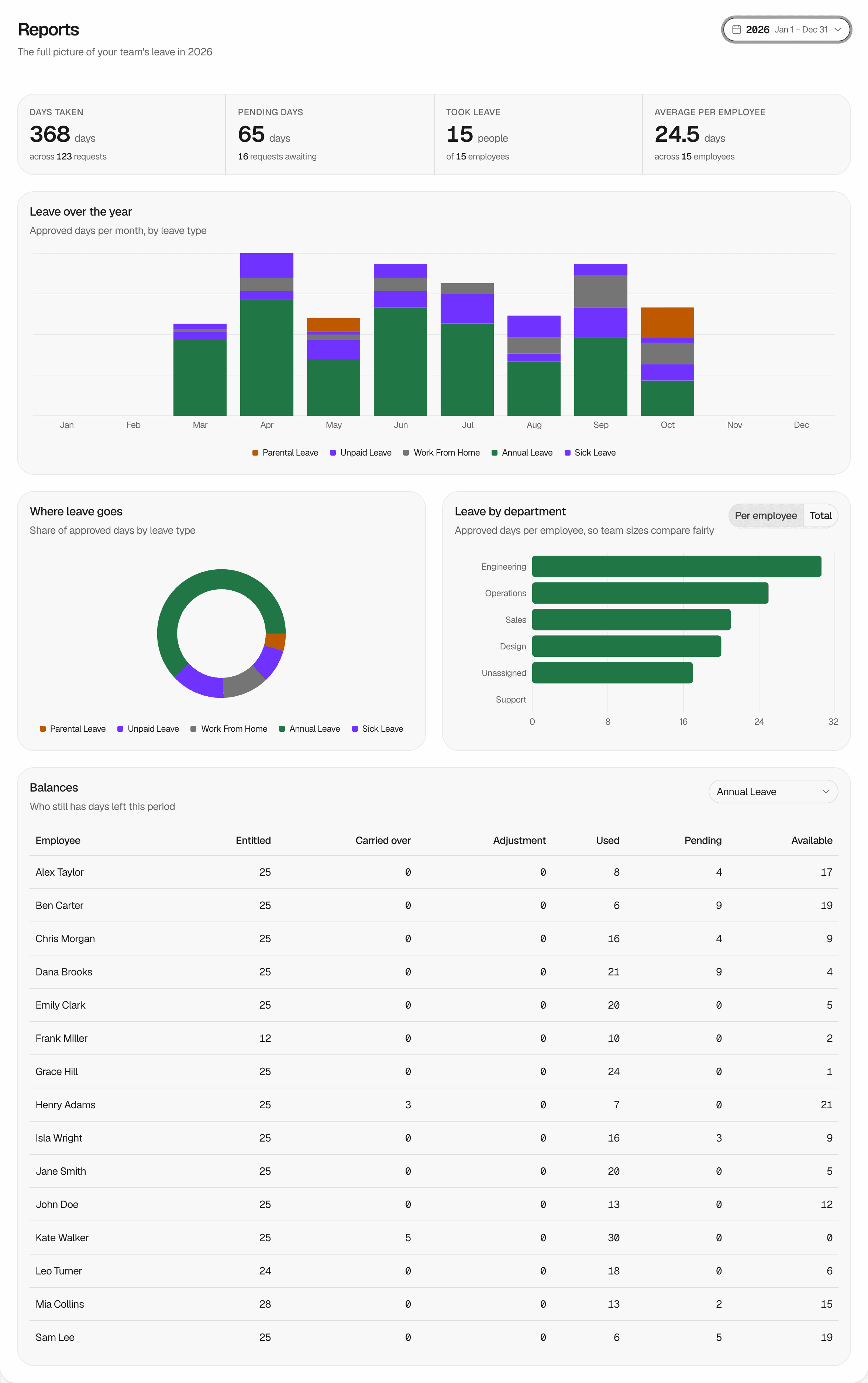
Four figures at the top of the page give the totals of the Report Period.
| Figure | What it shows |
|---|---|
| Days taken | The Leave Usage, and the number of approved requests. |
| Pending days | The pending days, and the number of requests that wait for approval. |
| Took leave | The number of employees with at least one approved request, of the employees who worked for the company during the Leave Calendar. |
| Average per employee | Days taken divided by the employees who worked for the company during the Leave Calendar, rounded to one decimal place. |
An employee worked for the company during the Leave Calendar when their Start Date is on or before its last day, and they have no End Date or their End Date is on or after its first day.
Leave over the year
Use this chart to see when in the year people take leave. It shows the approved days in each month of the Leave Calendar, by Leave Type. Point to a month to see its days.
A request counts in the month in which it starts. For example, a request from January 29 to February 3 counts all its days in January.
Where leave goes
Use this chart to see which Leave Types use the most days. It shows the share of each Leave Type in the approved days of the Report Period. Point to a part to see its days.
When the Report Period has no approved leave, both leave charts show "No approved leave yet".
Leave by department
Use this chart to compare the leave of your Departments. Select Per employee or Total:
- Per employee shows the approved days of a Department divided by its number of employees. Use it to compare Departments of different sizes.
- Total shows the approved days of each Department.
Leavely counts the leave of each employee in the Department they are in today. When an employee moves to another Department, all their leave in the Report Period moves with them. The number of employees of a Department is its Members number in Settings > Departments, so it can differ from the number of employees under Took leave. See Departments.
Employees with no Department show as Unassigned. When your company has no Departments, all employees show as Unassigned. To set the Department of an employee, see Employees.
Balances
Use the Balances table to see who still has days left in the Leave Calendar. It shows one row for each employee who has a Leave Balance of the selected Allowance Type in the Leave Calendar.
When the Leave Calendar has Leave Balances of more than one Allowance Type, select the Allowance Type in the list above the table. To set up Allowance Types, see Allowances. An archived Allowance Type shows "archived" after its name. The table still shows its Leave Balances.
| Column | What it shows |
|---|---|
| Entitled | The entitlement of the employee for this Leave Calendar. See Allowances and entitlement. |
| Carried over | The days carried over from the previous Leave Calendar. After the carried-over days expire, it shows only the carried-over days that were used. See Carry-over. |
| Adjustment | A change to the Leave Balance that does not come from the Allowance Policy or from carry-over. |
| Used | The days of approved requests of Leave Types that deduct from this Allowance Type. |
| Pending | The days of pending requests of Leave Types that deduct from this Allowance Type. |
| Available | Entitled plus Carried over plus Adjustment, minus Used. |
Available does not subtract Pending. A pending request uses no days until it is approved. Each employee sees their own Leave Balances in Summary and My Year.
If your plan does not include Reports
On the Free plan, the Reports item in the sidebar shows a Pro badge. When you select it, a prompt opens instead of the page:
- The Owner sees View plans, which opens the Plans page. Select Not now to close the prompt. See Manage your subscription.
- An Admin sees that the Owner can unlock Reports. Only the Owner can change the plan.
When you open the Reports page directly, the same message shows. The Owner can select View plans, or Not now to go back. An Admin can select Go back. To compare the plans, see Plans and seats.
After your company moves to the Pro or Business plan, Reports also shows the Leave Calendars from the time on the Free plan.
Rules and limits
- Only Owners and Admins can open Reports. Employees do not see Reports in the sidebar, Department Managers included. See Roles and approval authority.
- A Report Period is always one Leave Calendar. You cannot select a date range.
- Reports shows all employees of your company. You cannot narrow it to one Department or one Leave Type.
- The figures, the charts and Balances include hidden employees and employees who have not joined yet. Hiding an employee changes only the Wall Chart. See Hide an employee from the Wall Chart.
- When you remove an employee, or when they leave the company, Leavely deletes their Leave Requests and Leave Balances in the company. Their leave no longer shows in Reports. See Remove an employee and Leave a company.
FAQ
Days taken counts approved leave of every Leave Type. Used counts only the Leave Types that deduct from the selected Allowance Type. Leave of a Leave Type with No Deduction shows in Days taken and in the charts, but not in Balances. The same applies to pending days: Pending days counts every Leave Type, and the Pending column counts only the Leave Types that deduct from the selected Allowance Type.
Leave by department uses the Department of each employee today. The employee's leave in the Report Period moved with them to the new Department.
Yes. Select it in the Report Period list. It shows "archived" after its dates.
No. Available changes when a request is approved. Pending shows the days that wait for approval next to it.
Related pages
Last reviewed on