
 Leavely
Wall Chart
The Wall Chart, which shows the leave and public holidays of the company's members for one month, and where approvers book and cancel leave.
See who is on leave on each day of a month, book leave from a day, and cancel approved leave.
Where to find it
In Leavely, go to Wall Chart. Every member of the company can open it.
The Wall Chart shows one month. Each row is one member, and each column is one day.
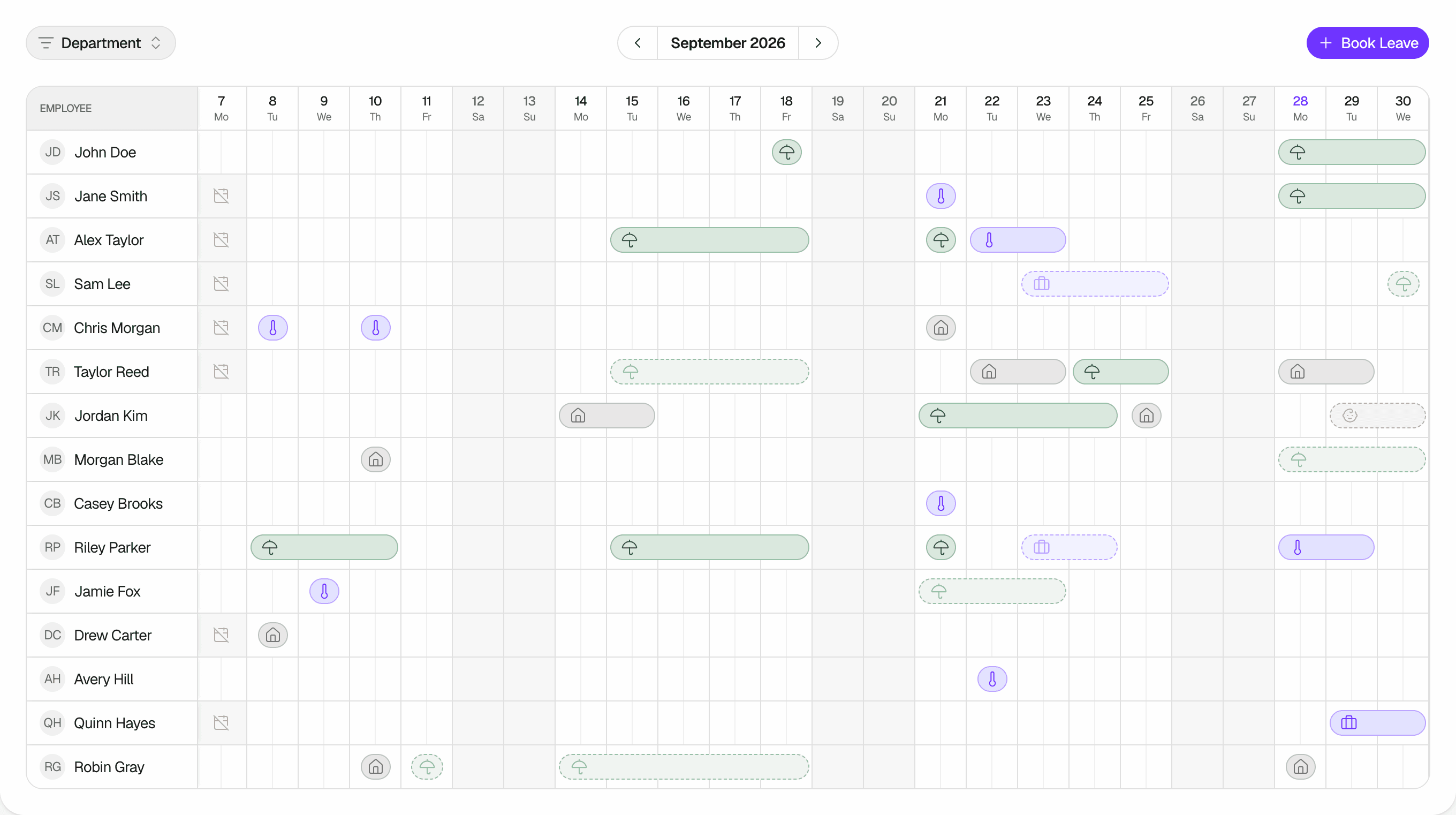
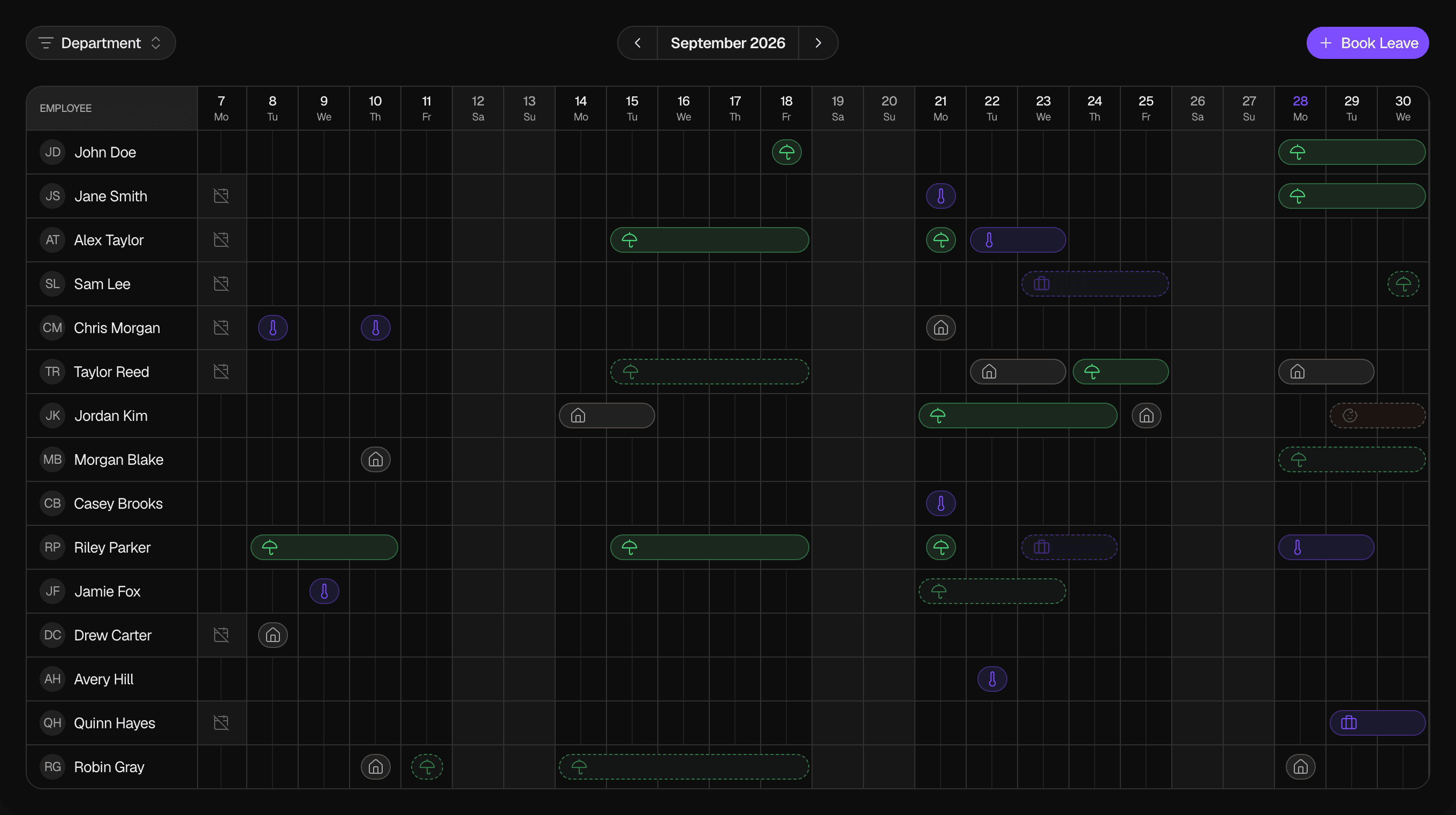
Read the chart
A leave shows as a bar across its days, in the color of its Leave Type and with the icon of its Leave Type. An Owner or Admin sets the Display Color and the Display Icon of each Leave Type in Settings > Leave Types. See Leave Types. Leave of an archived Leave Type still shows with its color and icon.
| What you see | What it means |
|---|---|
| A bar with a solid tint and a thin solid outline | Approved leave |
| A lighter bar with a dashed border and a faded icon | Pending leave |
| A bar over half a day | Half-day leave, in the morning or the afternoon |
| A greyed-out column | A day that is not a working day for your company |
| A greyed-out cell with a crossed-out calendar icon | A public holiday of the member's Holiday Location |
| A highlighted day number, and tinted free cells below it | Today |
Hover over a bar to see the Leave Type, its status, its dates and its number of days. For leave that continues into another month, the dates and days are those of the full leave. Hover over a holiday cell to see the name and date of the holiday.
A bar stops on a non-working day and on a public holiday, and continues after it. The chart does not show leave on those days, because the member does not work on them. The Owner sets the working days in Company. The holidays in each row are the public holidays of that member's Holiday Location. A member with no Holiday Location has no holidays on the chart. See Holidays.
When two half-day leaves are on the same day, one in the morning and one in the afternoon, the day shows two bars.
Whose leave you see
The Wall Chart shows only pending and approved leave. Rejected, withdrawn and cancelled leave does not show.
| Leave | Owner | Admin | Department Manager | Employee |
|---|---|---|---|---|
| Approved leave of all members on the chart | Yes | Yes | Yes | Yes |
| Their own pending leave | Yes | Yes | Yes | Yes |
| The pending leave of other members | All | All | The members of their Department | No |
Department Manager is not a role. It is an assignment on a Department, and the column shows what the assignment adds for an Employee. The Employee column is for an Employee who is not a Department Manager. See Roles and approval authority.
For each leave that you see, you can see its Leave Type, its status, its dates and its number of days. This includes approved leave of every Leave Type, such as sick leave, and Leave Types marked Admin Only. The description of a request never shows on the Wall Chart. The people who can approve a request see its description in Approvals.
The chart shows only members who have joined the company and are not hidden. An Owner or Admin can hide a member with Hide from Wall Chart in the member's details. A hidden member has no row, and nobody sees their leave on the Wall Chart, the member included. See Employees.
A member's Start Date and End Date do not change their row. A member who has left the company stays on the chart until an Owner or Admin hides them, and the days before their start date or after their end date look free.
Change the month
Use the arrows in the toolbar to go to the previous or the next month. Select the month name between the arrows to go back to the current month.
The arrows stop at the first month of the earliest Active Leave Calendar and at the last month of the latest one. See Leave year and leave calendars.
Filter by Department
Open the filter
In the toolbar, select Department. The filter shows only when your company has at least one Department.
Select the Departments
Select one or more Departments. To show the members who have no Department, select Unassigned. With more than 8 Departments, a Search departments box helps you find one.
The chart shows only the rows of the Departments that you select. When no member matches, the chart shows "No employees match this filter". To remove the filter, select the x in the filter.
Book leave
Select Book Leave in the toolbar to book leave for yourself, with today as the start date. Or select a free day in a row. When your company allows half-day leave, each free day has a morning half and an afternoon half, and you select one of them. When a day has morning leave, you can still select its free afternoon, and the opposite. The Owner sets half-day leave in Company.
You can select a day in your own row, and in the rows of the members you can book leave for:
- The Owner and Admins can book leave for all members.
- A Department Manager can book leave for the members of their Department.
The Book Leave sheet opens with that day. You can select any free day, past days included, but the sheet accepts only the dates that the rules allow. See Request leave. Leave that you book for another member is approved at once. See Request leave.
With a keyboard, press Tab to move to a free day, and press Enter to open the Book Leave sheet.
Cancel approved leave
A Department Manager can also cancel the approved leave of the members of their Department.
Select the leave
Select the bar of the approved leave. Or hover over the bar and select Cancel leave. With a keyboard, press Tab to move to the bar, and press Enter. The Cancel this leave? dialog opens with the member, the Leave Type and the dates.
Give a reason
In Reason (optional), you can type why you cancel the leave, up to 500 characters. The member sees the reason in Summary. The email does not contain it.
Confirm
Select Cancel leave. Leavely shows "Leave cancelled". The leave leaves the Wall Chart, its days go back to the Leave Balance, and the member gets an email. See Notifications. To close the dialog without a change, select Keep leave.
You can cancel approved leave until its first day, that day included. You cannot cancel your own leave, except when you are the Owner. You cannot cancel pending leave. The member withdraws it instead. See Leave request lifecycle.
When the chart updates
Leave that you book or cancel shows on the chart at once. Changes that other people make show when you reload the page, or when you come back to the browser tab.
On a phone
- The Department filter shows only its filter icon, and Book Leave shows only its + icon.
- The filter and the Cancel this leave? dialog open from the bottom of the screen.
- Scroll the chart to the side to see all days. The member names stay on the left.
- On a touch screen, the hover details may not open. Leave that you can cancel opens the cancel dialog when you tap it.
Rules and limits
- The Wall Chart shows one month at a time.
- Only members who have joined the company and are not hidden have a row.
- You can book leave only for yourself, unless you are an Owner, an Admin or a Department Manager.
- You can cancel only approved leave, until its first day, that day included.
What happens when
The chart shows "No employees yet"
All members of the company are hidden or have not joined yet, so the chart has no row to show. The toolbar does not show either. To book leave, use Book Leave in My Year.
The chart shows "Failed to load wall chart"
Leavely could not load the data. Reload the page.
Leavely shows "This leave has already started and can't be cancelled."
The leave started after you loaded the page. You cannot cancel it.
Your company turns off half-day leave
Half-day leave that already exists shows over the full day.
FAQ
An Owner or Admin hid you from the Wall Chart. You can still book leave with Book Leave in the toolbar, and see your leave in My Year. When no row shows at all, the toolbar does not show either. Use Book Leave in My Year.
You can book leave only for yourself, unless you are an Owner, an Admin, or the Department Manager of the colleague.
They see the Leave Type of your approved leave, but not your description. Only you and the people who can approve your request see the description.
The leave is pending, rejected, withdrawn or cancelled, or the colleague is hidden or has not joined yet. You see the pending leave of others only when you can approve it.
Related pages
Last reviewed on