
 Leavely
My Year
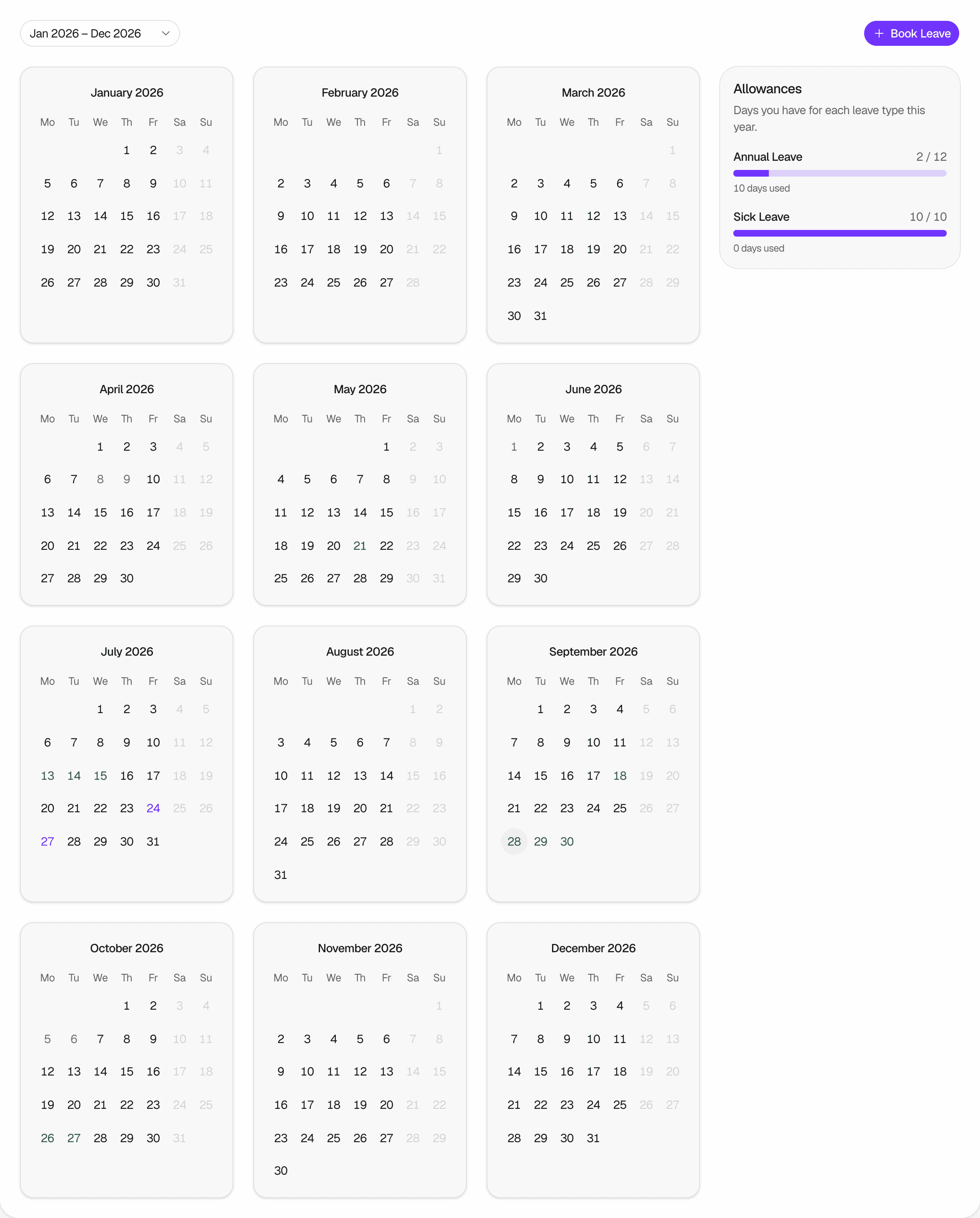
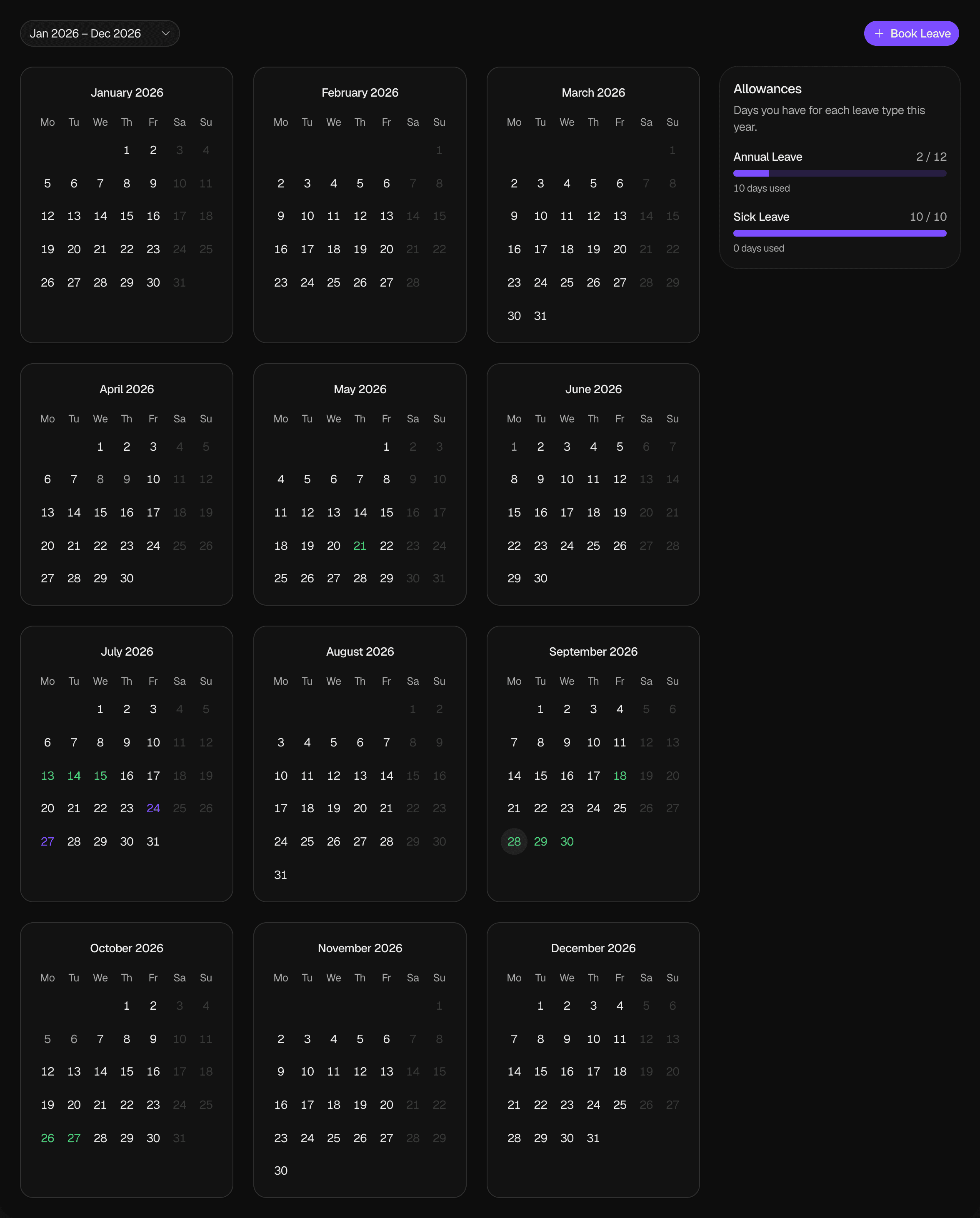
The My Year page, where you see your leave and your Leave Balances for one leave year and book new leave.
See your leave for one leave year, check how many days you have left, and book new leave.
Where to find it
In Leavely, go to My Year. Every member of the company can open it, and it shows only your own leave.
Choose a leave year
My Year opens the Active Leave Calendar that contains today. To see another leave year, select it in the year list at the top of the page. The list shows each Active Leave Calendar by its first and last month, such as Jan 2026 – Dec 2026. An archived Leave Calendar is not in the list. To learn how leave years work, see Leave year and leave calendars.
Read the months
My Year shows the twelve months of the leave year you selected.
- Days that are not working days for your company, and the public holidays of your Holiday Location, are greyed out.
- Your leave shows in the color of its Leave Type. A pending request also has a dashed border.
- Hover over a day with leave to see the Leave Type, its status, its dates, its days, and the half of the day for half-day leave.
My Year shows only pending and approved requests. Rejected, withdrawn and cancelled requests do not show. To see a rejected or cancelled request that has not ended yet, go to Summary.
Check your balances
The Allowances card shows one row for each active Allowance Type of your company, for the leave year you selected. Each row shows:
- Two numbers, such as 12 / 20. The first is the days you have left. The second is the days you have for the year: your entitlement plus the days carried over from the previous Leave Calendar.
- A line such as 8 days used, which counts the days of your approved leave.
Pending requests do not reduce the days remaining until they are approved. To learn where the days come from, see Allowances and entitlement.
Book leave
Select Book Leave to open the Book Leave sheet with today as the start date. If today is not a working day, choose another start date. Or select a free working day in the months to start the request on that day. See Request leave.
Rules and limits
- You can open only Active Leave Calendars.
- You cannot select a greyed-out day or a day that already has your leave on it.
- The holidays are the public holidays of your Holiday Location. If you have no Holiday Location, My Year shows no holidays.
- My Year has no list of upcoming leave or upcoming holidays. Summary shows them.
FAQ
In Summary, under Upcoming Leave, select Withdraw next to the request. See Leave request lifecycle.
An Owner or Admin archived its Leave Calendar, or your company has no Leave Calendar for that year. The year list shows only Active Leave Calendars.
One cause is that no Active Leave Calendar contains today. An Owner or Admin must add or unarchive that year. See Leave year and leave calendars.
Your pending requests do not use days until they are approved.
Last reviewed on