
 Leavely
Notifications
The notification bell for approvers, and every email that Leavely sends and when it sends it.
The notification bell tells approvers which leave requests wait for them, and Leavely sends emails about your account, invitations and your leave.
Notification bell
A Department Manager also sees the bell, for the requests of the members of their Department.
The bell is at the top right of every page. It shows only to people who can approve leave requests. Employees who are not Department Managers do not see it.
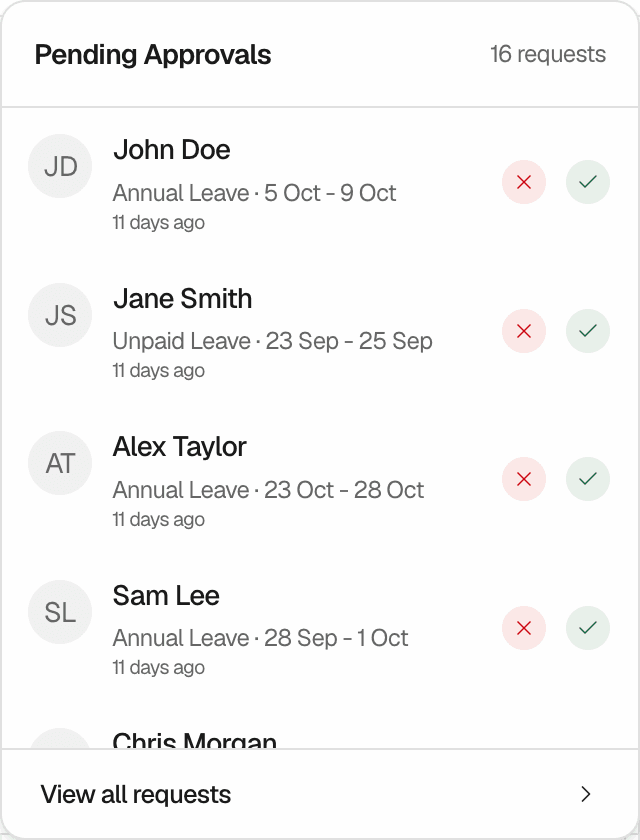
The bell has one kind of notification: a leave request waits for your approval. It shows the same pending requests as Approvals. A red badge on the bell shows how many requests wait.
Review a request from the bell
Open the bell
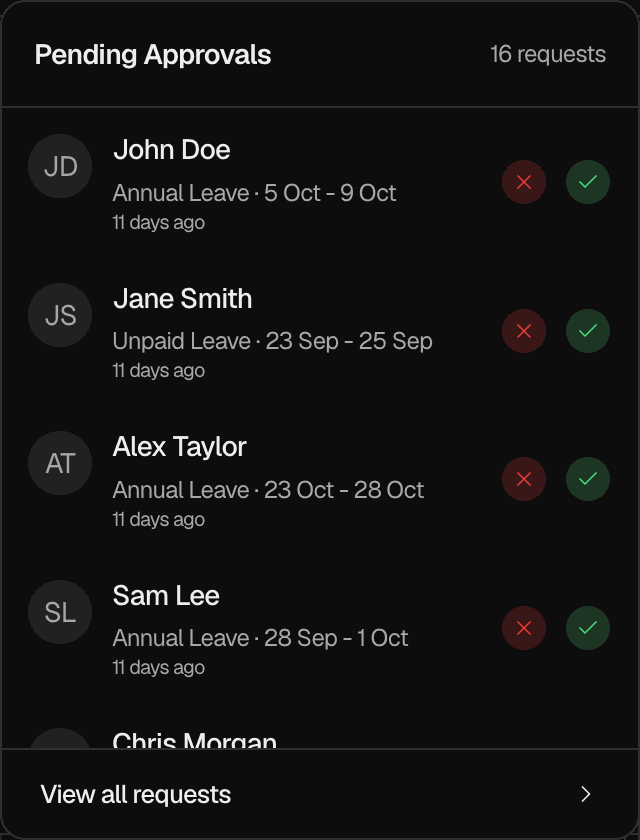
Select the bell. Under Pending Approvals, you see the newest requests. Each shows the employee, the Leave Type, the dates and when the employee sent it.
Approve or reject
Select the green check button to approve, or the red x button to reject. The same dialogs open as on the Approvals page. To reject, you must give a reason of 10 to 500 characters. See Approvals.
To see all requests, select View details or View all requests. Approvals opens.
When no request waits, the bell has no badge, and opening it shows "All caught up!".
Emails
Leavely sends these emails in English, from noreply@mail.leavely.co. You cannot turn them off. A reply goes to Leavely Support, not to your approver. To ask about a decision, contact your approver directly.
If an email cannot be sent, the approval, rejection or cancellation still applies.
Leave emails
Leavely emails the employee when an approver changes the status of their Leave Request. The email names the approver, the Leave Type, the dates and the number of days, and has a button that opens My Year. It does not contain the reason for a rejection or a cancellation. The employee sees the reason in Summary.
| When | Subject | Button |
|---|---|---|
| An approver approves a pending request, alone or with Approve All | Your time off is confirmed, 12 Mar - 16 Mar 2026 | View Leave |
| An approver rejects a pending request | Your time off for 12 Mar - 16 Mar 2026 wasn't approved | Book different dates |
| An approver cancels approved leave | Your time off for 12 Mar - 16 Mar 2026 was cancelled | Book new dates |
The dates in the subject are an example.
Leavely sends no email when:
- An employee sends a request. Approvers see it in the bell and in Approvals.
- A request is approved at once, such as leave that an Owner, Admin or Department Manager books for an employee.
- An employee withdraws a pending request.
To learn about these statuses, see Leave request lifecycle.
Account emails
| Subject | When Leavely sends it | |
|---|---|---|
| Email verification | Verify your email for Leavely | You sign up, or you select Resend Email in the banner that asks you to verify your email. The link expires in 24 hours. |
| Email verified | Your email is verified | You open the link in the verification email. |
| Password reset | Reset your password for Leavely | You ask for a new password from Forgot your password? on the sign-in page. The link expires in 60 minutes and works once. |
| Employee invitation | You're invited to join (company name) on Leavely | An Owner or Admin adds you as an employee, or selects Resend next to an expired or revoked invitation. Resend makes a new link, and the old link stops working. |
An Owner or Admin must verify their own email before they can add employees or resend invitations. Until then, Leavely shows "Verify your email to invite teammates."
An employee who joins through an invitation does not get the verification emails. Accepting the invitation verifies their email. See Password and email verification and Invitations.
Rules and limits
- The bell shows the pending requests of the people whose leave you can approve.
- The bell does not show approved, rejected, withdrawn or cancelled requests.
- Leavely sends emails to the email address of the account.
FAQ
The bell shows only to the Owner, Admins and Department Managers. If you are an Employee and not the Department Manager of a Department, you have no bell. If you are an approver and the bell is missing, reload the page.
No. Approvers see new requests in the bell and in Approvals.
Leave that an Owner, Admin or Department Manager books for you is approved at once, and Leavely sends no email for it. You see it in My Year and on the Wall Chart.
No. Leavely has no setting for emails.
Related pages
Last reviewed on