
 Leavely
Summary
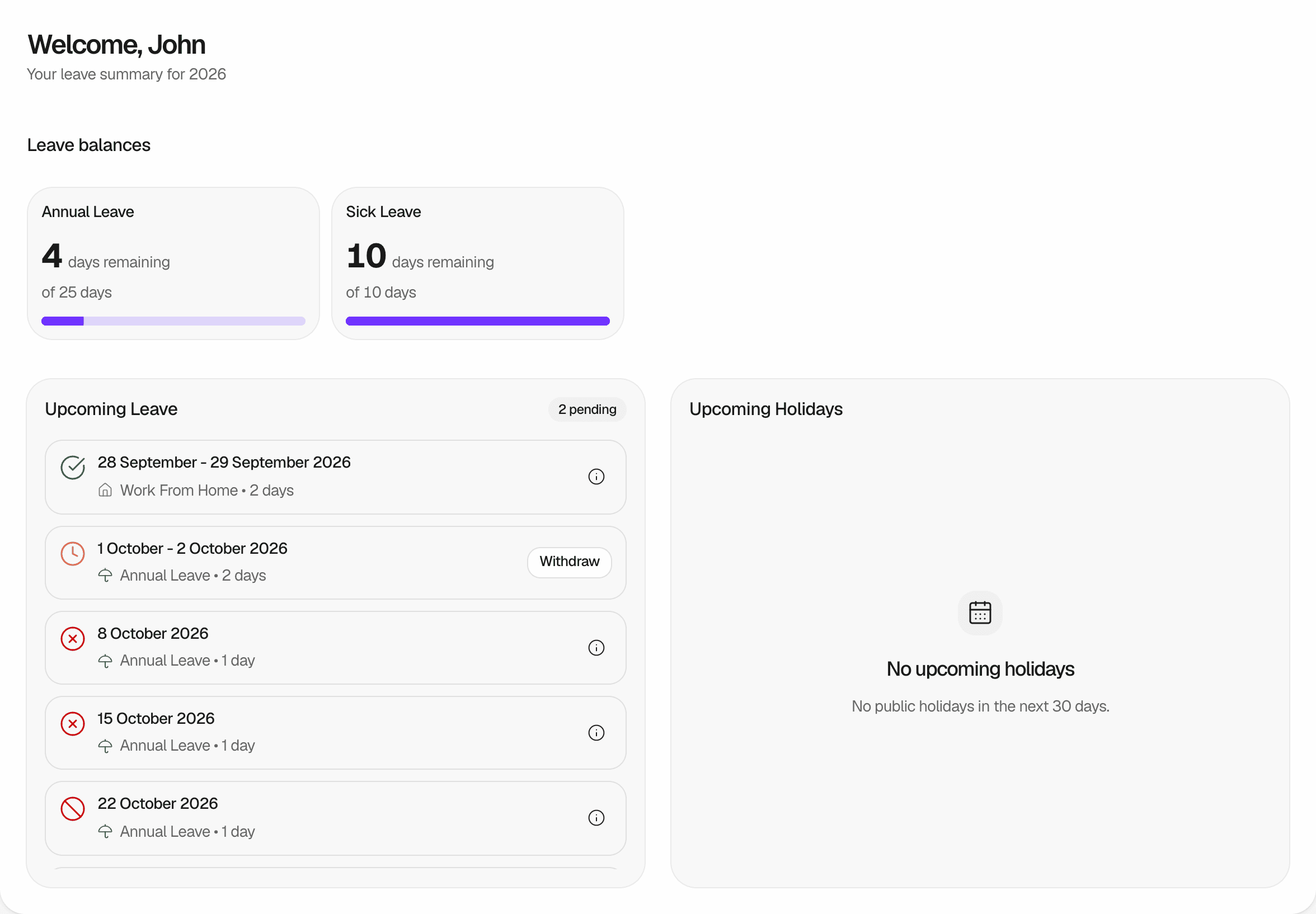
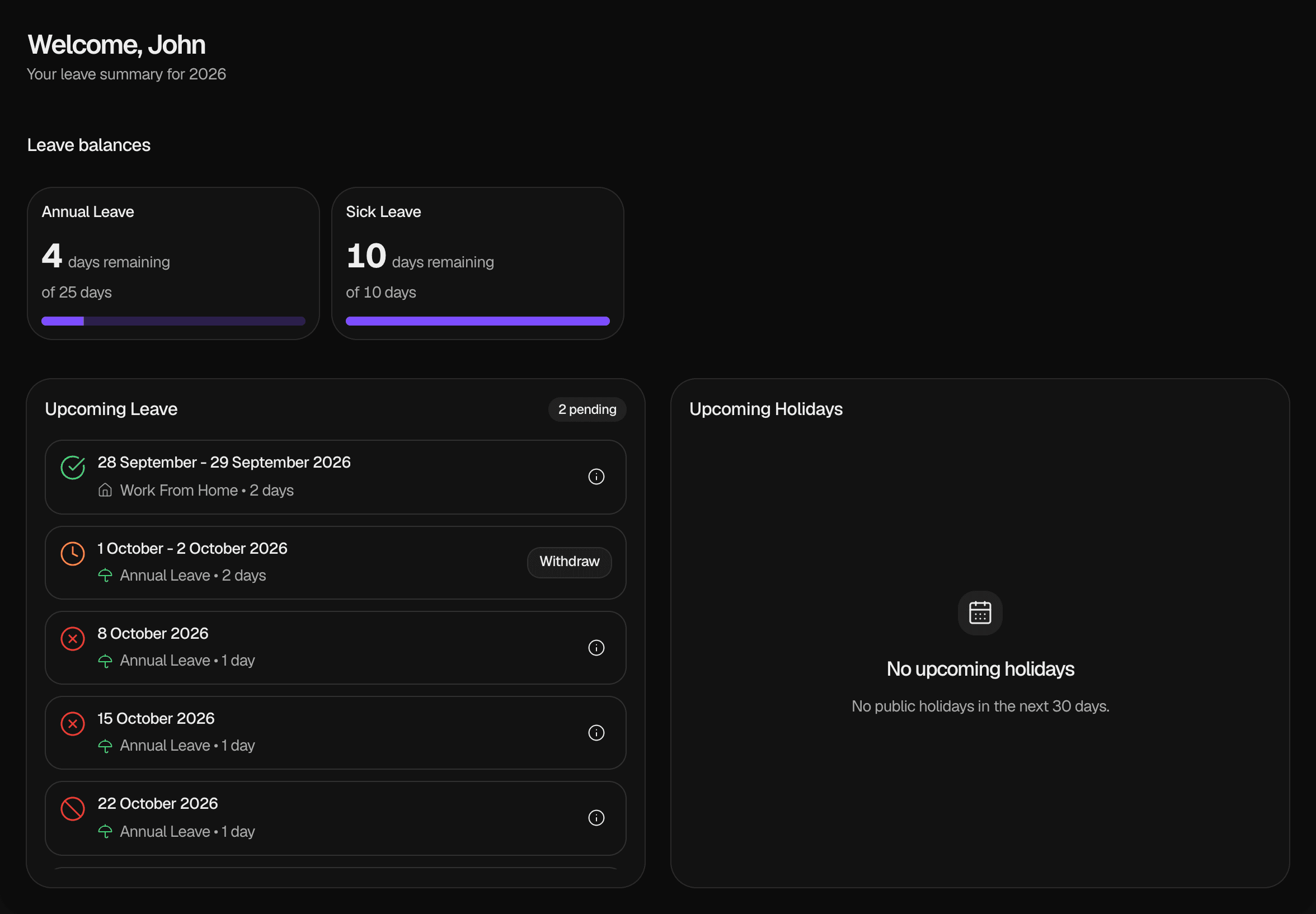
The Summary page, where you see your Leave Balances, your upcoming leave and upcoming public holidays, and withdraw a pending request.
See how many days you have left, check your upcoming leave and public holidays, and withdraw a pending request.
Where to find it
In Leavely, go to Summary. Every member of the company can open it, and it shows only your own leave.
At the top, Summary shows "Welcome" and your first name, and the leave year of the Active Leave Calendar that contains today, such as "Your leave summary for 2026".
Check your balances
Leave balances shows one card for each of your Leave Balances in the Active Leave Calendar that contains today. Each card shows:
- The days you have left, such as 12 days remaining. This number is never below 0.
- The days you have for the year, such as of 20 days: your entitlement, plus the days carried over from the previous Leave Calendar.
Only approved leave uses days. Pending requests do not reduce the days remaining until they are approved. To learn where the days come from, see Allowances and entitlement. To see your balances for another leave year, go to My Year.
When you have no Leave Balance in this Leave Calendar, Summary shows "No allowances yet".
Check your upcoming leave
Upcoming Leave lists your Leave Requests that end today or later. Each request shows its dates, its Leave Type and its number of days. When you have pending requests, a badge shows how many, such as 2 pending.
The list shows pending, approved, rejected and cancelled requests. It does not show withdrawn requests. A request leaves the list after its last day.
See who acted on a request
Next to an approved, rejected or cancelled request, select the info button. It shows:
- The status of the request.
- The name of the person who approved, rejected or cancelled it. For a request that was approved at once, it shows the person who booked it.
- The date of the approval, rejection or cancellation.
- The reason for a rejection, or the reason for a cancellation when the person who cancelled it gave one.
The email that Leavely sends you about the request does not contain the reason. See Notifications.
Withdraw a pending request
To change a pending request, or when you no longer need the leave, withdraw it.
Select Withdraw
In Upcoming Leave, select Withdraw next to the pending request. The dialog Withdraw this request? opens.
Confirm
Select Withdraw. Leavely shows "Request withdrawn". To keep the request, select Keep request.
The request is Withdrawn, and this status is final. It leaves Summary, My Year, the Wall Chart and Approvals. Your Leave Balance does not change, because a pending request uses no days. Leavely sends no email about it. You can send a new request at any time. See Request leave.
Check upcoming holidays
Upcoming Holidays lists the public holidays of your Holiday Location from today to 30 days from today. If you have no Holiday Location, or no holiday falls in this period, it shows "No upcoming holidays". An Owner or Admin sets your Holiday Location in Employees. To learn how holidays work, see Holidays.
Rules and limits
- You can withdraw only your own requests, and only while they are pending.
- You can withdraw a pending request until its last day.
- You cannot withdraw an approved request. Ask an Owner, an Admin or your Department Manager to cancel it. See Leave request lifecycle.
- Summary shows the balances of one leave year only: the Active Leave Calendar that contains today.
FAQ
Your pending requests do not use days until they are approved.
In Upcoming Leave, select the info button next to the rejected request. Summary shows the request until its last day.
No. An Owner, an Admin or your Department Manager can cancel approved leave until its first day, that day included. Only the Company Owner can cancel their own approved leave. See Leave request lifecycle.
Someone approved or rejected the request before you withdrew it. Leavely shows "Couldn't withdraw this request." or "Failed to withdraw leave request. It may have already been processed or doesn't exist." Reload Summary to see the status of the request.
One cause is that no Active Leave Calendar contains today. An Owner or Admin must add or unarchive that year. See Leave year and leave calendars.
Last reviewed on