
 Leavely
Leave Types
How Owners and Admins add, edit and archive the Leave Types that people select when they request leave.
Set up the types of leave that people select when they request leave, such as Annual Leave or Sick Leave, and decide how each type works.
Where to find it
In Leavely, go to Settings > Leave Types. The table shows each Leave Type that is not archived, with its icon, its name and its description.
Leave Types and Allowance Types
A Leave Type is what a person selects when they request leave. An Allowance Type is a pool of days, such as 25 days of Annual Leave a year. A Leave Type uses days from an Allowance Type only when its Deduct From Allowance setting names that Allowance Type. With No Deduction, its requests use no days. More than one Leave Type can use the same Allowance Type. See Allowances and entitlement and Allowances.
Default Leave Types
When you create a company, Leavely adds these Leave Types:
| Leave Type | Deduct From Allowance | Requires Approval | Admin Only |
|---|---|---|---|
| Annual Leave | Annual Leave | Yes | No |
| Sick Leave | No Deduction | No | No |
| Personal Leave | No Deduction | Yes | No |
| Public Holidays | No Deduction | No | Yes |
| Emergency Leave | No Deduction | No | Yes |
Annual Leave is the Company Default and shows System Default. You can edit all of them, and archive all of them except the Company Default.
Add a Leave Type
Select Add Leave Type
In the page header, select Add Leave Type.
Enter the details
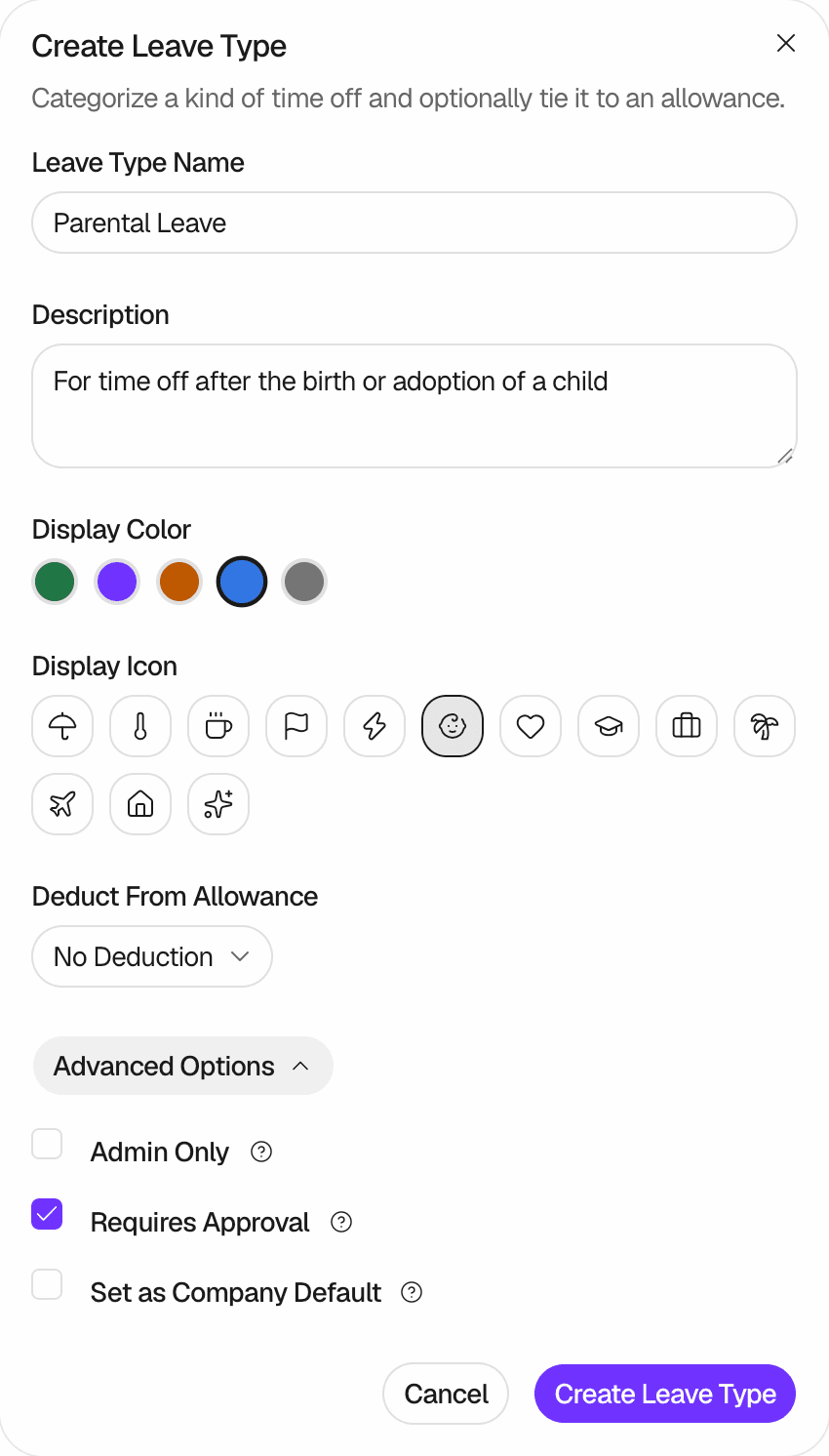
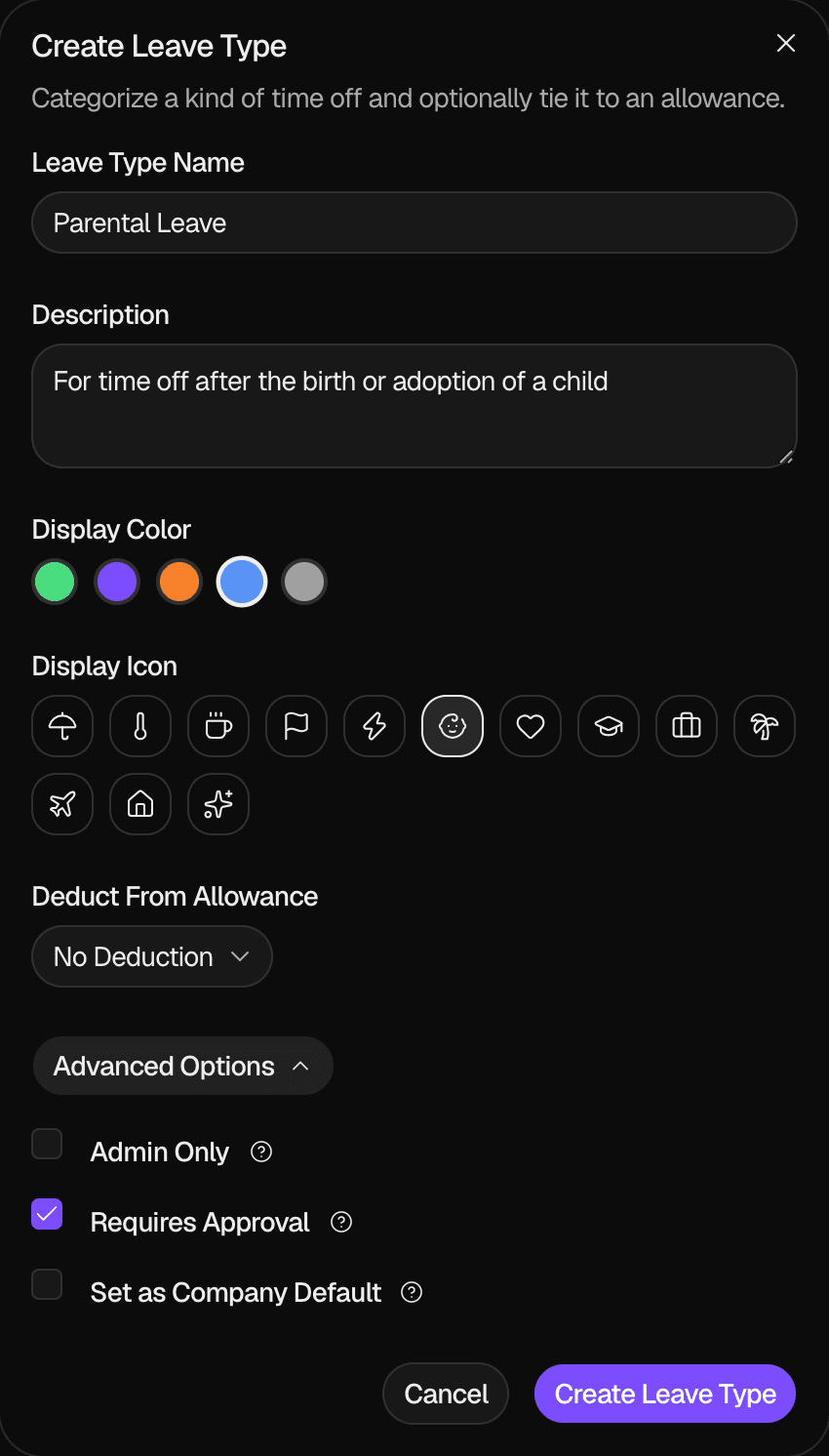
Type a Leave Type Name, such as Parental Leave. You can also type a Description. Only Owners and Admins see it, in Settings > Leave Types.
Choose the color and the icon
Select a Display Color and a Display Icon. People see them with the leave, such as on the Wall Chart, in the request form and in Approvals.
Choose the Allowance Type
In Deduct From Allowance, select the Allowance Type that the requests use days from, or No Deduction.
Create it
Select Create Leave Type. Leavely shows "Leave type created", and the new row appears in the table.
Options
| Option | What it does |
|---|---|
| Admin Only | Only Owners and Admins can select the Leave Type when they request or book leave. Other members, Department Managers included, do not see it. |
| Requires Approval | A request from an Employee is Pending until an Owner, an Admin or their Department Manager approves it. When it is off, requests are approved at once. The own requests of Owners and Admins are always approved at once, and so is leave that an Owner, an Admin or a Department Manager books for another employee. See Leave request lifecycle. |
| Set as Company Default | Makes this Leave Type the Company Default, in place of the current one. The Company Default is selected first when someone opens the request form. |
The options are off for a new Leave Type. When you select Set as Company Default, Leavely turns off Admin Only, so all members can select the Leave Type. You cannot archive the Company Default. To change the Company Default, select Set as Company Default on another Leave Type.
Edit a Leave Type
Select edit
In the row of the Leave Type, select the edit button. The Edit (name) dialog opens.
Save
Change the fields and the options, then select Update Leave Type. Leavely shows "Leave type updated".
A change applies as follows:
- A new name, color or icon shows everywhere at once, also on leave that already exists.
- A change of Deduct From Allowance applies to new requests, and to pending requests when someone approves them. Approved leave keeps the days that it used from its Allowance Type. When someone cancels it, the days go back to that Allowance Type.
- A change of Requires Approval applies to new requests. Pending requests stay Pending.
Archive a Leave Type
Select archive
In the row of the Leave Type, select the archive button.
Confirm
Select Archive Leave Type. Leavely shows "Leave type archived", and the row leaves the table.
After you archive a Leave Type, nobody can select it in a new request. Leave that already exists keeps its Leave Type. It still shows on the Wall Chart, and in My Year with the name, color and icon of the Leave Type, and in Reports with its name and color.
You cannot unarchive a Leave Type. To use it again, add a new Leave Type.
Rules and limits
- Only Owners and Admins can open Settings > Leave Types.
- A name has 2 to 50 characters. No two Leave Types that are not archived can have the same name. The check ignores upper and lower case.
- A description has up to 200 characters.
- Deduct From Allowance lists only Allowance Types that are not archived.
- A company has one Company Default. You cannot archive it.
FAQ
No. Half-day leave applies to all Leave Types. The Owner turns it on with Allow half-day leave in Settings > Company. See Company.
It is the Company Default. Select Set as Company Default on another Leave Type first.
Its Deduct From Allowance changes to No Deduction, and its requests no longer use days. See Archive an Allowance Type.
Yes. The Wall Chart shows the Leave Type of each leave that a person can see, Admin Only types included. See Whose leave you see.
Related pages
Last reviewed on