
 Leavely
Leave Calendars
How Owners and Admins add, archive, unarchive and discard Leave Calendars.
Add the next leave year, and archive or discard the Leave Calendars your company no longer needs.
Where to find it
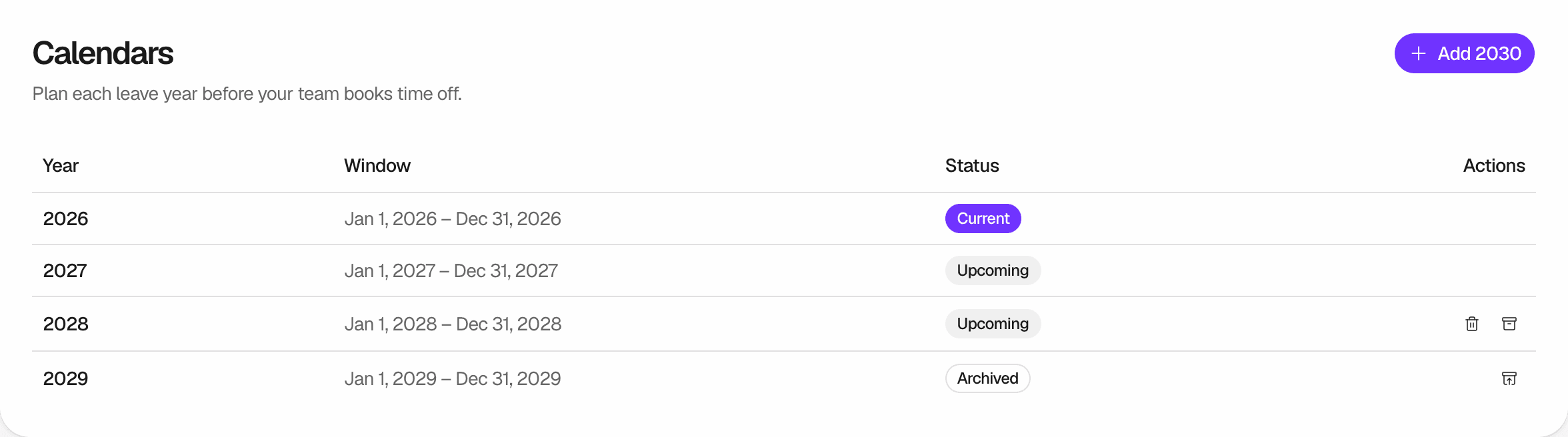
In Leavely, go to Settings > Calendars.
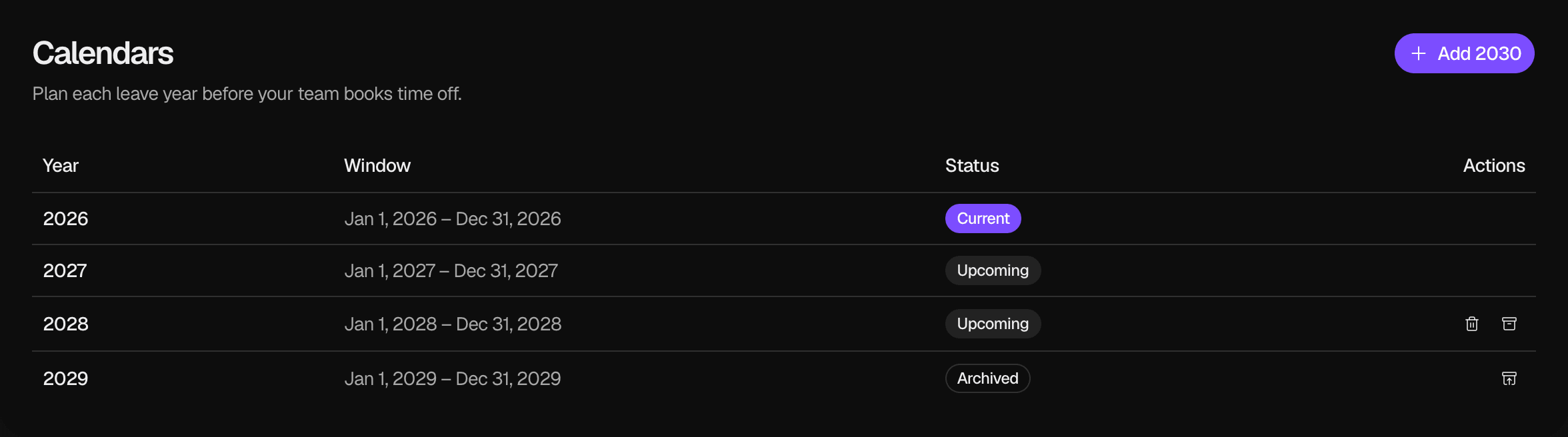
The table shows one row for each Leave Calendar, with its Year Label, its dates, its status and the actions you can take on it. To learn how leave years and Year Labels work, see Leave year and leave calendars.
| Status | Meaning |
|---|---|
| Current | The Leave Calendar contains today. |
| Upcoming | The Leave Calendar starts after today. |
| Past | The Leave Calendar ended before today and is still active. |
| Archived | An Owner or Admin archived the Leave Calendar. |
The table lists the Current Leave Calendar first, then Upcoming from the nearest, then Past from the most recent, then Archived from the most recent.
Add the next Leave Calendar
Select Add
In the page header, select Add followed by the next Year Label, for example Add 2028.
Check the new row
The new Leave Calendar appears with the Upcoming status. Leavely creates its Leave Balances for your employees.
The new Leave Calendar always follows the latest Leave Calendar in the table, even if that one is archived. Its dates come from your Leave Year Policy.
Employees can book leave in the new Leave Calendar as soon as you add it. Add a year when you are ready to accept requests for it.
Archive a Leave Calendar
Select Archive
In the row of the Leave Calendar, select the archive icon.
Confirm
Select Archive Calendar. The status changes to Archived.
What happens when you archive
- Employees cannot book new leave in the Leave Calendar.
- The Leave Calendar leaves the year list in My Year. If it is the earliest or latest Active Leave Calendar, the month range of the Wall Chart gets shorter.
- Its Leave Requests and Leave Balances stay. On the Pro and Business plans, you can still select it as a period in Reports, where it shows as archived.
- You can unarchive it at any time.
When you can archive
- You can always archive a Past Leave Calendar.
- You can archive an Upcoming Leave Calendar when it is not the one right after the Current Leave Calendar and no later Leave Calendar is active. To archive an earlier year, archive the later years first.
- You cannot archive the Current Leave Calendar.
Unarchive a Leave Calendar
Select Unarchive
In the row of an Archived Leave Calendar, select the unarchive icon.
Confirm
Select Unarchive Calendar. The Leave Calendar is active again and returns to the year list in My Year. If it is now the earliest or latest Active Leave Calendar, the month range of the Wall Chart grows again.
You can unarchive any Archived Leave Calendar, in any order.
Discard a Leave Calendar
Select Discard
In the row of the Leave Calendar, select the trash icon.
Confirm
Select Discard Calendar. The row leaves the table.
What happens when you discard
- Leavely deletes the Leave Calendar and the Leave Balances in it. This cannot be undone, and there is no restore.
- If no later Leave Calendar exists, the Add button offers the same year again. When you add it, Leavely creates it again with new Leave Balances.
When you can discard
The trash icon shows only when all of these are true:
- The Leave Calendar is Upcoming.
- It is not the Leave Calendar right after the Current one.
- No later Leave Calendar is active. To discard an earlier year, discard the later years first.
- It has no Leave Requests, in any status.
If a Leave Calendar has Leave Requests, archive it instead.
Rules and limits
- Only Owners and Admins can open Settings > Calendars and use its actions.
- You cannot change the dates of a Leave Calendar or the Leave Year Policy of the company.
- Leavely creates the first two Leave Calendars when you set up the company.
FAQ
Archive it when you want to close it to new bookings and keep its history. Discard it only to remove an extra future year that you added by mistake and that no one has used.
The icon shows only when the rules allow the action. See When you can archive and When you can discard.
Yes. Leavely does not add a Leave Calendar when a year ends, so add the next year before the Current Leave Calendar ends. Carry-over moves unused days into the next Leave Calendar and waits until it exists and is Current. It cannot run after that Leave Calendar has ended. See Carry-over.
Only when Allow past leave requests is on in Settings > Company. It is on by default, and only an Owner can change it. See Leave year and leave calendars.
Last reviewed on