
 Leavely
Allowances
How Owners and Admins set up Allowance Types, their Allowance Policies, and the policy of each employee.
Create the pools of days your employees use, set the rules for each pool, and choose the rules for each employee.
Where to find it
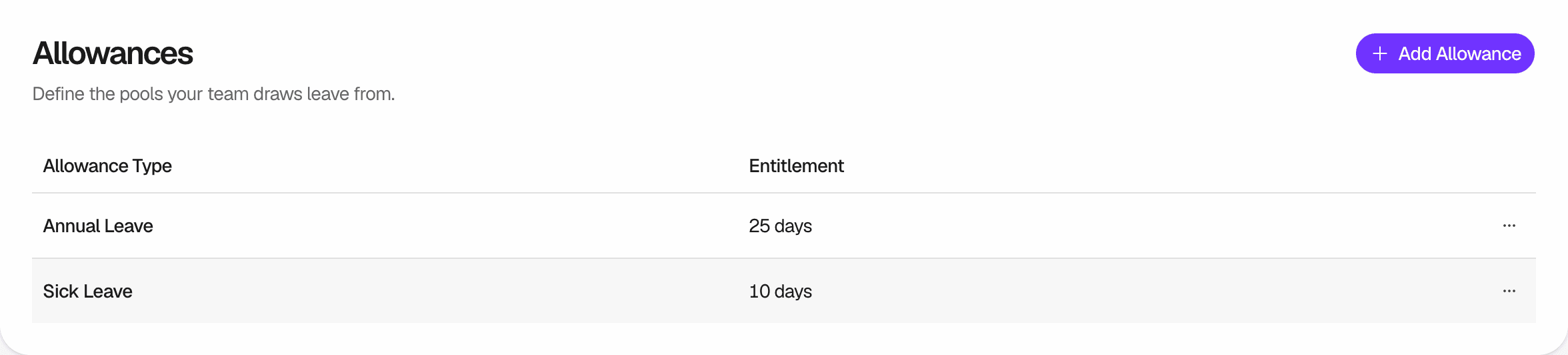
In Leavely, go to Settings > Allowances.
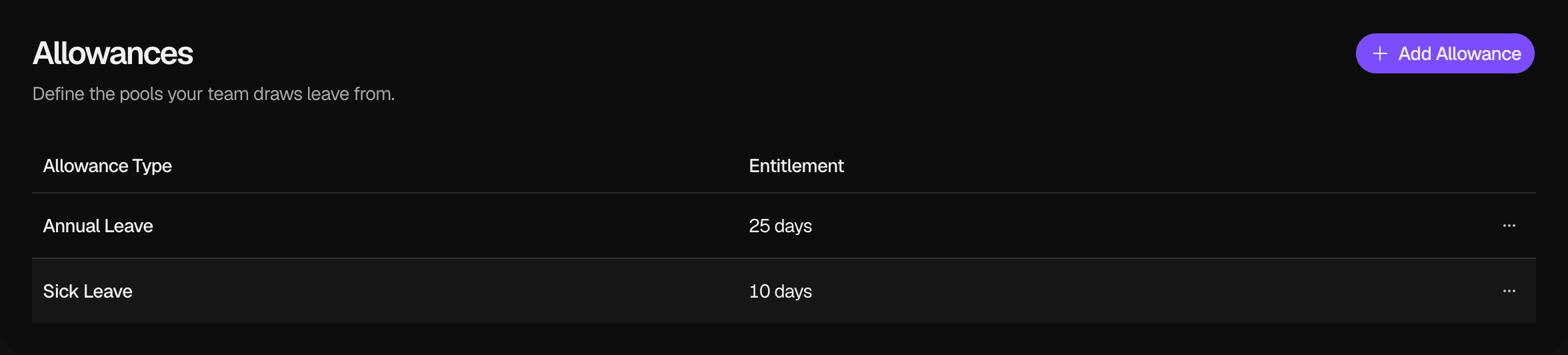
The table shows one row for each Allowance Type. Entitlement shows the From hire days of its default policy. To learn how Allowance Types, Allowance Policies and Tenure Tiers make an employee's entitlement, see Allowances and entitlement.
Add an Allowance Type
Select Add Allowance
In the page header, select Add Allowance.
Enter the details
Type a Name, such as Parental Leave, and an optional Description. In Starting Entitlement, enter the days a year for a new employee.
Create it
Select Create Allowance Type. The new row appears in the table.
Leavely also creates the default policy of the Allowance Type. It gets the name Standard, it has one From hire tier with the Starting Entitlement, and carry-over is off. Leavely creates a Leave Balance for every employee in the Current Leave Calendar and in the Leave Calendar after it. An employee whose End Date is before a Leave Calendar starts gets no Leave Balance in it.
An Allowance Type is used only when a Leave Type deducts from it. In Settings > Leave Types, set Deduct From Allowance on a Leave Type to the new Allowance Type. See Leave Types.
Edit an Allowance Type
Open the row menu
In the row of the Allowance Type, select the menu button, then select Edit.
Save
Change the Name or the Description, then select Save Changes.
To change the days, edit the Standard policy. See Edit an Allowance Policy.
Manage Allowance Policies
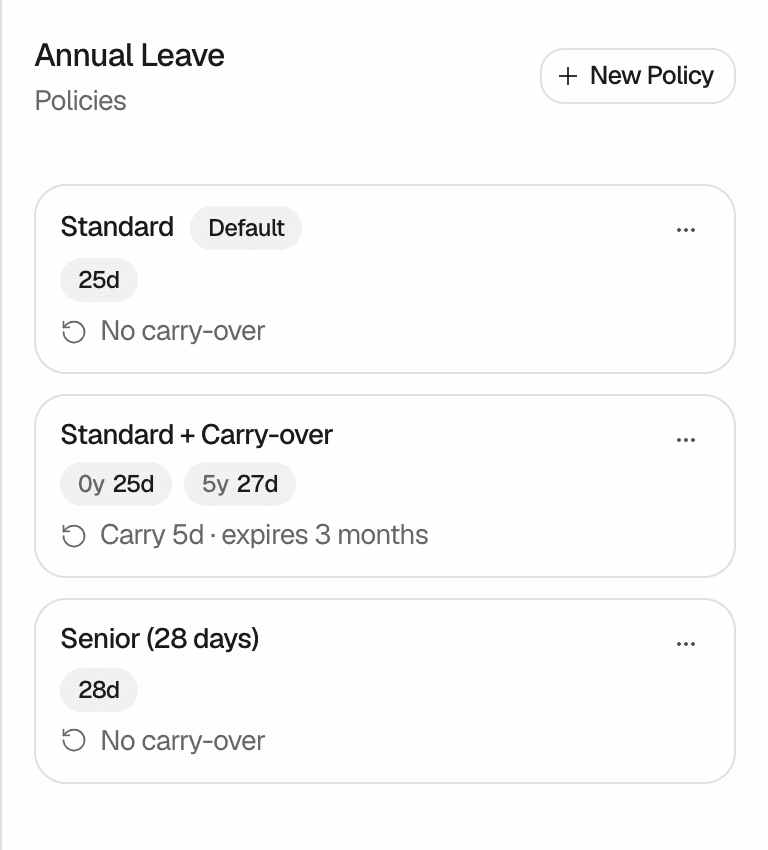
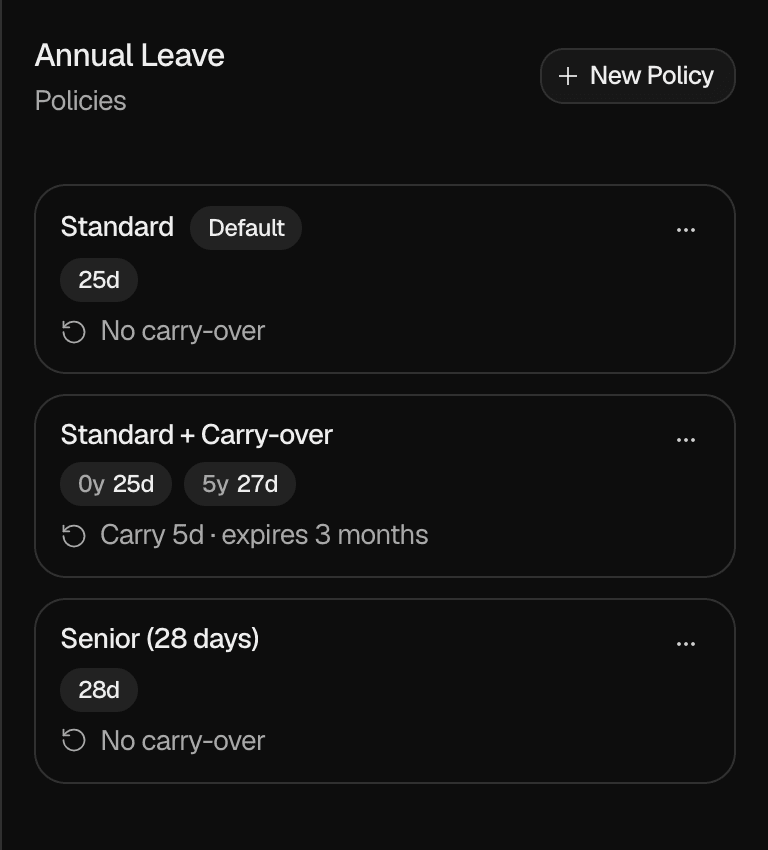
In the row of the Allowance Type, select the menu button, then select Manage Policies. A panel lists the policies of the Allowance Type. The default policy shows Default. Each policy shows its tiers and its carry-over rule, such as "Carry 5d · expires 3 months" or "No carry-over".
Add an Allowance Policy
Select New Policy
In the policies panel, select New Policy.
Name the policy
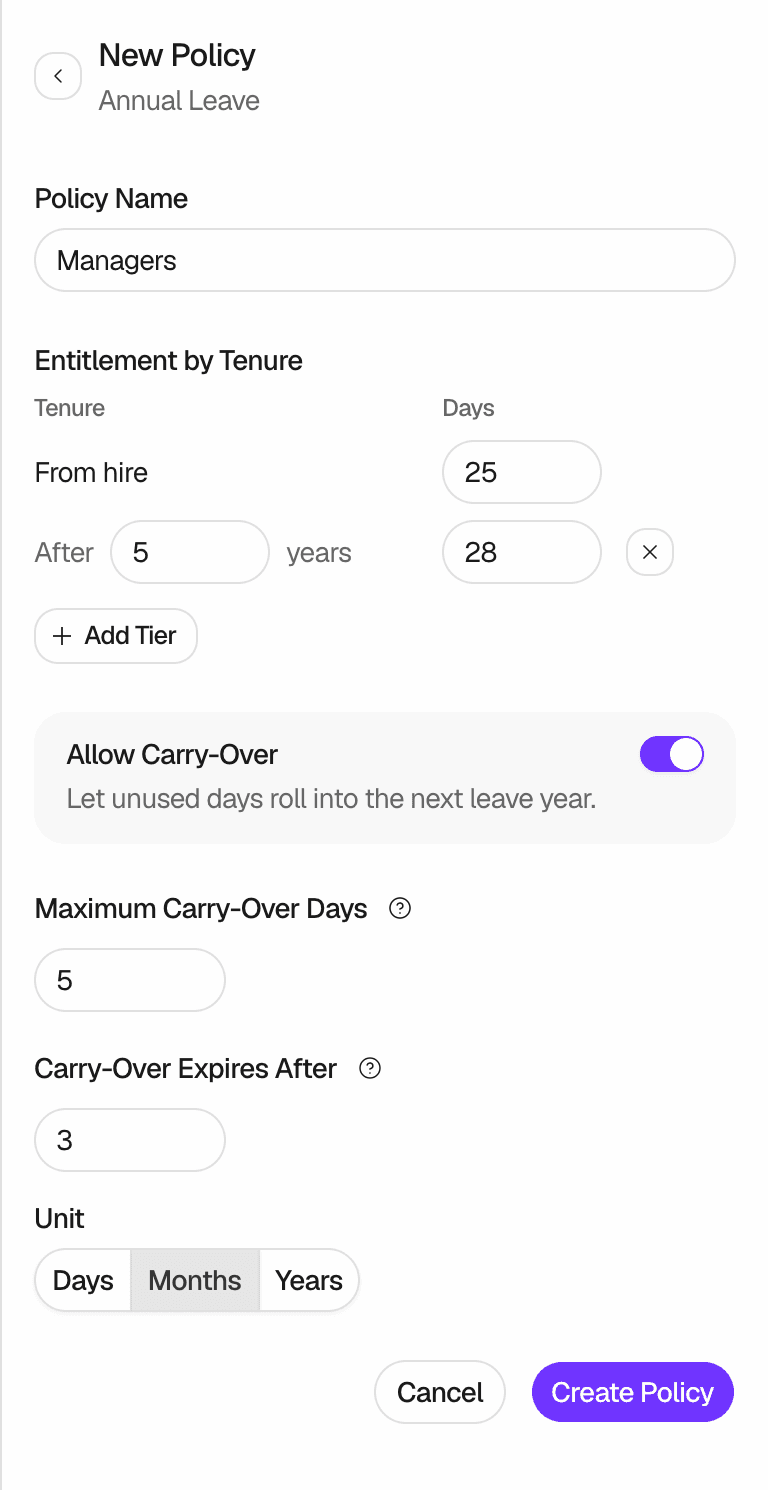
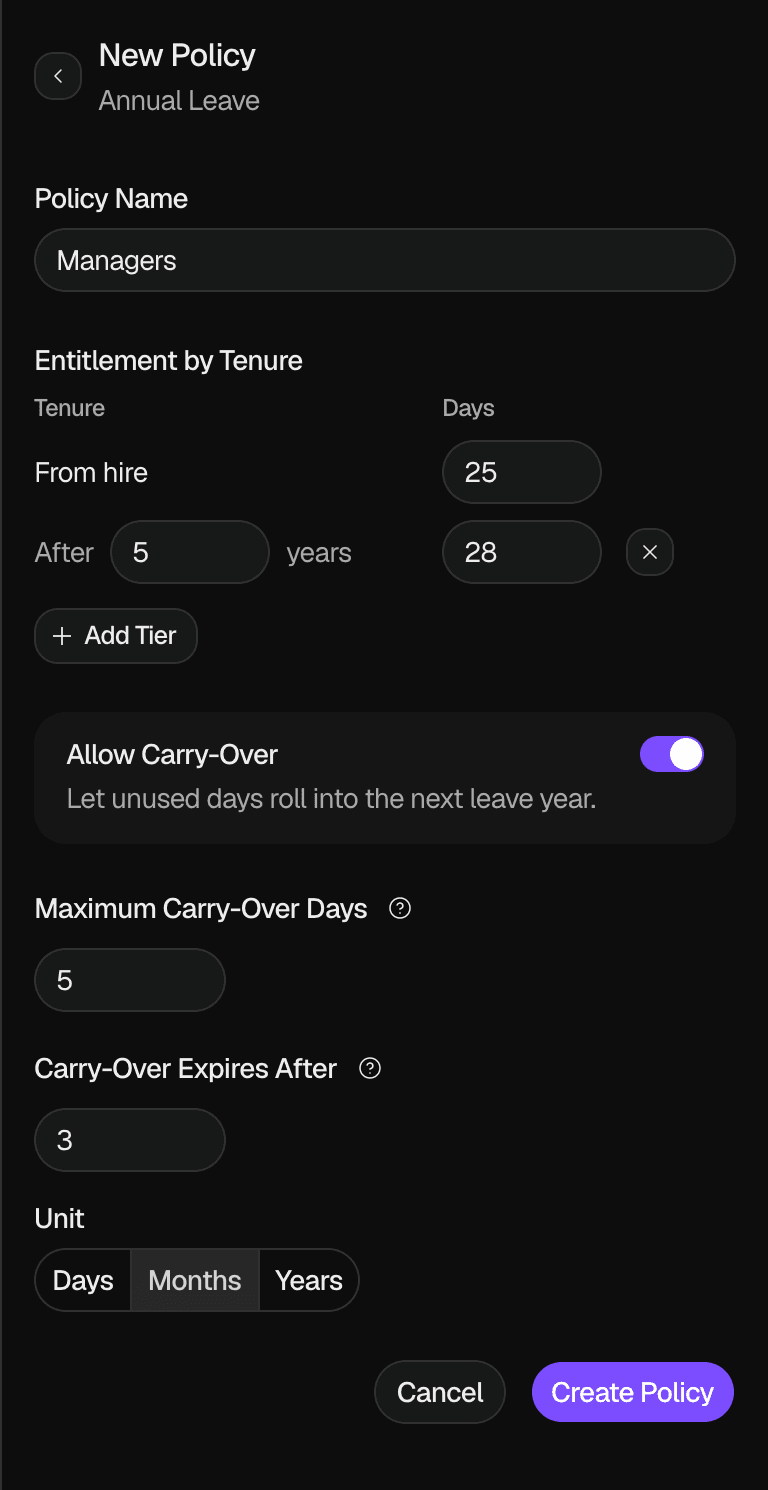
Type a Policy Name, such as Managers.
Set the Tenure Tiers
Under Entitlement by Tenure, enter the From hire days. To add a tier, select Add Tier, then enter the years after hire and the days. To remove a tier, select the remove button in its row.
Set carry-over
Turn on Allow Carry-Over to let unused days move into the next Leave Calendar. Then enter Maximum Carry-Over Days and Carry-Over Expires After, and select a Unit. See Carry-over.
Create it
Select Create Policy. No employee follows the new policy until you assign it.
Edit an Allowance Policy
Select Edit
In the policies panel, select the menu button of the policy, then select Edit.
Save
Change the name, the tiers or the carry-over rules, then select Save Changes.
The change applies immediately. Leavely calculates the entitlement again for every employee on the policy, in each Leave Calendar that has not ended. New carry-over rules apply at the next carry-over and at each expiry check.
Archive an Allowance Policy
Select Archive
In the policies panel, select the menu button of the policy, then select Archive.
Confirm
Select Archive Policy. The policy leaves the list.
You can archive a policy only when no employee is assigned to it. Move those employees to another policy first. You cannot archive the default policy.
Assign an Allowance Policy to an employee
Open the employee
Go to Settings > Employees. In the row of the employee, select the edit button.
Open the Policies tab
Select Policies. The tab shows one row for each Allowance Type, with the tiers of the employee's current policy.
Select the policy
In the row of the Allowance Type, select a policy from the list. The change saves immediately, and you do not need to select Update Employee.
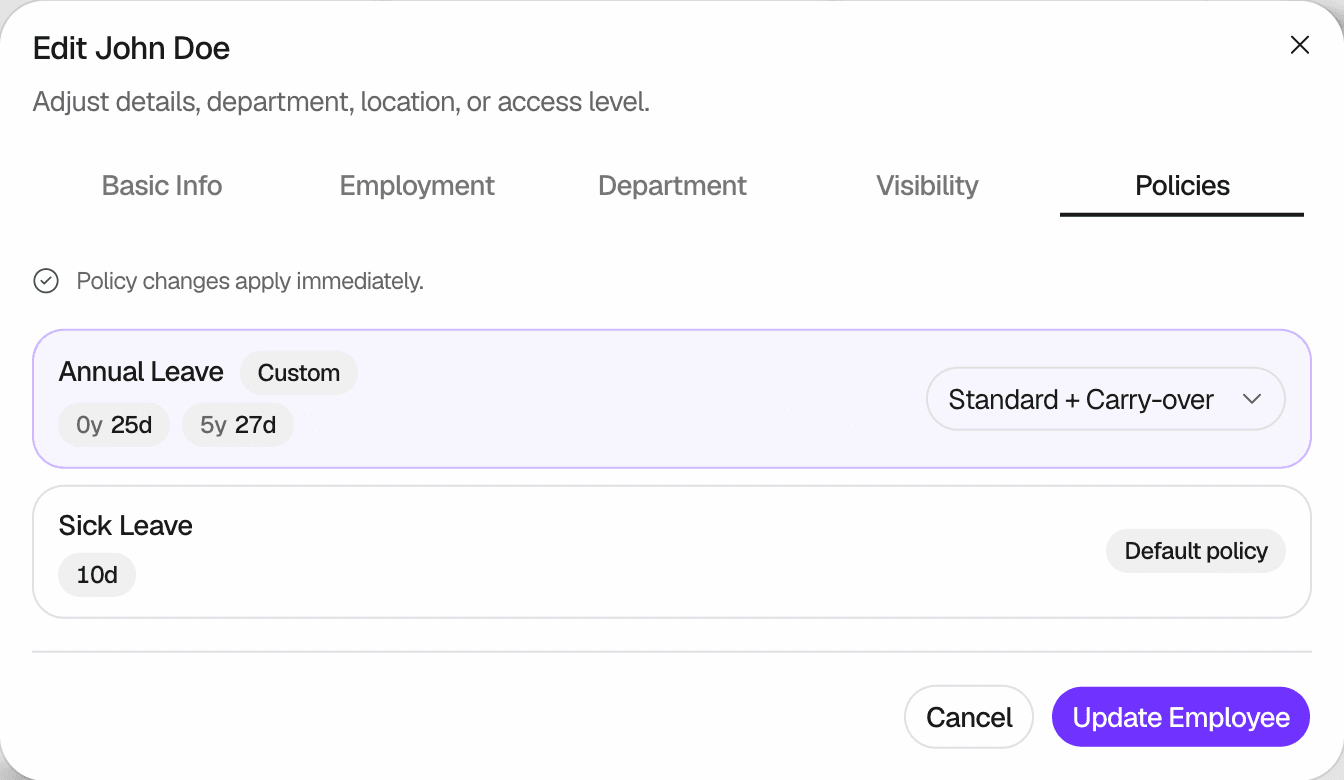
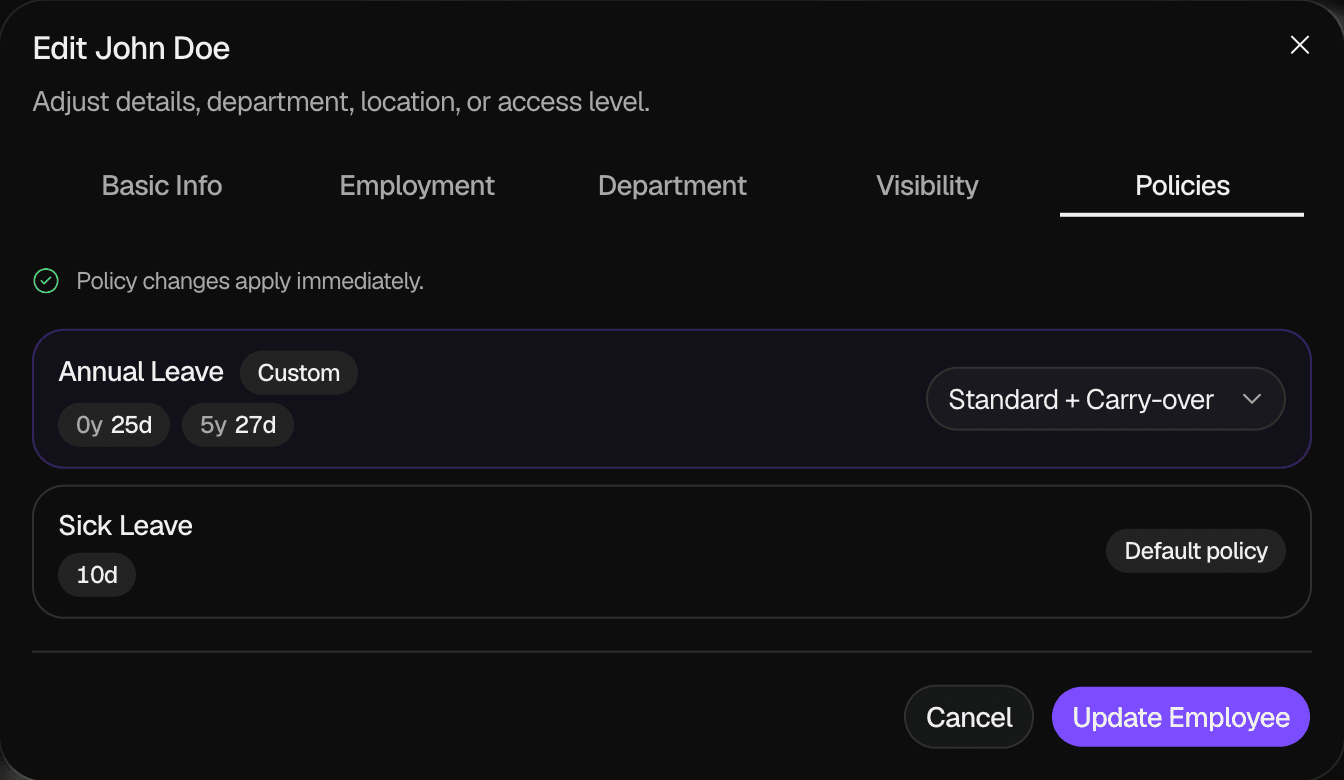
A row shows Custom when the employee is not on the default policy. To move the employee back, select the policy marked Default. When an Allowance Type has only one policy, the row shows Default policy and no list.
When you assign a policy, Leavely calculates the employee's entitlement again with the new policy, for the whole of each Leave Calendar that has not ended.
Archive an Allowance Type
Select Archive
In the row of the Allowance Type, select the menu button, then select Archive.
Confirm
Select Archive allowance. The row leaves the table.
When you archive an Allowance Type:
- Leave Types that deducted from it change to No Deduction. Requests of those Leave Types no longer use days from any Leave Balance.
- Its Leave Balances no longer show to employees, and they no longer carry over.
- Leavely archives its policies and removes the policy assignments of your employees.
You cannot unarchive an Allowance Type or an Allowance Policy. Before you archive an Allowance Type, set Deduct From Allowance on its Leave Types to the Allowance Type they must use.
Rules and limits
- Only Owners and Admins can open Settings > Allowances and assign policies.
- An Admin cannot open the Owner in Settings > Employees, so only the Owner can change the Owner's policies.
- Each Allowance Type needs a name that no other active Allowance Type uses. The check ignores upper and lower case.
- Starting Entitlement is from 1 to 365 days. A tier is from 0 to 365 days, and a policy has up to 10 tiers with a different number of years each, up to 50 years.
- Maximum Carry-Over Days is from 1 to 10.
- You cannot archive the last Allowance Type of your company. Its Archive option is not available.
- Leavely does not change the entitlement of a Leave Calendar that has ended.
How it affects entitlement
A change to a policy's Tenure Tiers changes the entitlement of every employee on the policy. In this example, an Admin changes the From hire tier of the Standard policy from 20 to 22 days in August 2026. The After 5 years tier stays at 25 days. The 2026 Leave Calendar runs from January 1 to December 31.
| Employee | Entitlement for 2026 before | Entitlement for 2026 after |
|---|---|---|
| Started February 1, 2024 | 20 days | 22 days |
| Started July 1, 2026 | 10 days | 11 days |
| Started September 1, 2021 | 22 days | 23 days |
The new tiers apply to the whole Leave Calendar, not only to the months after the change. The worked examples in Allowances and entitlement show the calculation.
FAQ
Employees are still assigned to it, or it is the default policy. Move the employees to another policy in Settings > Employees > Policies, then archive it.
No. Leavely has no manual balance change. To give one employee different days, create a policy for them and assign it.
The change would give an employee fewer days than they have used or requested. The message shows these days. Cancel or resolve the pending Leave Requests, then try again. See Allowances and entitlement.
A change to Tenure Tiers does not change the entitlement of Leave Calendars that have ended.
Last reviewed on