
 Leavely
Sign up and sign in
How to start a new company in Leavely, join your company from an invitation, sign in and sign out.
Create a Leavely account to start a new company, or join the company that invited you. Then sign in and sign out with your email address and password.
Two ways into Leavely
| You want to | Do this |
|---|---|
| Start using Leavely for your own company | Sign up. You become the Owner of a new company. |
| Join a company that already uses Leavely | Accept your invitation. You do not sign up. |
When your company already uses Leavely, do not sign up. Signing up makes a separate company, with none of your colleagues in it. Ask an Owner or Admin of your company to add you, and open the invitation email.
Where to find it
Go to leavely.co. Select Start free to sign up, or Sign in to sign in.
Start a new company
Open the sign-up page
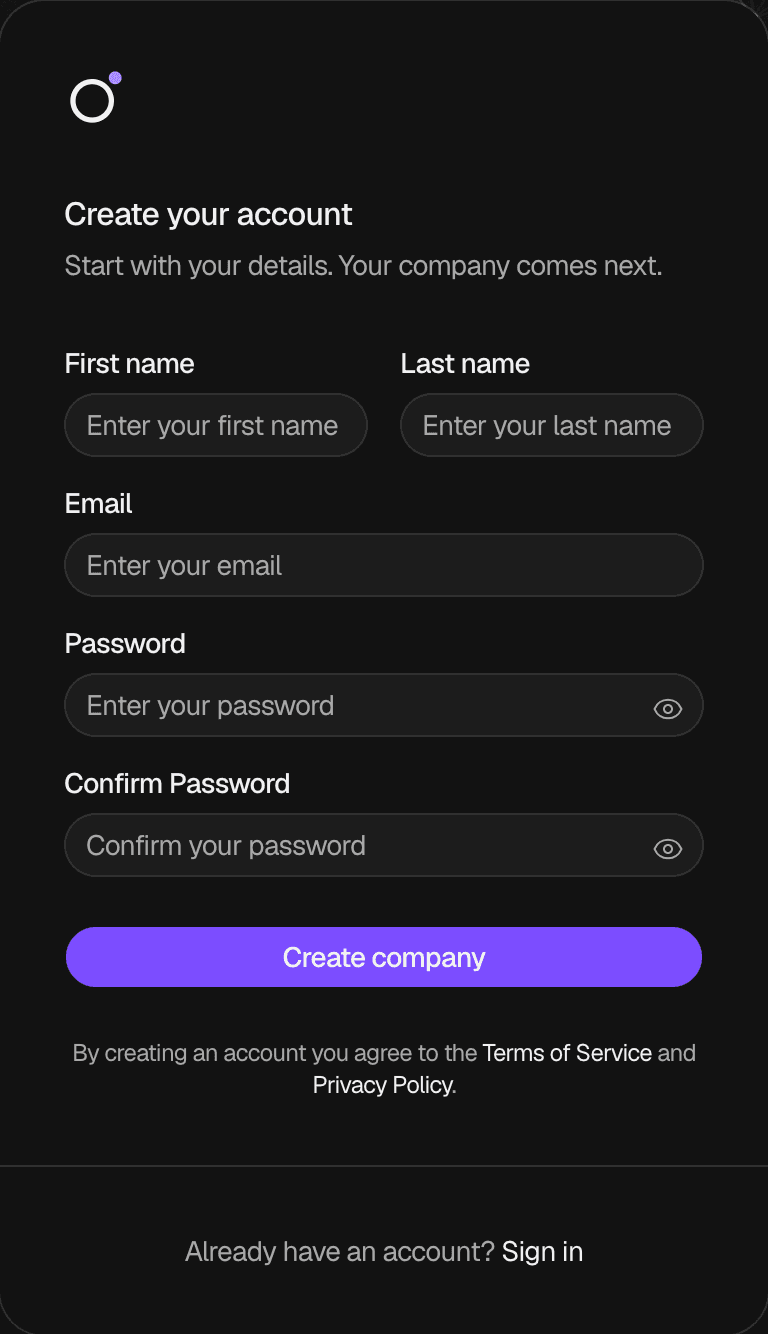
On leavely.co, select Start free. The page Create your account opens.
Type your details
Type your First name and Last name, each with at least 2 characters, and your Email. Type a Password, and type it again in Confirm Password. The password must follow the password rules.
Create the account
Select Create company. Leavely creates your account, signs you in and sends you an email to verify your email address. See Verify your email address. For all account emails, see Notifications.
Set up your company
Leavely opens company setup. Choose the leave year of your company on the Company leave year step, then complete the Company setup step. Leavely opens the Wall Chart of your new company, and you are its Owner. See Set up your company and Leave year and Leave Calendars.
You can use Leavely before you verify your email address. To add employees, you must verify it first.
When you already have an account, you do not sign up again. To start another company, add it from the Companies page. See Add a company.
Join your company from an invitation
An Owner or Admin of your company adds you as an employee, and Leavely emails you an invitation. Select Accept Invitation in the email:
- When you are new to Leavely, you set a password on the page Join your team, and Leavely signs you in to the company.
- When you already have a Leavely account, you sign in and select Join company. The company shows next to your other companies.
Accepting the invitation also verifies your email address. For each step, see Accept an invitation.
Sign in
Open the sign-in page
On leavely.co, select Sign in.
Type your email address and password
Type your Email and Password, then select Sign in. Leavely opens the Wall Chart of your company. When you belong to more than one company, switch between them from the sidebar. See Working across companies.
When the email address or the password is wrong, Leavely shows "Invalid email or password". When a company invited you and you have not accepted the invitation yet, you have no password. Open the invitation email and select Accept Invitation. When you forgot your password, select Forgot your password?. See Reset a forgotten password.
When your account belongs to no company, Leavely opens company setup after you sign in.
Sign out
Select your name at the bottom of the sidebar, then select Sign Out. Leavely signs you out on this device and opens the Leavely home page.
Leavely keeps you signed in on each device. When you do not use Leavely on a device for about 7 days, you must sign in again on it.
Rules and limits
- You sign in with your email address and password. Leavely has no other sign-in method.
- One email address has one Leavely account. The same account works in every company that you belong to.
- On sign-up, your first name and your last name must each have at least 2 characters.
- Nobody can change the email address of an account, including an Owner or Admin.
FAQ
Your email address already has a Leavely account, or a company added you as an employee. When a company invited you, open the invitation email and select Accept Invitation. Otherwise, sign in.
An invitation lasts 14 days. Ask an Owner or Admin of your company to resend it. The new email has a new link. See Resend an invitation.
You cannot change the email address of an account. Select your name at the bottom of the sidebar, then select Sign Out. Then sign up again with the correct email address, and set up your company again.
When an Owner or Admin added you with the wrong email address, ask them to remove you and add you again with the correct one. See Employees.
No. You sign in with your email address and password only.
Related pages
Last reviewed on