
 Leavely
Leave
Review the requests that wait for you, approve several at once, find a request by status, name or Department, and approve, reject, withdraw or cancel it.
Review the leave requests that wait for you, and approve or reject them one at a time or several at once. Find a pending, approved, rejected or cancelled leave request, see who decided it, and open it to read its description, attachments and history. In the request, approve, reject, withdraw or cancel it when you can.
Where to find it
In Leavely, go to Leave. Every member of the company can open it, on every plan.
The page has one list of the leave requests that you can see. The status buttons above the list select which requests show: All, Pending, Approved, Rejected or Cancelled. See Filter by status.
When you can approve leave requests, the page opens on Pending, which shows the requests that wait for a decision. The Owner, the Admins and the manager of each Department that is not archived can approve requests. When you cannot approve requests, the page opens on All and shows only your own requests.
In the notification bell, View details or View all requests opens the Pending view.
Review pending requests
A Department Manager can also review the requests of the members of each Department that they manage.
Which requests wait for you
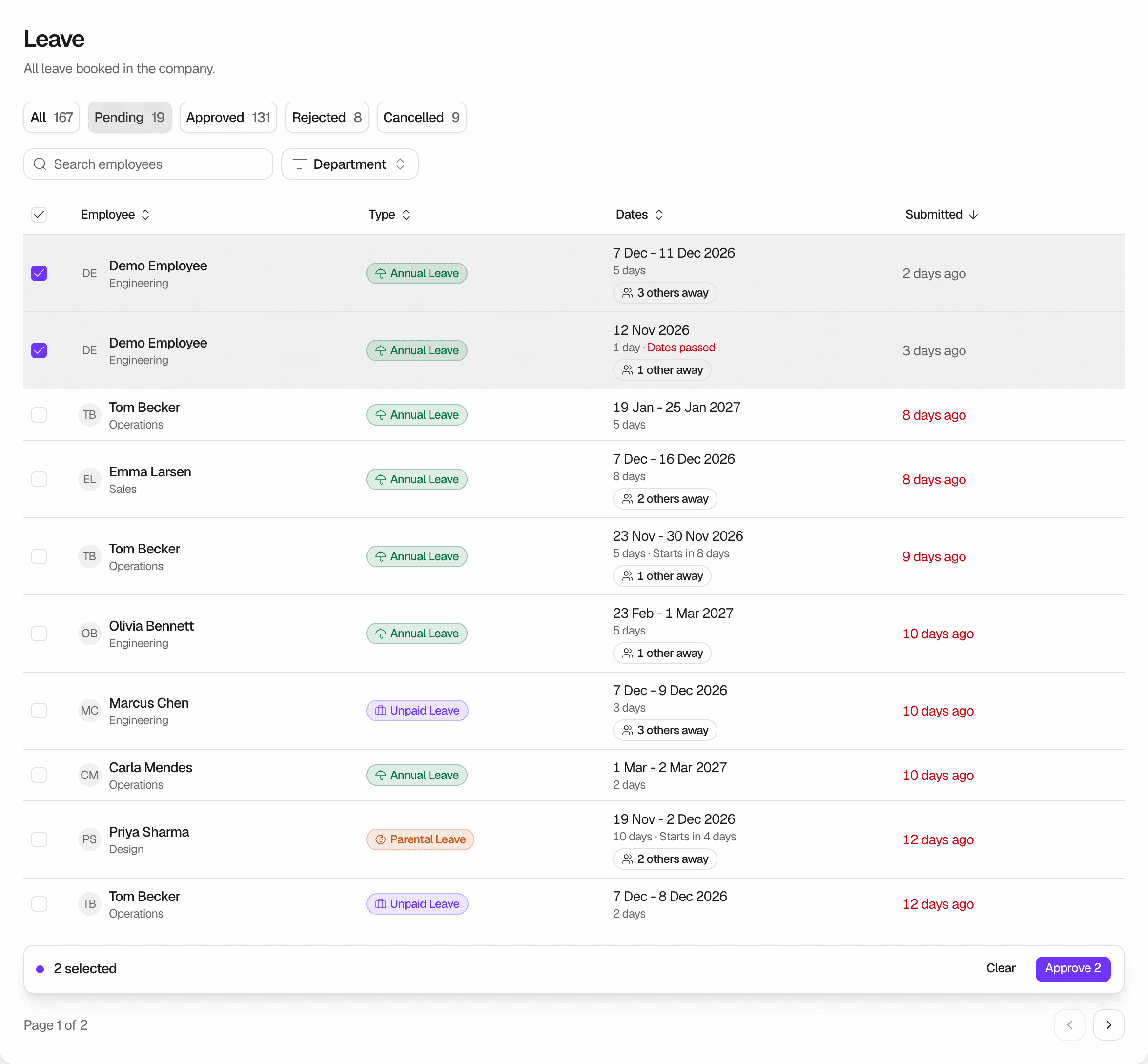
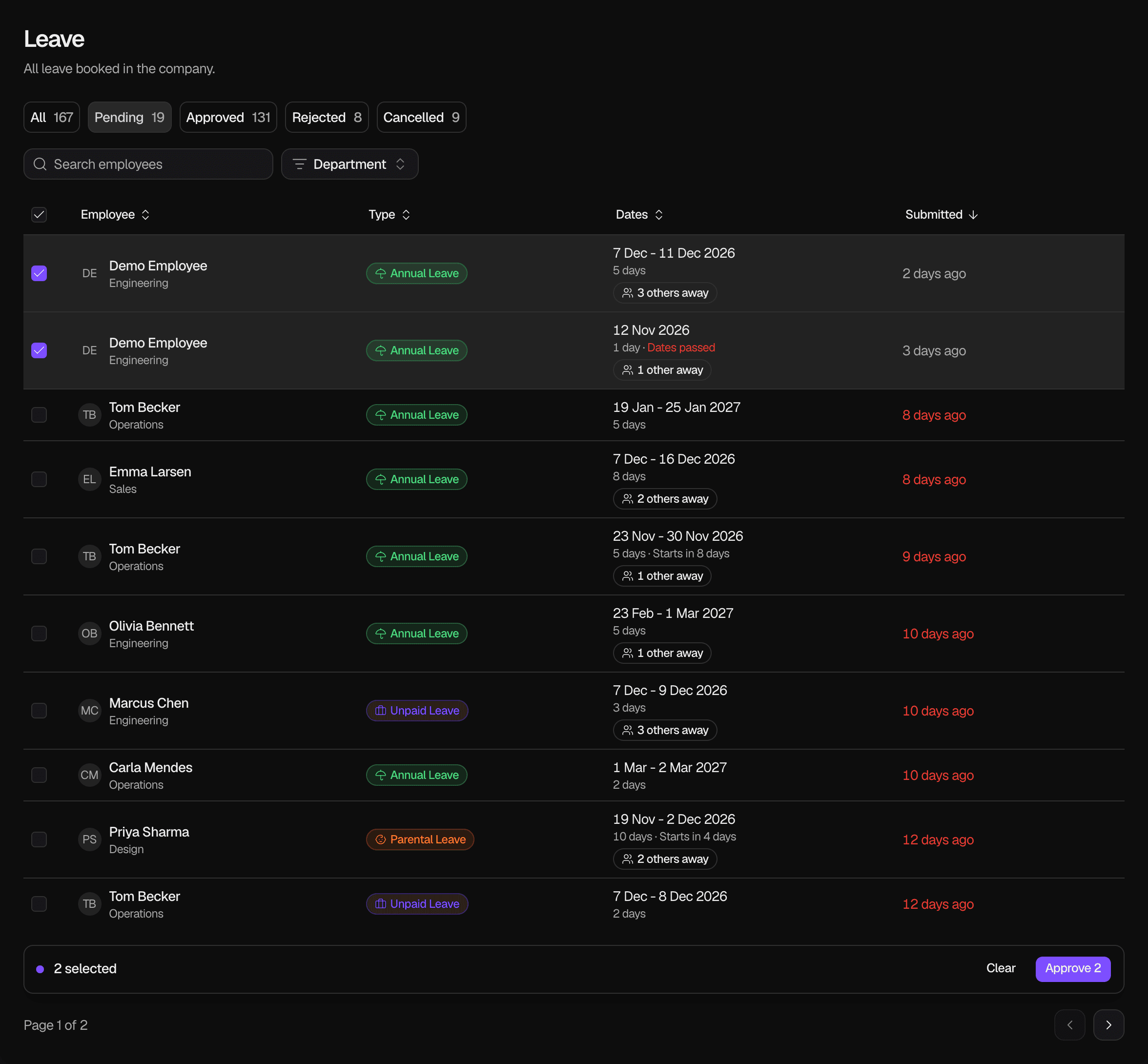
Pending lists your own pending Leave Requests and the pending requests of the people whose leave you can approve. The Owner and Admins can approve the requests of all members. A Department Manager can approve the requests of the members of each Department that they manage. One person can manage several Departments. See Roles and approval authority.
Your own pending request shows "Your request" and has no checkbox. You cannot approve your own request. The number on Pending counts your own pending requests, and the notification bell does not count them.
A request leaves the Pending view when an approver approves or rejects it, when the employee withdraws it, or when the employee is removed. It stays in the view until then, also after its dates have passed. See The employee leaves the company.
Read the pending requests
The Pending view shows the Employee, Type, Dates and Submitted columns. See Read the list.
On a pending request, in every view, a start label shows under the dates when the leave starts soon or has started. It shows "Starts today", "Starts tomorrow" or "Starts in 5 days", up to 14 days before the first day. It shows "Started" when the first day has passed, and "Dates passed" when every day of the request has passed.
On a pending request, in every view, the time in Submitted changes color when the request has waited more than 3 days, and again after more than 7 days.
On a pending request that you can approve, in every view, a label such as "2 others away" shows under the dates when other people in the employee's Department today have pending or approved leave on the same days. People hidden from the Wall Chart are not counted. Select the label to see their names.
To read the description, the attachments and the history of a request, or to approve or reject it, select the request. The detail sheet of the request opens. See Open a request.
On a phone, each request shows as a card. Select a card to open its request.
Approve a request
Open the request
In the list, select the request. On a phone, select its card. The detail sheet of the request opens. Under Before you decide, check the Leave Balance of the employee and who else in their Department today is away. See Before you decide.
Select Approve
At the bottom of the sheet, select Approve. The Approve Leave Request dialog opens with the employee, dates, days and Leave Type.
Confirm
Select Approve. Leavely shows "Request approved". The leave is approved, it uses days from the Leave Balance when its Leave Type deducts days, and the employee gets an email. The detail sheet stays open and shows the decision.
If the Leave Balance no longer has enough days, Leavely shows how many days are left and how many the request needs, such as "Not enough balance: 1 day left, and this request needs 2 days.", and the request stays pending. See Leave request lifecycle.
Reject a request
Open the request
In the list, select the request. On a phone, select its card. The detail sheet of the request opens. Under Before you decide, check the Leave Balance of the employee and who else in their Department today is away. See Before you decide.
Select Reject
At the bottom of the sheet, select Reject. The Reject Leave Request dialog opens on the sheet.
Give a reason
In Reason for rejection, type why you reject the request, in 10 to 500 characters. Spaces at the start and at the end do not count.
Confirm
Select Reject. Leavely shows "Request rejected". The request is rejected and uses no days, and the employee gets an email. The detail sheet stays open and shows the decision.
The employee sees your reason in Summary, under Upcoming Leave, next to the rejected request, until the last day of the request has passed. The email does not contain the reason. The reason also shows in the History of the request, to the employee and to each person who can see the request on the Leave page.
Approve several requests
Select the requests
Select the checkbox of each request. Only the requests that you can approve have a checkbox. To select all of them on the page, select the checkbox in the header. A bar shows how many requests you selected.
Approve them
Select Approve 3, with the number of requests that you selected. The dialog asks "Approve 3 Requests?" Select Approve Requests.
Leavely approves each request separately and sends each employee an email. When all succeed, Leavely shows how many requests it approved. When some fail, Leavely shows how many failed and the reasons that it got, such as "This leave request has already been processed." or "Not enough balance: 1 day left, and this request needs 2 days." The failed requests that you can still approve stay selected, so you can check them.
You select requests on the current page of the list. When you go to another page, or change the status, the sort, the search or the Department filter, the selection clears. To clear the selection, select Clear.
You cannot reject several requests at once. Reject each request separately. On a phone, the cards have no checkboxes, so you approve each request separately.
When no request waits
When no request is pending, the Pending view shows "You're all caught up. No requests need approval." Select See all requests to show All.
Which requests you see
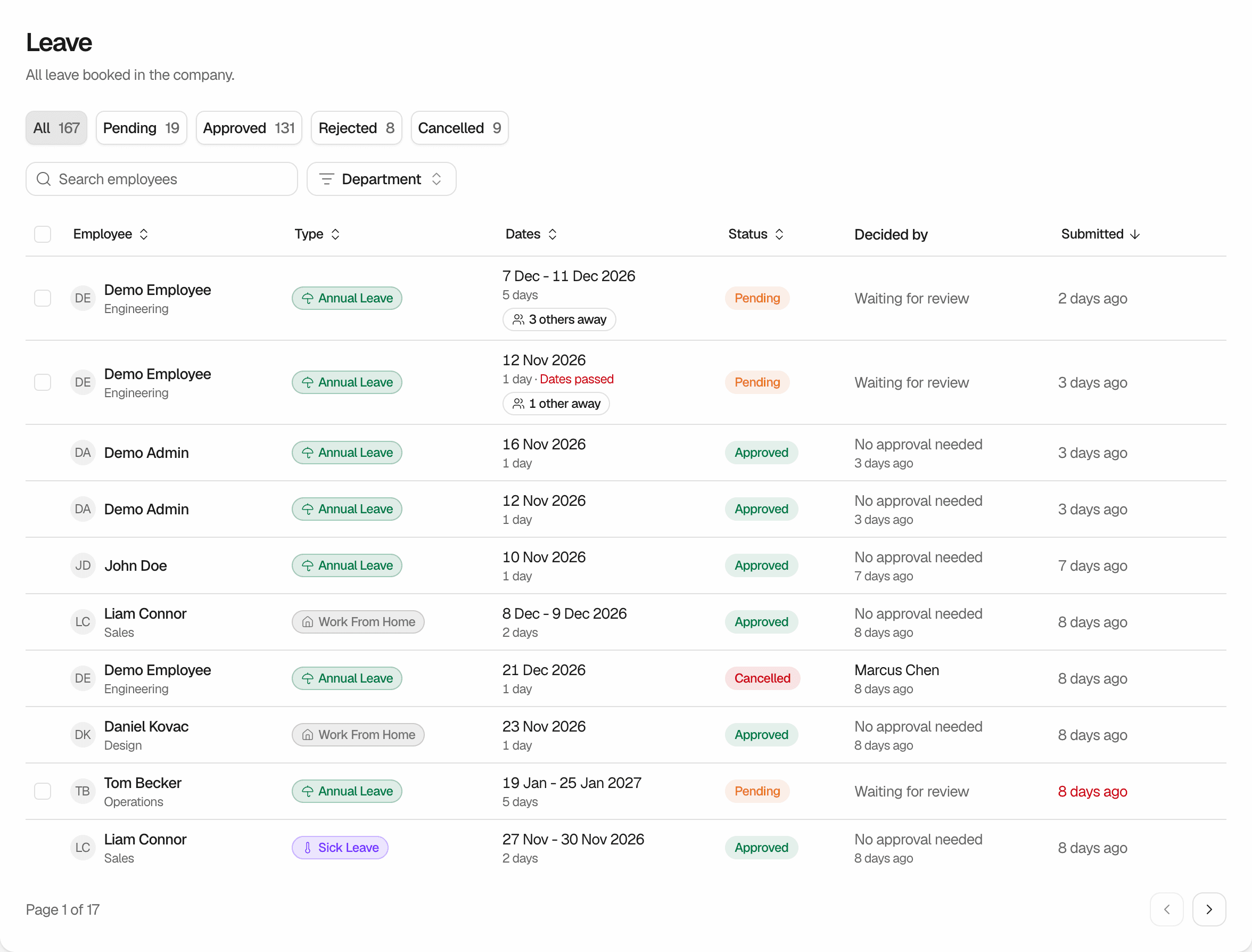
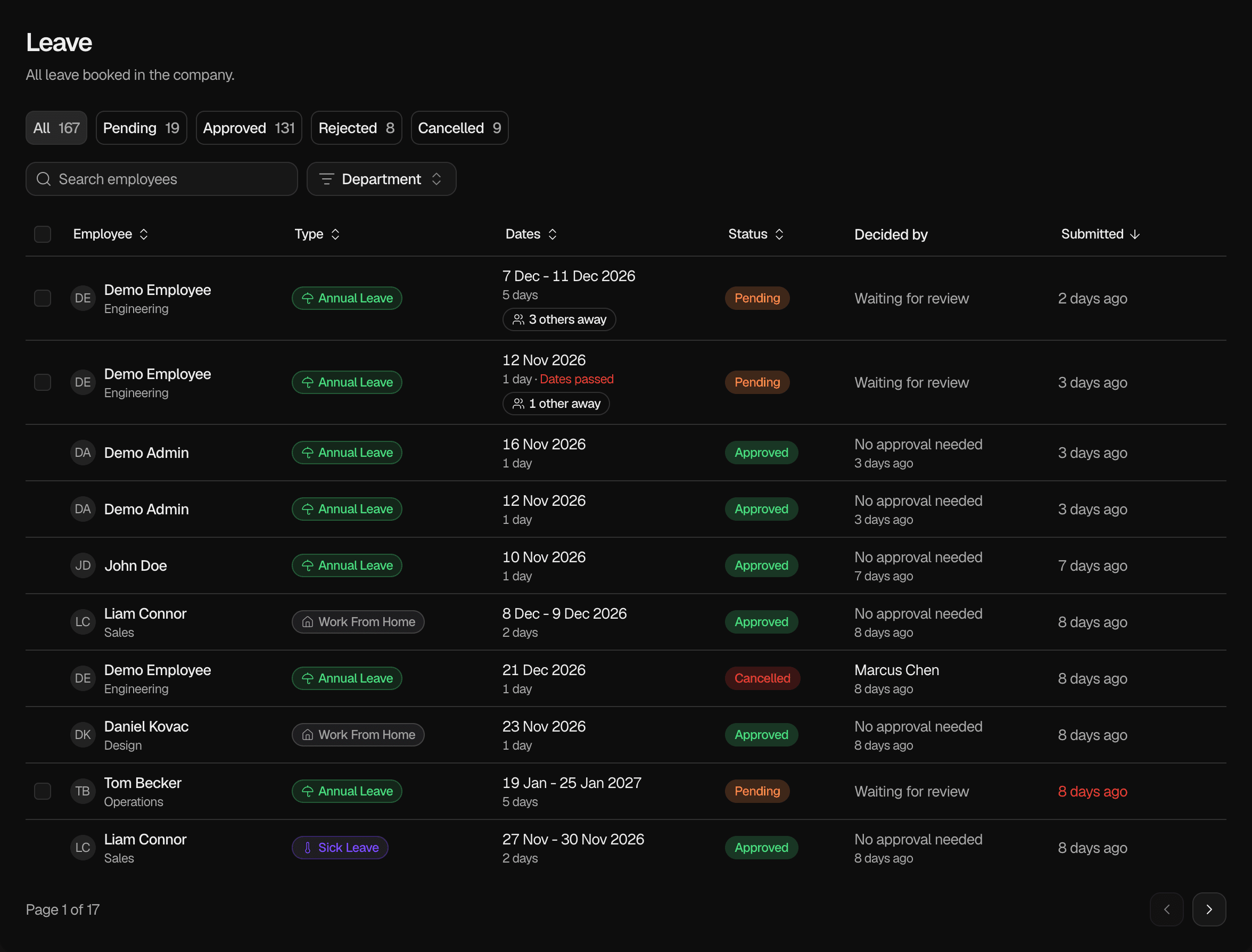
The list shows Leave Requests in these statuses: Pending, Approved, Rejected and Cancelled. It does not show withdrawn requests, your own included, the same as Summary. It also shows the requests of former employees, with a Former badge next to their name.
When you come back to a company that removed you, and you use the same account, the list also shows the requests of your earlier record, with the Former badge next to your own name. If Leavely deleted your account when the company removed you, or the company anonymized your earlier record, the list does not show those requests to you. See Working across companies.
Which requests you see depends on your role and on the Departments that you manage. The line under the page title tells you which requests the list shows.
| You are | The line under the title | The list shows |
|---|---|---|
| The Owner or an Admin | "All leave booked in the company." | Every request in the company |
| A Department Manager | "Leave booked in the departments you manage, and your own." | Your own requests, and the requests of each person whose Department today is one that you manage |
| An Employee | "Leave you booked." | Only your own requests |
For a Department Manager, the list follows the Department that each person is in today:
- The list shows all requests of the person, also the requests from before they joined your Department or before you became its manager.
- When the person moves to another Department, all their requests leave your list. The manager of the new Department sees them.
- For a former employee, Leavely uses the last Department that they were in.
See Roles and approval authority.
Read the list
Each request shows these columns:
| Column | What it shows |
|---|---|
| Employee | The name of the employee, and their Department today, if they have one. For a former employee, their last Department |
| Type | The Leave Type |
| Dates | The first and last day, and the number of days. For a half day, also Morning or Afternoon after the date. On a pending request, also the start label and the others away label. See Read the pending requests |
| Status | Pending, Approved, Rejected or Cancelled |
| Decided by | Who decided the request, and how long ago. See the next table. |
| Submitted | How long ago the request was sent |
| Status | Decided by |
|---|---|
| Pending | "Waiting for review" |
| Approved | The name of the approver, or "No approval needed" when nobody had to approve it, with how long ago it was decided |
| Rejected | The name of the person who rejected it, with how long ago it was decided |
| Cancelled | The name of the person who cancelled it, with how long ago it was decided |
The Pending view does not show Status and Decided by, because every request in it is pending.
To see the date, hover over the time in Decided by or Submitted.
To sort the list, select the title of a column: Employee, Type, Dates, Status or Submitted. To sort in the other direction, select it again.
To approve or reject a request, open it. See Review pending requests. When you can approve requests, each request that you can approve has a checkbox in its row, in every view, so that you can approve several requests at once.
A request is approved at once when its Leave Type does not need approval, when the Owner or an Admin books their own leave, or when an approver books leave for another employee. See Leave request lifecycle.
When an employee leaves the company, Leavely changes the status of their pending requests and of their approved leave that has not started. See What happens at once. When the Owner or an Admin removes the employee, Decided by on these requests shows the name of the person who removed them. When the person declines the invitation or deletes their account, Leavely cancels their approved leave that has not started, and Decided by shows their own name.
Find a request
Filter by status
Above the list, select All, Pending, Approved, Rejected or Cancelled. Each button shows the number of requests with that status. All shows the requests in all four statuses. See Where to find it for the status that the page opens on.
Search and filter by Department
A Department Manager can also search and filter by Department. An Employee sees only their own requests, so the search and the filter do not show.
- In Search employees, type all or part of a name. The list shows the requests of the employees whose name contains the text.
- When the list has requests from two or more Departments, a Department filter shows. Select one or more Departments. The list shows the requests of the people who are in those Departments today, and of the former employees whose last Department is one of them. Requests from people with no Department do not show while the filter is on. To remove the filter, select the x in it.
The numbers on the status buttons follow only the search and the Department filter. The numbers on the Department options follow only the status and the search.
Clear the filters
When no request matches the search, the Department filter or the status, the page shows "No requests match these filters". The status is a filter only when it is not All and not the status that the page opens on. Select Clear filters to clear the search and the Department filter. This also sets the status back to the one that the page opens on.
Open a request
Select a request in the list. The detail sheet of the request opens. To close it, select x, or go back in the browser.
On a phone, the sheet opens from the bottom of the screen. To close it, swipe it down, or go back in the browser.
The View Leave button in a leave email also opens this sheet. See Leave emails.
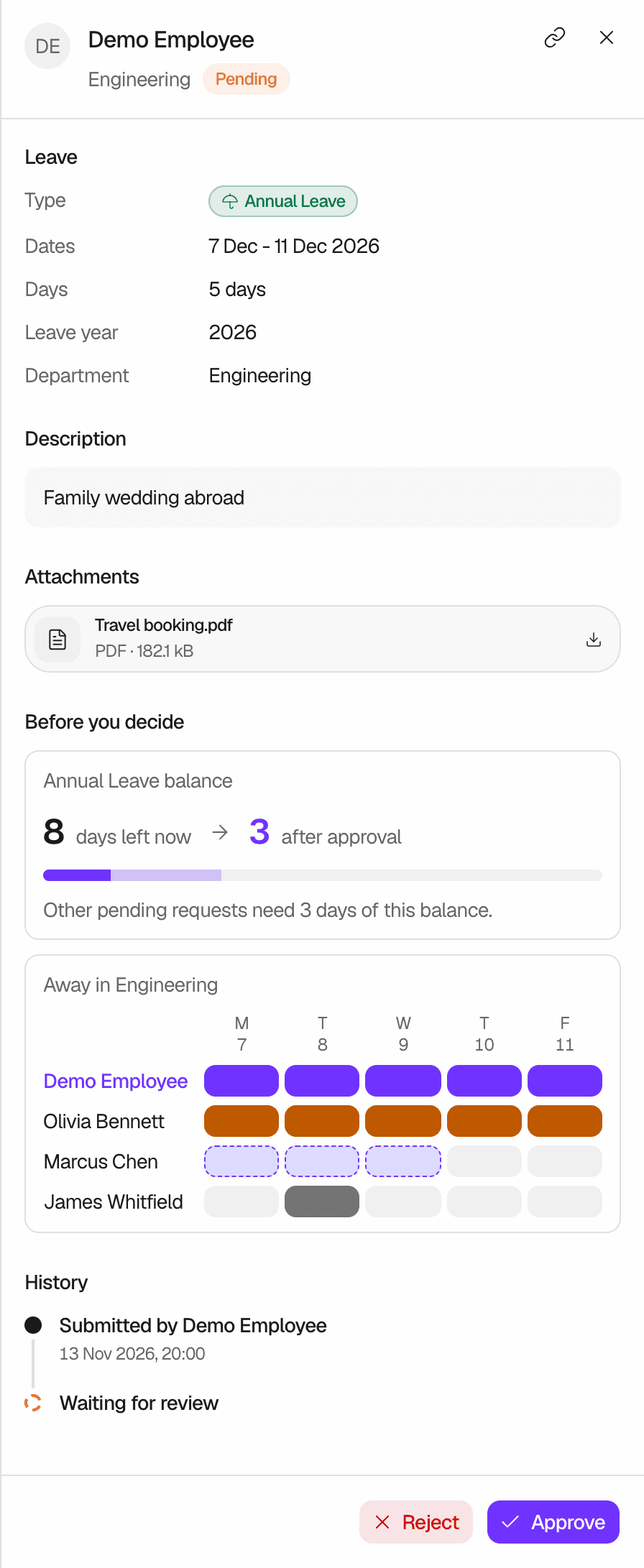
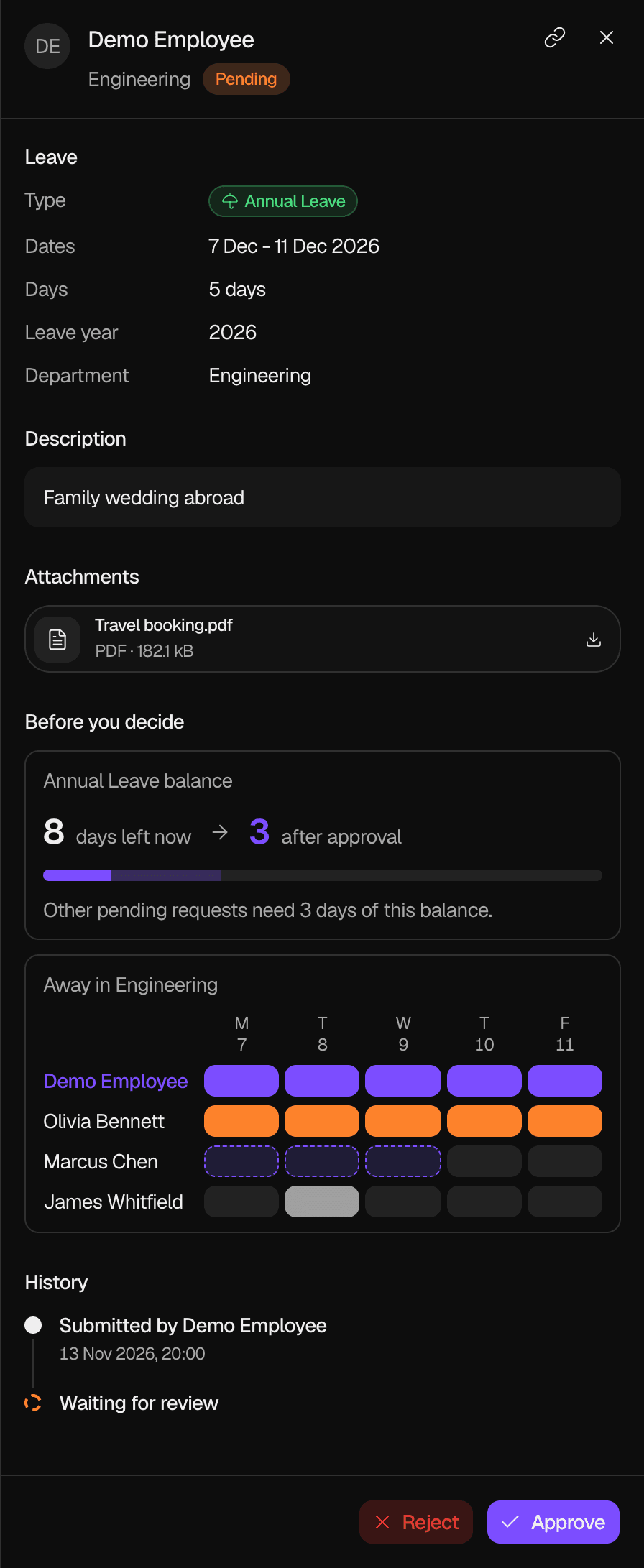
At the top, the sheet shows the employee, their Department today and the status of the request. For a former employee, the sheet shows their last Department and a Former employee badge.
Leave
| Item | What it shows |
|---|---|
| Type | The Leave Type |
| Dates | The first and last day. For a half day, also Morning or Afternoon |
| Days | The number of days |
| Leave year | The leave year of the request |
| Department | The Department of the employee when the request was sent, or "No department". When the employee's Department today is not the one recorded on the request, "(when submitted)" follows it |
When another person booked the leave for the employee, the Leave section also says who booked it, such as "Booked by John Doe for Jane Doe."
Description
Description shows the description of the request, or "No description".
Attachments
When the request has attachments, Attachments lists them, with the name, the type and the size of each attachment, such as "PDF · 1.2 MB". The employee of the request can open the attachments. So can each person with approval authority over the request: the Owner, the Admins, and the Department Manager of the employee's Department today, while that Department is not archived. On a withdrawn request, only the employee can open the attachments. See Who can see whose requests.
- To preview an attachment, select it. A dialog shows the PDF or the image. To save it, select Download in the dialog.
- To save an attachment without a preview, select the download button next to it.
The saved file has the name of the attached file, with the extension of its type, such as .pdf. Nobody can add, replace or remove the attachments of a request. See Request leave.
Before you decide
On a pending request that you can approve, the detail sheet shows Before you decide.
When the Leave Type deducts days, the balance of its allowance, such as Annual Leave balance, shows the days left now in the Leave Balance of the employee and the days left after you approve the request. Pending requests do not reduce the days left. When the request needs more days than are left, it shows the number of days that are missing, such as "Not enough balance: 2 days short." When other pending requests of the employee also use this balance, it shows the days that they need, such as "Other pending requests need 4 days of this balance."
When the employee has a Department today, Away in and the name of the Department show a grid with one column for each working day of the request. The employee has a row, and each other person in the Department with pending or approved leave on these days, other than on a holiday of the employee, has a row. A person hidden from the Wall Chart has no row. Approved leave is filled in the color of its Leave Type, and pending leave has a dashed outline. On a holiday of the employee, the column shows no leave. Hover over a day to see the person, the Leave Type, the dates, and whether the leave is pending. When more than 5 other people are away, select Show 3 more, with the number of people not shown yet, to see all of them. To show fewer again, select Show less. When nobody else is away, it shows "No one else in Sales is away on these days.", with the name of the Department.
When the Leave Type deducts no days and the employee has no Department, Before you decide does not show.
History
History shows each step of the request:
| Step | What it shows |
|---|---|
| Submitted by | The employee sent the request, with the date and time |
| Booked by | Another person booked the leave for the employee, with the date and time |
| Approved by | An approver approved the request, with the date |
| No approval needed | Nobody had to approve the request, with the date. See Requests that are approved at once |
| Rejected by | An approver rejected the request, with the date and the reason |
| Cancelled by | A person cancelled the approved leave, with the date, and the reason when they gave one |
| Withdrawn by | The employee withdrew the request |
| Waiting for review | The request is pending |
When the employee left the company and Leavely rejected or cancelled the request, the reason is "Left the company". See When an employee leaves the company.
Share a request
At the top of the sheet, select Copy link, the link button. Leavely shows "Link copied". When a person who can see the request on the Leave page opens the link, the same sheet opens for them.
Other members of the company see "We couldn't find this request". Leavely shows the same message for a request that does not exist. A link to a withdrawn request opens only for the employee of the request.
Act on a request
At the bottom of the detail sheet, Leavely shows the decisions that you can make on the request:
| The request | Buttons |
|---|---|
| Pending, and you can approve it | Reject and Approve |
| Pending, and it is your own | Withdraw |
| Approved, its first day is today or later, and you can cancel it | Cancel leave |
Rejected, cancelled and withdrawn requests have no buttons. The request of a former employee has no buttons.
Approve or reject a request
A Department Manager can also approve and reject the requests of the members of each Department that they manage.
On a pending request that you can approve, select Approve or Reject at the bottom of the sheet. See Approve a request and Reject a request for the steps.
The notification bell opens the same dialogs. See Approve and reject.
You cannot approve or reject your own request. See Who can approve whose request.
Withdraw your own request
Select Withdraw
In the sheet of your pending request, select Withdraw. The dialog Withdraw this request? opens.
Confirm
Select Withdraw. Leavely shows "Request withdrawn". To keep the request, select Keep request.
The request is Withdrawn, and it leaves the list. Leavely sends no email about it. You can withdraw a request while it is pending, also after its last day, when Summary no longer shows it. See Withdraw a pending request.
Cancel approved leave
A Department Manager can also cancel the approved leave of the members of each Department that they manage.
Select Cancel leave. The dialog Cancel this leave? opens, the same as on the Wall Chart. See Cancel approved leave.
You can cancel approved leave until its first day, that day included. You cannot cancel your own leave, except when you are the Owner.
When you cannot act
You cannot approve or reject your own request. On your own pending request, the sheet shows only Withdraw.
When your own approved leave has not started and you cannot cancel it, the sheet shows "To change this leave, ask someone who approves your requests to cancel it."
After a decision
The sheet stays open. Its status and History show the decision at once. The numbers on the status buttons of the list and the notification bell also show the change. After you approve a request, Cancel leave shows when you can cancel the leave.
Rules and limits
- In the detail sheet, you make a decision on one request. To approve several requests at once, select them in the list. See Approve several requests.
- You cannot reject several requests at once.
- A rejection needs a reason of 10 to 500 characters. An approval takes no reason.
- To cancel approved leave, use the Wall Chart or the detail sheet of the request. See Leave request lifecycle.
- When the All view has no requests and no search or Department filter is on, the page shows "No leave booked yet".
- If the page cannot load the requests, it shows "Couldn't load leave requests". Select Try again to load them again.
- If the detail sheet cannot load the request, it shows "Couldn't load this request". Select Try again.
- If the dialog cannot show the file, it shows "Couldn't show a preview." To open the file in another app, select Download.
- If you can no longer open the request, you cannot preview or download its attachments. This happens, for example, when the employee withdraws the request or moves to a Department that you do not manage after you open the sheet.
- If the detail sheet cannot load Before you decide, it shows "Couldn't load the balance and who else is away." Select Try again.
FAQ
A Department Manager sees the requests of the people who are in the Departments that they manage today. If the person has no Department, or is now in a Department that you do not manage, their requests do not show. Only the Owner, an Admin, or the manager of their Department sees them.
The employee is no longer in a Department that you manage. They moved to another Department, or they have no Department now. All their requests, also the earlier ones, leave your list. The manager of their new Department sees them.
Checkboxes show only when you can approve leave requests: when you are the Owner or an Admin, or the manager of a Department that is not archived. Then they show only on the pending requests that you can approve. Without this authority, the page opens on All and shows only your own requests.
Another approver approved or rejected the request, or the employee withdrew it, before your action. The request keeps the status of the first action. If you reject a request that changed earlier and your list was not up to date yet, Leavely shows "Couldn't reject this request." instead.
The approval failed. When the Leave Balance does not have enough days, the message starts with "Not enough balance" and gives the days. When the Leave Calendar of the request is archived, the message is "Couldn't approve this request." Reject the request, or ask the employee to withdraw it. See Leave request lifecycle.
You cannot undo a rejection. You can cancel approved leave on the Wall Chart or in its detail sheet, until its first day, that day included. See Cancel approved leave.
Yes. The Owner and Admins see the requests of all former employees. A Department Manager sees them when the last Department of the person is one that they manage. A Former badge shows next to the name.
Related pages
Last reviewed on
Request leave
Choose a Leave Type and dates, attach files, check the days that count against your Leave Balance, and send the request or book leave for an employee.
Wall Chart
See who is on leave on each day of a month, filter the chart by Department, book leave from a free day, and cancel approved leave when you are an approver.